Here’s the annoying truth: you can buy a fancy USB-C dock and still end up with a black screen. The problem usually isn’t your monitor or your laptop. It’s the type of video tech hiding inside that USB-C port.
In 2026, people keep mixing up USB-C, Thunderbolt, and DisplayPort Alt Mode. They’re not the same thing, and the “fix” depends on which one your device actually supports. This guide is my real-world connection checklist so you stop guessing.
USB-C vs Thunderbolt vs DisplayPort Alt Mode: the quick answer
If you want one simple rule: USB-C is the plug, while Thunderbolt and DisplayPort Alt Mode are the video/data behaviors that the plug may support.
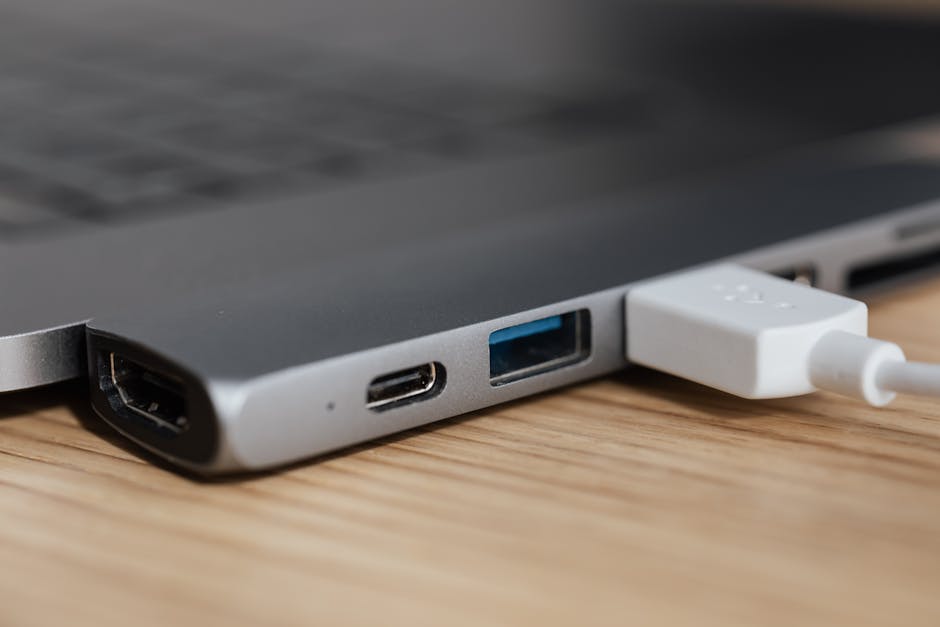
USB-C refers to the physical connector shape. Thunderbolt is a specific high-speed standard from Intel/Apple that often supports video, data, and power in one cable. DisplayPort Alt Mode is a way to send a DisplayPort video signal over a USB-C cable.
Key definitions (so you don’t buy the wrong cable)
Before you connect anything, you need to know what each term really means on the hardware side.
What USB-C actually means (and what it doesn’t)
USB-C is a connector type. It doesn’t automatically guarantee video output, high-speed data, or charging power at the level you expect.
I’ve seen this a lot with cheaper laptops and monitors: the port looks “the same,” but one supports video out and another only supports basic charging and file transfers.
What Thunderbolt means in plain English
Thunderbolt is a “faster USB-C with rules.” It carries more data than many USB-C ports, and it usually supports video output and daisy-chaining (depending on the model).
In practice, Thunderbolt docks tend to be more reliable with high refresh-rate monitors and advanced setups. They also cost more.
What DisplayPort Alt Mode means
DisplayPort Alt Mode is “DisplayPort video sent through a USB-C plug.” It uses the USB-C link to carry DisplayPort signals.
This is common on many Windows laptops, especially mid-range models. The catch: not every USB-C port supports Alt Mode, and some cable/dock combos won’t handle higher resolutions or refresh rates.
What most people get wrong: “My USB-C port says video, so any cable works”
This is the #1 mistake I see. The port might support video, but your cable or dock might not support the right mode or speed.
Here’s a typical scenario: you buy a USB-C to HDMI adapter for “video.” You plug it into a laptop USB-C port that supports Alt Mode, but the adapter only works for certain resolutions. Result: black screen, flicker, or “No Signal.”
Real-world connection guide: how to tell which tech you have

Use this checklist before you buy or plug in anything. It’s faster than troubleshooting for 45 minutes.
Step 1: Check your laptop/phone manual or spec page (fastest truth)
Look for wording like:
- “Thunderbolt 3/4” (usually printed near the port or listed in specs)
- “DisplayPort Alt Mode” or “DP Alt Mode”
- “USB-C (DP output)” or similar video notes
If you have a Mac, Thunderbolt support is more likely, but you still want to verify the exact port.
Step 2: Look for port symbols (but don’t trust them blindly)
Ports often have small icons. For example:
- A lightning bolt usually means Thunderbolt on many devices.
- A “DP” style logo can mean DisplayPort Alt Mode.
I’ve still had cases where the symbol looked promising but the cable/dock choice ruined the outcome. Treat symbols as a starting clue, not final proof.
Step 3: Test with a known-good cable for 2026 expectations
In 2026, most people should avoid random “charge-only” USB-C cables. For video, you want a cable labeled for the behavior you need.
Here’s what I recommend based on the tech:
- Thunderbolt: buy a certified Thunderbolt cable when possible, especially for higher-bandwidth monitors.
- DisplayPort Alt Mode: use a USB-C cable that clearly supports video/DP Alt Mode (not just “USB-C”).
- USB-C only: don’t expect video unless the device explicitly supports it.
USB-C video setup examples (what works, what breaks)
Let’s talk about the real stuff: docking at work, connecting at home, and traveling with one cable.
Example A: You want a dual-monitor office setup (dock + laptop)
This is where Thunderbolt often wins. A Thunderbolt dock can handle multiple displays more consistently because it has more guaranteed bandwidth and tighter standards.
If you’re using DisplayPort Alt Mode instead, you can still do dual monitors, but you need to check the dock’s supported output count and your laptop’s Alt Mode limits.
Example B: You want one external monitor for a travel setup
For one monitor, DisplayPort Alt Mode can be enough and often cheaper. It’s common on Windows laptops and many 2-in-1 devices.
My travel rule: bring one good USB-C to DisplayPort cable (or the adapter your monitor brand recommends) rather than a bag of random HDMI adapters.
Example C: You’re using a USB-C “hub” with random HDMI ports
This is where people get stuck. Some hubs only support basic USB data. Others support video but only at 1080p. A few support video only on the first HDMI port.
If you want a “set it and forget it” experience, choose a dock or hub that clearly lists your output tech (Thunderbolt dock for Thunderbolt, DP Alt Mode-friendly for Alt Mode).
Comparison table: USB-C vs Thunderbolt vs DisplayPort Alt Mode
Use this table to choose the right path when you’re standing in front of a store shelf or scrolling through listings.
| Feature | USB-C | Thunderbolt | DisplayPort Alt Mode |
|---|---|---|---|
| What it is | Connector shape | High-speed standard | Video mode over USB-C |
| Video output reliability | Depends on the device | Usually strong and consistent | Good if supported correctly |
| Docking and multi-monitor | Often limited | Commonly better for multiple displays | Can work, but check limits closely |
| Cable requirements | Varies a lot | Cables matter more; use proper TB cables | Video-capable USB-C cables are required |
| Typical use case | Charging + data | Work docks, pro setups | Single or simple monitor setups |
People Also Ask: common questions (with direct answers)
Is DisplayPort Alt Mode the same as Thunderbolt?
No. DisplayPort Alt Mode is only about sending a DisplayPort video signal over a USB-C port. Thunderbolt is a full standard for high-speed data and video (often with more features).
A practical way to think about it: Alt Mode is “video via DP,” Thunderbolt is “a fast system link.”
When this confusion causes a black screen
If you buy a Thunderbolt dock assuming it will work on a USB-C port that only supports Alt Mode, you’ll hit limitations. The dock may not talk to your laptop the way it expects.
Fix: check your laptop port’s label in specs. Then match the dock type to that behavior.
Can I use any USB-C cable for a monitor?
For video, you can’t assume “USB-C to USB-C” means “works for display.” Some USB-C cables are charge-only or only support basic data.
For a monitor connection, only use a cable that’s explicitly meant for video (DP Alt Mode) or Thunderbolt, based on what your port supports.
My cable rule from fixing too many setups
If a listing says “for charging” or doesn’t mention video, I treat that as a no. When you’re spending money, it’s cheaper to buy one correct cable than to troubleshoot all night.
Why does my HDMI adapter show no signal from USB-C?
Usually one of these is happening:
- Your USB-C port doesn’t support video output (or supports it in a limited way).
- The adapter only supports certain resolutions/refresh rates.
- The cable between dock and adapter isn’t video-capable.
- Power draw or negotiation fails (common with cheap hubs).
Start simple: try a direct USB-C to DisplayPort cable if your monitor supports DisplayPort, or try a known-good adapter from a reputable brand.
Does Thunderbolt work with USB-C monitors?
It can, but it depends on the monitor and its connection type. Some “USB-C monitors” are really DisplayPort Alt Mode monitors. Others rely on a Thunderbolt path.
If the monitor says it supports DisplayPort Alt Mode over USB-C, a Thunderbolt laptop will usually work because Thunderbolt can carry DisplayPort video too. Still, you should check the monitor’s manual for the exact supported mode.
Cybersecurity note: why docks can be a risk (yes, really)
When you plug in a dock, you’re not only sending video. You’re creating a device connection that can allow data access.
I’ve seen security teams warn about USB attacks because a dock can expose ports like ethernet, storage, and input devices. Even if the display works, you should be careful with unknown docks in public spaces.
If you want to go deeper, check out our guide on USB device security tips and our related article on USB attack vectors explained. These pair well with gadget setup because the threat model matters.
Choosing the right setup in 2026 (my practical recommendations)
This is where you decide based on your goal, not the marketing name on the box.
If you need reliable work docking: pick Thunderbolt
When I set up laptops for coworkers who need it to “just work,” I lean Thunderbolt. It’s less picky about cable quirks and handles more complex display setups more consistently.
Look for: Thunderbolt dock model + explicit multi-display support + power delivery (PD) for your laptop.
If you want a cheaper single-monitor setup: DisplayPort Alt Mode is fine
If your laptop supports DisplayPort Alt Mode, you can get great results with a solid USB-C to DisplayPort cable or a good USB-C-to-monitor path.
I’d avoid random HDMI multi-adapters for this. They often drop refresh rate or fail at 1440p and above.
If your laptop only has basic USB-C: don’t force video
If the device spec doesn’t list video output, no adapter will “upgrade” it. In that case, your only real options are:
- Use a different port (like HDMI/DisplayPort if available).
- Use a wireless display option (with latency tradeoffs).
- Check for a dock model that supports video via another internal interface (rare, but sometimes true).
If you’re stuck, it’s usually cheaper to buy a device with the right port than to keep patching around it.
Quick troubleshooting: fix black screen, flicker, and “No Signal”
Here’s the shortest path I use when something doesn’t work. Do these in order.
- Re-seat the cable and try a different USB-C port on your laptop.
- Switch the monitor input to match the exact cable type (HDMI vs DisplayPort).
- Lower the resolution temporarily (Windows: Display settings; macOS: System Settings > Displays).
- Check refresh rate. If you’re at 120Hz or 144Hz, drop to 60Hz to test.
- Try a different cable before blaming the dock.
- Power cycle: unplug dock, shut down laptop, wait 20 seconds, then boot again with the dock connected.
That last step sounds basic, but renegotiation often fixes “stuck” handshakes between video devices.
Best cables and adapters to look for (without getting tricked)
When you shop, avoid vague listings. Here’s what good product pages usually include.
For Thunderbolt setups
- Clear “Thunderbolt 3/4” compatibility
- Power Delivery watt rating (enough for your laptop)
- Explicit monitor support (resolution + refresh rate + number of displays)
For DisplayPort Alt Mode setups
- Explicit mention of “DisplayPort Alt Mode” support
- Video-capable USB-C cable (not just charge/data)
- Confirmed output format (DisplayPort vs HDMI)
Where your setup won’t match the “ideal” guide
I want to be honest: some devices don’t fit perfectly into this model.
For example, some laptops share bandwidth between ports. If you plug in high-speed storage at the same time you’re outputting video, you can see dropped frames or reduced max resolution. That’s not a “you did it wrong” situation; it’s a hardware design limit.
If you hit that, the fix is practical: try the same monitor setup with fewer simultaneous peripherals, or choose a dock that clearly handles the display use case.
My take: what I’d do if I’m buying today
If you’re building a workstation for work-from-anywhere, I’d choose a Thunderbolt dock and a single high-quality USB-C cable.
If you’re a student or you just need one screen at home, DisplayPort Alt Mode is the sweet spot. It’s usually cheaper, and it’s not hard to get working when you match the right cable to the right port.
And if your port only supports charging and data, stop trying to make video happen with random adapters. Get the correct port, or use a different connection method.
Actionable takeaway: the one rule that saves you money
Before you buy any dock, cable, or adapter, confirm what your USB-C port supports: Thunderbolt or DisplayPort Alt Mode. USB-C itself is just the plug shape, not the guarantee of video.
Do that check once, match the right accessories, and you’ll avoid the black screen loop that wastes hours—especially with real setups like dual monitors, travel hubs, and office docks.
Related reading: If you’re also dealing with device setup security and safe port use, pair this with USB device security tips. For troubleshooting stubborn connectivity problems, you may like our monitor no-signal troubleshooting checklist as a follow-up.

About the Author