I once spent an entire weekend chasing “bad drivers” because my game would stutter every few seconds. The weird part? My GPU wasn’t even close to being maxed out. That’s when I realized the real problem wasn’t the graphics card—it was a CPU bottleneck hiding behind the usual FPS graphs.
If you’re seeing low FPS, sudden drops, or annoying micro-stutters, you’re asking the right question: is your GPU vs CPU bottleneck to blame? Here’s the direct answer: check both. GPU bottlenecks show up as high GPU load with low FPS. CPU bottlenecks show up as high CPU load or spikes, plus GPU not fully busy. The steps below help you diagnose it fast and fix it with real settings.
GPU vs CPU bottlenecks: what “bottleneck” actually means
A bottleneck is the slowest part of your system. If one part can’t keep up, the faster parts end up waiting.
In games, the GPU is responsible for drawing frames. The CPU handles game logic—AI, physics, player input, and sending commands to the GPU. When either one falls behind, you get stuttering or low FPS.
GPU-bound means the GPU is the limit. CPU-bound means the CPU is the limit. A third case is common too: RAM or storage bottlenecks, where streaming assets cause hitching. I’ll show you how to tell the difference.
Quick diagnostic checklist for stuttering and low FPS
Use this 10-minute checklist first. It’s the quickest way to figure out if you’re dealing with a GPU vs CPU bottleneck.
- Note what kind of stutter you get. Is it a smooth “low FPS” feeling (constant), or sudden hitching every few seconds (spiky)?
- Lower settings and resolution. If FPS jumps a lot when you lower resolution, you’re likely GPU-bound.
- Cap FPS and watch frame time. If capping FPS makes stutter worse, something else (like CPU spikes or streaming) might be involved.
- Check temps and clocks. Thermal throttling can mimic bottlenecks. GPU downclocks or CPU drops clocks during spikes.
Now do the real check with monitoring tools. Without numbers, you’re guessing.
Step-by-step: how to diagnose GPU vs CPU bottlenecks (with tools)
The fastest method is to watch GPU load, CPU load, and frame time at the same time.
In 2026, most people already have good tools. Here’s a simple setup I use a lot:
- MSI Afterburner for GPU usage, clocks, and temps.
- RTSS (RivaTuner Statistics Server) if you want accurate FPS/frame-time overlays.
- Task Manager (Windows) to watch CPU usage and per-core load.
- CapFrameX for deeper comparisons if you want to measure changes.
If you use Linux or another platform, you can still use the idea—watch “render load” and “simulation load” and compare them—but the exact tool names differ.
GPU vs CPU bottleneck signs in real numbers
Here’s how it looks when it’s GPU-bound vs CPU-bound. The key is the relationship between GPU utilization and CPU utilization.
| Symptom | Likely Cause | What You See in Monitoring |
|---|---|---|
| Low FPS, GPU load high | GPU bottleneck | GPU usage often 90–100%, GPU clock near max, CPU not pegged |
| Low FPS, CPU load high | CPU bottleneck | CPU usage near max or one core pegged; GPU usage dips or stays moderate |
| Sudden hitching, spikes | CPU spikes or streaming | Frame time spikes; CPU spikes on certain cores; disk/RAM usage rises |
| FPS drops during loading screens/turning corners | Streaming / storage | Disk activity spikes; “assets” load events; CPU/GPU usage may dip |
CPU spikes vs average CPU usage: the mistake most people make
This is the part that surprised me the first time. You can have “only 60% CPU usage” on average and still get stutter if one core spikes to 100% for a moment.
In many games, one main thread drives the render command submission. Even if other cores are chill, that main thread can choke. That’s why per-core graphs matter more than just the overall CPU number.
For a practical test, open Task Manager > Performance > CPU. Sort by “CPU” and watch the spikes while you move around. If one core hits the ceiling right when stutters happen, you’ve found your CPU bottleneck.
Frame time is the truth serum
FPS is a summary. Frame time tells you how long each frame took. Stutter shows up as ugly spikes in frame time even when your average FPS looks “okay.”
If you use CapFrameX, record a short scene (30–60 seconds) and compare two settings changes. If average FPS doesn’t move much but 1% low FPS improves, you fixed stutter. That “1% low” metric matters a lot because it reflects worst-case gameplay moments.
GPU bottlenecks: when your graphics card is the limit
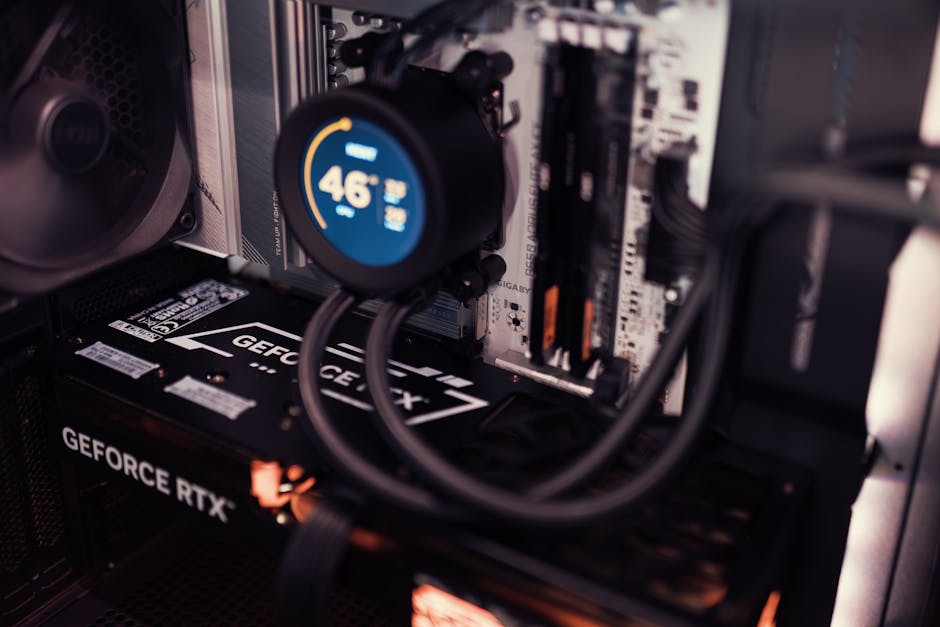
When your GPU is the bottleneck, lowering settings often gives you a big and consistent FPS gain.
Real-world example: I once had a system with a solid CPU but a mid-range GPU. At 1440p, the game felt smooth only after I dropped texture quality. The GPU load hovered near 98% and GPU temps stayed high, which is classic GPU-bound behavior.
Common GPU-bound causes
- High resolution (1080p vs 1440p vs 4K changes everything).
- Heavy graphics settings like shadows, ray tracing, or ultra textures.
- V-Sync / frame limit mismatch that can cause extra waiting.
- Overheating leading to GPU downclock.
Fixes that actually work for GPU bottlenecks
- Lower resolution first. Try 90% render scale if your game supports it (or temporarily drop to 1080p).
- Turn down shadow quality. Shadows are often a stealth GPU killer.
- Use a stable frame cap. If you have a 144 Hz monitor, test caps like 141 or 120 to match good frame pacing. Don’t guess—test with frame time.
- Check ray tracing. If ray tracing is on, try it off or reduce it one step at a time. Ray tracing can turn a GPU-bound setup into a stutter machine.
One thing I’ll be blunt about: people often reduce settings randomly without checking whether they changed the right bottleneck. If your GPU usage is already low, lowering GPU-heavy settings won’t fix CPU stutter.
CPU bottlenecks: the hidden reason for stuttering and low FPS
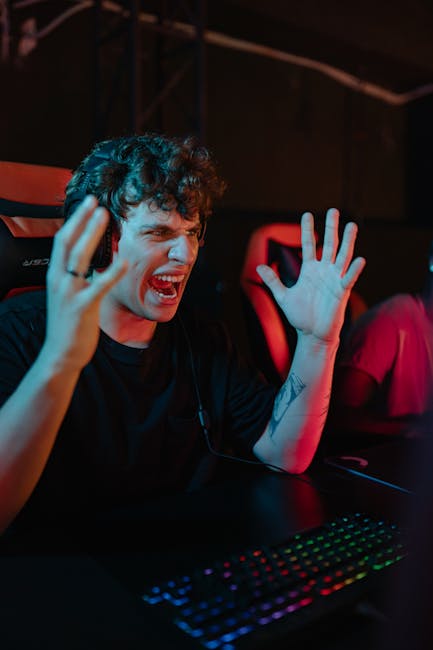
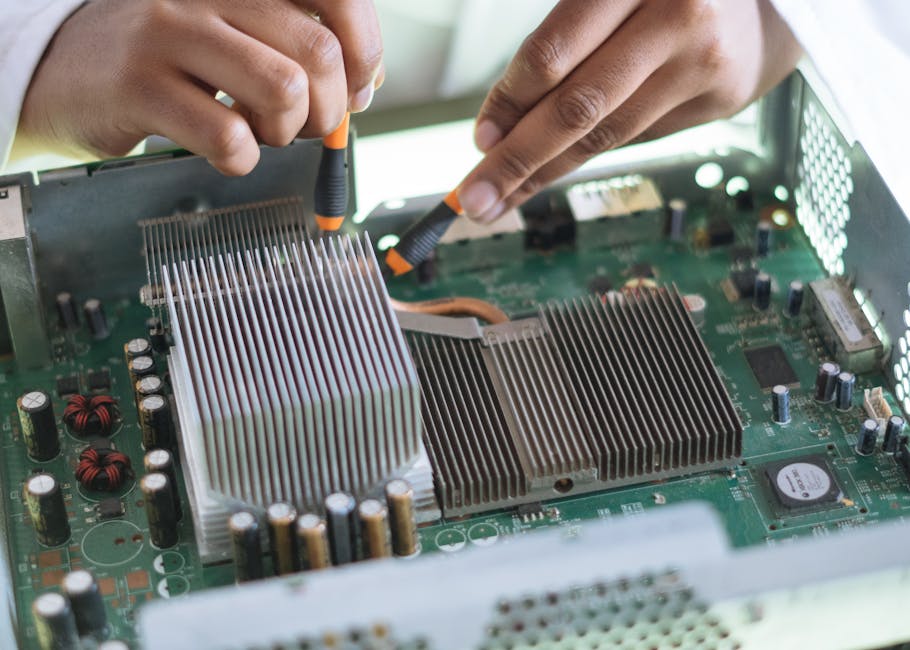
CPU bottlenecks show up as stutters even when your GPU isn’t working at full speed.
This happens a lot in fast-paced games, open worlds, and games with heavy AI or lots of objects on screen. The CPU gets hit by lots of small tasks, and those tasks pile up.
CPU bottleneck triggers I see in 2026
- One core pegged during gameplay (main-thread limit).
- Background apps stealing time (browser tabs with WebGL, launchers, overlay recorders).
- Power plan issues causing CPU to downclock.
- Thermal throttling—CPU temps spike during fights or large areas.
- RAM speed or insufficient RAM causing asset stalls.
Fixes for CPU bottlenecks (in the right order)
When you fix CPU bottlenecks, you want “more consistent CPU time,” not just a slight average boost.
- Set Windows power plan to High performance (or “Balanced” with CPU boost enabled). Then test again. This is a common fix when laptops run in power-save mode.
- Disable heavy overlays like game capture, extra FPS counters, or browser overlays. Overlays are convenient, but they can cause extra work.
- Lower CPU-heavy settings. Start with crowd density, physics, AI complexity, and draw distance. These settings hit the CPU more than the GPU.
- Check per-core usage. If a single core is maxed, changing a few settings may not be enough—you may be limited by the CPU generation.
- Update your chipset drivers and confirm BIOS is current if your system is stable. I’ve seen stutter reduced after updating chipset drivers on AMD platforms, especially on older BIOS versions.
If you’re on a laptop, also check if it’s running on AC power. A battery-powered mode can cut boost clocks and create stutter that goes away instantly when plugged in.
Stuttering that isn’t GPU vs CPU: RAM, storage, and Windows background load
Sometimes “GPU vs CPU bottleneck” isn’t the real issue. Stutter often comes from asset loading or memory problems.
Here’s how to spot it. If frame time spikes line up with texture pop-in, map streaming, or new areas loading, you may have a storage or RAM bottleneck.
Check for disk and RAM hitches
- Task Manager > Performance > Disk. Watch for spikes during stutter moments.
- Task Manager > Performance > Memory. If you’re near the limit, Windows starts paging (moving data to disk), and stutter becomes very obvious.
Practical example: on a system with 16 GB RAM running a modern game plus Discord plus a few browsers, I’ve seen a repeatable hitch when entering a heavy-use area. After bumping to 32 GB, those hitch spikes became less frequent and smoother. That wasn’t a GPU vs CPU debate anymore—it was “memory headroom.”
What I do when storage is the suspect
- Confirm the game is on an SSD (not just “an SSD somewhere,” but the actual game library drive).
- Disable background downloads and cloud sync for testing.
- Test with a clean restart (no extra launchers besides what the game needs).
If your stutters happen while the camera moves fast (like quick turning), that can be streaming too. GPU and CPU might both look “fine,” yet the game still pauses to pull in assets.
People also ask: GPU or CPU bottleneck—how can I tell quickly?
If you want a fast rule you can use in the next 5 minutes, use this: GPU bottleneck = high GPU usage + big FPS changes when you lower graphics. CPU bottleneck = high CPU usage or core spikes + GPU usage stays moderate.
What should GPU usage be when gaming?
There isn’t one magic number. If you’re GPU-bound, GPU usage often sits at 90–100% during heavy scenes. If you’re CPU-bound, GPU usage might hover at 50–80% while CPU spikes hit the ceiling.
One tip: watch GPU clock speeds too. If clocks drop during stutter, thermals or power limits may be involved.
Is 100% CPU usage always bad for FPS?
Not always, but it’s a red flag. The bigger issue is CPU spikes on one core, not just the overall average. If the average is fine but the frame time spikes, you likely still have a CPU bottleneck or main-thread hitch.
In my experience, games that depend heavily on one main thread are the worst for “average CPU” hiding stutter.
Does lowering resolution fix CPU bottlenecks?
Usually, lowering resolution helps only GPU-bound setups. If the CPU is the bottleneck, dropping resolution won’t remove stutter because the CPU is still busy with game logic and command submission.
However, it can change the timing enough to reveal what’s going on. If stutter stays the same, CPU-bound becomes more likely.
Can RAM cause low FPS?
Yes. Not always in the “classic” way, but RAM can cause low FPS when your system runs out of memory or runs slow enough that asset loading stalls. That shows up as stutter and weird frame-time spikes, especially during transitions and streaming-heavy moments.
As of 2026, many modern games recommend 16 GB as a minimum, but 32 GB is where things feel noticeably more stable for heavier setups.
Practical tests: find your bottleneck in under 20 minutes
These tests are meant to be quick and repeatable. Do one change at a time so you know what helped.
Test 1: Resolution sweep (GPU check)
- Start your game in a heavy scene.
- Record 20–30 seconds of gameplay with your normal settings.
- Lower resolution by one step (for example, 1440p to 1080p).
- Compare average FPS and 1% low FPS.
If FPS jumps a lot and stutter improves, you’re GPU vs CPU bottleneck leaning GPU. If nothing changes, CPU or storage is more likely.
Test 2: Graphics settings sweep (CPU check)
- Keep resolution the same.
- Lower CPU-heavy settings (crowd, physics, AI, draw distance).
- Keep an eye on per-core CPU usage while you test.
If stutter drops and CPU core spikes shrink, that’s your CPU bottleneck proof.
Test 3: Clean environment (background load check)
- Close extra apps.
- Disable overlays like recording tools and extra HUDs.
- Restart the game and test the same scene.
This sounds basic, but it fixes a surprising number of stutter cases. In cybersecurity terms, it’s like troubleshooting a false positive: remove variables so you can see the real cause.
Fix plan by scenario: what I recommend depending on what you see
Here’s a simple “if this, then that” plan you can follow right away.
Scenario A: GPU usage is 95–100% and CPU is calm
- Lower graphics settings (textures, shadows, ray tracing).
- Lower resolution or use render scale.
- Use a stable FPS cap for better frame pacing.
Scenario B: CPU core spikes to 100% and GPU usage drops
- Lower CPU-heavy settings (AI, crowd, physics).
- Check background apps and overlays.
- Update chipset drivers and confirm power plan.
Scenario C: Frame time spikes but CPU/GPU look normal
- Check storage and RAM usage during stutter.
- Move the game to a faster SSD if needed.
- Reduce streaming-heavy effects (especially during fast camera moves).
Scenario D: Temps are spiking and clocks are dropping
- Clean dust, improve airflow, and check fan curves.
- Re-seat cooler if temps are unusually high.
- For laptops, keep it on a flat surface and plugged in.
Bonus: how overclocking and undervolting can change bottlenecks
Overclocking can help, but it can also create new stutter problems if the system becomes unstable or hits power limits.
I prefer gentle undervolting on GPUs for stability because it reduces heat and prevents downclocking. If your GPU previously downclocked during fights, undervolting can make performance steadier, even if it doesn’t raise peak FPS by much.
For CPUs, “too aggressive” settings can cause tiny crashes or hitching. When in doubt, run at stock settings for diagnosis, then tune afterward.
Security corner (quick): why stutter can be malware too
It’s rare, but I’ve seen it. Some background malware uses CPU/GPU time for mining or crypto tasks, which can look like a bottleneck problem.
If you notice performance drops that don’t match your settings changes—plus high CPU usage when you’re idle—scan your system. Keep antivirus and Windows Security up to date. This site covers cybersecurity too, and if you want a practical checklist, read our guide on securing your gaming PC against hidden threats.
Also check scheduled tasks and startup apps. Sometimes the “bottleneck” is just a background process you forgot you installed.
Where this topic fits on our site (and what to read next)
If you’re the type who fixes problems step-by-step, you’ll probably like related posts on our site. We also cover performance and tuning under How-To & Guides.
After you diagnose your bottleneck, you might want settings advice. Our recent low-latency monitor settings guide helps with frame pacing and input lag—especially if you cap FPS and tweak V-Sync.
Conclusion: how to stop guessing in the GPU vs CPU bottleneck fight
Here’s the actionable takeaway: don’t rely on FPS alone. Use GPU usage, CPU per-core spikes, and frame time to decide whether your bottleneck is GPU vs CPU, or something else like storage and RAM.
If GPU load stays near 100% and resolution changes help, you’re GPU-bound. If a CPU core spikes during stutters and GPU usage dips, you’re CPU-bound. If both look “okay” but frame time spikes line up with asset loading, focus on storage and memory headroom.
Pick one test, make one change, and measure it. After you do that twice, you’ll stop chasing myths and start fixing the real cause—fast.
Featured image alt text suggestion: “GPU vs CPU bottlenecks diagnosis dashboard showing GPU usage, CPU cores, and frame-time spikes during gameplay”
About the Author