
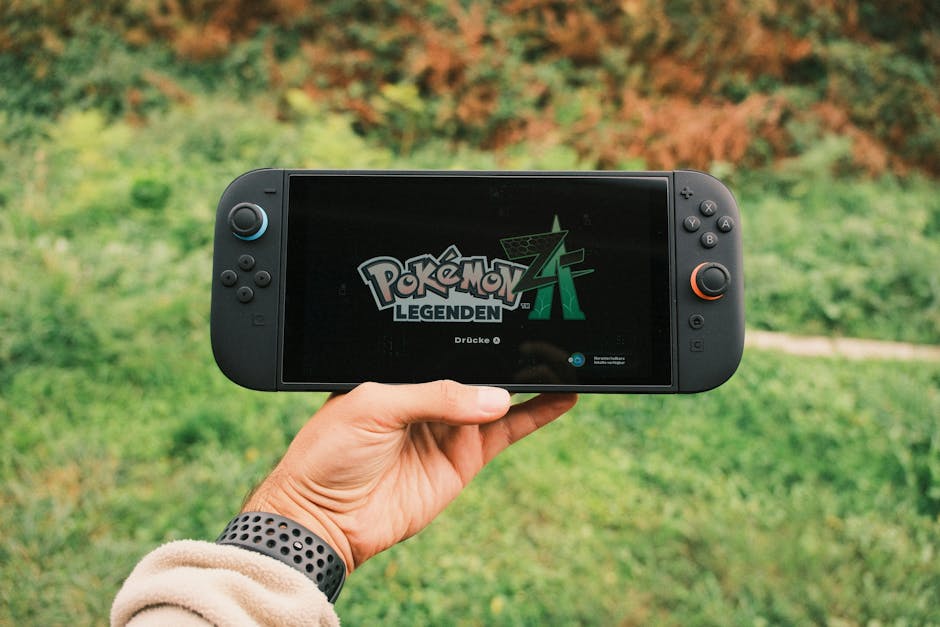
If you’ve ever searched for a “Nintendo Switch emulator download,” you already know the trap: the real emulator is only half the story. The other half is the messy part—dodgy sites, fake “update” files, and installers that try to slip malware onto your PC.
Here’s the direct answer: only download emulators and game-related tools from trusted sources, scan every file, and double-check the legality in your country before you use them. I’ll also show you the common red flags I look for, plus safer steps I use in 2026.
Nintendo Switch Emulator Safety Guide (2026): The key takeaways first
The safest approach is not “download and hope.” It’s a checklist mindset. I treat emulator setup like any other software install: source matters, files matter, and permissions matter.
In plain terms, your biggest risks are:
- Legal risk from using copyrighted game files you don’t own.
- Security risk from malware disguised as installers, “mods,” or “firmware packs.”
- Privacy risk from shady sites that track you or install unwanted software.
In other words, the emulator itself is rarely the danger. The download page and the attached files are where people get hurt.
Are Nintendo Switch emulators legal? What most people get wrong
Legal rules vary by country, but the main idea is consistent: using an emulator may be legal while copying or sharing games often isn’t. People mix these two up all the time.
Emulator is software that mimics how a console works on your computer. ROMs are game files. The legality often depends on whether those game files are obtained and used lawfully.
As of 2026, here’s what I tell friends when they ask about emulator legality:
- If you downloaded a game from a piracy site, that’s usually the problem, not the emulator.
- If you’re using dumps from your own console, you may still face limits depending on local laws (and how the data was obtained).
- If you’re sharing ROMs, save files, or “firmware packs,” you’re much more likely to cross a legal line.
I’m not a lawyer, so I can’t give legal advice. What I can do is help you avoid the most common legal mistakes and reduce the odds you end up in a bad situation.
Legal checklist before you install a Nintendo Switch emulator
- Check your local laws: search “emulation legality” plus your country name.
- Use official sources: download the emulator from the project’s website or trusted code hosting (for example, a project GitHub page).
- Don’t download game files from random sites: if a page offers games in a “one-click” zip, assume it’s not legit.
- Avoid “all-in-one packs” that bundle games, firmware, and cheats together.
This is boring advice, but it works. The scams usually target people who skip steps.
Security risks in Nintendo Switch emulator downloads: the real threats

Security risk in emulator setups usually comes from social engineering, not from the emulator code itself. Scammers count on urgency and curiosity.
Here are the threats I see most often, with examples of how they show up:
1) Malware disguised as “emulator installers”
Some sites post a “Switch emulator.exe” that runs, asks for admin rights, and then quietly installs extra stuff. That “extra stuff” is often adware, a browser hijacker, or worse.
One quick clue: if the download is a single random EXE from a domain with no clear project history, pause. Real projects usually link to builds with clear version notes and safe distribution methods.
2) Fake “firmware,” “keys,” or “BIOS” packs
Even when people say they’re only getting “required files,” you’ll see shady bundles labeled as “Switch firmware” or “prod keys.” Those packages can include trojans or steal your information.
Also, you should know what these files are in simple terms. Emulator “firmware” refers to boot data meant for the original hardware. Many safe setups avoid you needing third-party firmware bundles and instead rely on your own legally obtained sources.
3) Browser hijacks and tech support scams
Some pages try to scare you with pop-ups like “Your PC is infected” or “You must install this codec pack.” They’re trying to get you to install software that should not be installed.
If a site pushes “Allow notifications” or “Download to continue,” don’t proceed. Legit downloads don’t need that kind of pressure.
How to download a Nintendo Switch emulator more safely (step-by-step)
If you want safer Nintendo Switch emulator downloads, do it like you’re checking a new app in a store—slow, careful, and with verification. Here’s my process for 2026.
Step 1: Start from trusted sources, not search results
Use the emulator project’s official website, the official GitHub repository, or a clearly verified release page. I avoid “mirror sites” because they’re where malware operators hide.
When I’m unsure, I open multiple sources and compare:
- Do they share the same version number?
- Do they link to the same release artifacts?
- Do they mention checksums (like SHA-256) for downloads?
Step 2: Verify checksums (SHA-256) like a cybersecurity habit
Many legit projects publish hashes. A checksum is a short “fingerprint” of the file. If the fingerprint doesn’t match, the file was changed.
If the project provides SHA-256, compare it with your downloaded file. Tools exist on Windows and macOS, and it usually takes under 2 minutes.
- Download the file.
- Compute its SHA-256 hash.
- Compare to the official hash.
Most people skip this and then act shocked when the file is modified.
Step 3: Scan with a reputable antivirus and a second opinion
In 2026, I scan every download with my main antivirus, then I run a second scan using a trusted online scanner when possible. It’s not perfect, but it catches a lot of “known bad” files.
What I look for:
- Detections that mention trojan or keylogger behavior.
- Multiple alerts from different engines (not just one).
- Suspicious behavior warnings (especially if it tries to run as admin).
If a file is flagged and the download page offers excuses like “false positive,” that’s a huge red flag.
Step 4: Use a clean folder and avoid “run as admin”
Don’t install random emulators into random system directories. I keep a folder like C:\Emulators\Switch so it’s easy to remove later.
For Windows, try not to use “Run as administrator” unless the installer truly needs it for a safe reason. If it doesn’t explain why, that’s how you know it’s more than an emulator.
Step 5: Read what the installer actually does
Many installers sneak in extra software. Watch for checkboxes that are pre-checked (like “install browser extension” or “set search as default”). Uncheck them.
If the installer only offers “Next, Next, Next” with no details, I stop. Real software often explains choices clearly.
Step 6: Lock down your PC during first launch
When you first launch an emulator or related tool, keep an eye on what it asks for: network access, new drivers, and permission prompts.
My practical rule: if it needs network access, confirm it’s for updates or online settings. If it starts making unexpected connections right away, that’s when I re-scan the installer and check Windows Firewall logs.
Safer practices for ROMs and game files (the legal + security side)
Most people focus on the emulator app and forget that game files and add-ons are also a major security target. “Game packs” are a common malware delivery method.
If you want a safer setup, use a simple approach: only use game dumps you obtained lawfully and avoid bundles from unknown uploaders.
What’s safer than downloading “ROM packs”?
- Use your own legally obtained dumps and keep them in a library you control.
- Keep save files separate so you can wipe them quickly if you suspect something is wrong.
- Avoid “cheat engine” scripts from random blogs. Many are old, broken, or bundled with adware.
Here’s my honest opinion: even if a ROM site looks clean, it’s still an unknown pipeline. If you care about safety, you don’t rely on strangers to feed you clean files.
Real-world scenario: the “it was just one zip file” mistake
I’ve seen this play out with friends. They download an “emulator + games zip,” extract it, and run a setup tool. Two days later, the browser shows random pop-ups and Windows starts showing new “utilities.”
The key detail: the emulator worked fine. The problem was the bundled extras. Once you know this pattern, you stop trusting all-in-one downloads.
Comparison: emulator download sources—what I trust vs what I avoid
This table is a simple way to decide where to get your files. It won’t guarantee safety, but it stacks the odds in your favor.
| Download Source | Typical Sign | Safety Level | What to Do |
|---|---|---|---|
| Project official website | Clear version notes + links to releases | High | Use their files, verify hashes if available |
| Official GitHub release page | Checksums, tags, consistent filenames | High | Scan anyway, but source is usually solid |
| Forum “download mirrors” | Lots of ads, vague instructions | Medium to Low | Cross-check with official releases before using |
| Random “emulator download” websites | Pop-ups, fake “captcha to start,” installers with extras | Low | Avoid; if you already downloaded, scan immediately |
People Also Ask: Nintendo Switch emulator safety and legality
Is it safe to download a Nintendo Switch emulator on Windows?
It can be safe on Windows if you download from the official project sources and verify the file. The risky part is using unofficial websites that bundle the emulator with extra software or “required” packs.
My rule: if a page can’t tell you the version clearly and doesn’t provide a trustworthy release link, skip it.
Can a Nintendo Switch emulator get me a virus?
Yes, but the virus usually comes from what’s wrapped around the emulator, like installer extras or “firmware packs.” The emulator app itself is often just software, while the downloads around it are where malware hides.
If you’re unsure, scan the exact file you downloaded and check its digital signature if it’s provided.
Do I need Switch firmware or keys to run an emulator?
Many emulator setups are written so you don’t blindly download third-party firmware packs from shady sources. Whether you need specific files depends on the emulator and its current approach.
If a guide tells you to download “everything” from a single link, treat it like a red flag. Safer guides point to official documentation and explain what you need and why.
Is emulation always legal?
No. Emulation can be legal, but your use of game files and any shared content is what often causes legal trouble. In many places, copying or distributing copyrighted games is not allowed even if the emulator itself is fine.
The safe move is to learn the rules in your country and avoid sharing games or distributing data you don’t own.
What should I do if my emulator download already installed something sketchy?
Do this in order:
- Disconnect from the internet to stop any active downloads or uploads.
- Run a full antivirus scan and remove anything flagged.
- Check installed apps in Windows Settings and uninstall anything you don’t recognize.
- Reset browser settings if you see new extensions or homepage changes.
- Restart and re-scan to confirm it’s clean.
If you want a deeper checklist, I’ve written a similar cleanup guide in our malware removal steps article.
Security hardening tips that pair well with emulator use
Even if you download from a clean source, you still want your PC protected. Emulators are just one kind of risky download—your setup should reduce the damage if something goes wrong.
Use a separate user account (or a virtual machine) for new installs
This is one of my favorite “quiet” security moves. I keep my main account for daily use. My test account is where I install new tools and then scan.
If something behaves badly, I can delete the test account changes without wrecking everything.
Keep Windows and your browser updated in 2026
Updates fix security bugs. That sounds obvious, but it’s still one of the best ways to stop drive-by infections and exploit attempts.
If you haven’t updated in a while, do it before you download anything new.
Turn on controlled folder access (where available)
Windows security features can stop random apps from writing into protected folders. This doesn’t stop everything, but it helps contain damage.
If you’re a techie, pair this with careful app permissions. If you’re not, at least check what security settings are already turned on.
Avoid shady “codec packs” and random driver installers
Emulators often need graphics drivers, but they don’t need random third-party codec packs from unknown sites. Install drivers from official graphics card makers or Windows Update.
Codec packs are where a lot of adware gets bundled.
Where this fits on our site: related cybersecurity and safety guides
If you’re trying to be safer with downloads, this topic connects directly with our other posts. Emulators are software, and software safety is still about the same steps: trusted sources, verification, and cleanup.
- See our safe software download checklist for a quick version of the steps above.
- If you want to understand the “why” behind the verification part, check how checksums work.
- If you’ve already had an infection, our malware removal steps guide walks through practical fixes.
My bottom line: safer Nintendo Switch emulator use is mostly about discipline
Here’s the truth I’ve learned the hard way: most people don’t get in trouble because emulators are “dangerous.” They get in trouble because they download extras from low-trust sites.
If you do only three things, make them these: use trusted sources, verify your downloads, and scan before running. On the legal side, treat game files like the real boundary—don’t download or share copyrighted content you didn’t obtain lawfully.
That’s the actionable takeaway for 2026: you can reduce both legal and security risk with the same behavior—choose clean sources, keep control of your files, and never run an installer just because it promises “working instantly.”
Featured image alt text suggestion: “Nintendo Switch emulator safety guide showing legal and security checks before installing”
About the Author




