Here’s the annoying truth: two USB‑C cables can look identical and still charge your laptop at totally different speeds. In 2026, that’s not a user problem—it’s a charging standard and power delivery problem.
In this USB‑C 101 for Power Users guide, I’ll show you what matters (and what doesn’t): USB Power Delivery (USB PD) wattages, “power” ratings like 20V/3.25A, why your phone’s “fast charge” isn’t the same as a laptop’s, and how to quickly check compatibility before you buy or plug in.
You’ll also get a practical cheatsheet for matching chargers, cables, and devices—plus a short section answering common “People Also Ask” questions.
USB‑C 101: USB‑C is a plug, not a guarantee
USB‑C 101 takeaway: USB‑C describes the connector shape; it doesn’t automatically tell you charging speed. Charging speed comes from the power rules that the device and charger agree on.
People get stuck because the connector is the same. But inside the cable and inside the charger, the details vary a lot. Some cables are built for charging only. Others support higher currents and extra features like data or video.
Also, “fast charging” is a broad term. A phone can charge quickly at lower power than a laptop needs. Your laptop might need 45W, 65W, 90W, or even more, depending on the model.
In my own setup, I learned this the hard way: I bought a “USB‑C charger” for travel, plugged it into a work laptop, and got a slow trickle charge. The plug fit. The agreement didn’t.
Charging Standards You Actually Need to Know (USB PD vs. QC vs. PPS)
Charging standards takeaway: For USB‑C charging, the main standard you should care about is USB Power Delivery, and the key feature inside it is whether your device supports the right wattage and modes.
USB Power Delivery (USB PD) is the system that lets devices “negotiate” power. Negotiation is just a fancy way of saying the charger and device talk to each other and pick a safe voltage/current combo.
Here are the standards you’ll run into in real life:
USB Power Delivery (USB PD): the main rule for USB‑C charging
USB PD is what most modern USB‑C laptop chargers and many phone chargers use. It’s also what most USB‑C docking stations rely on.
Typical laptop chargers you’ll see in 2026:
- 20W–30W for small devices and some phones/tablets
- 45W for many thin laptops
- 65W as a common middle ground
- 90W–100W for larger laptops and faster charging
- ~140W on some newer gaming/workstation models
USB PD can send different voltages, like 5V, 9V, 15V, 20V, and more depending on the charger and device. If your laptop expects a 20V PD profile and your charger only does basic charging, you’ll get slow charging or battery drain.
PPS (Programmable Power Supply): smoother “fast charge” for supported devices
PPS is a USB PD feature that lets the charger adjust voltage more finely while charging. In plain words: it can make fast charging more stable for phones that support it.
If you’ve got a phone that advertises “PPS fast charge,” you’ll get better results with a USB‑C charger that specifically lists PPS and the voltage range.
Example: you might see something like “3.3–5.9V @ 3A” or “3.3–11V @ …” on the charger label. The phone uses that range to stay in its comfort zone.
Quick Charge (QC) and other phone-only standards
QC (from Qualcomm) and a few other phone brands’ fast-charge systems are sometimes present, but they’re not the whole story with USB‑C. Many phones now support USB PD or USB PD with PPS over USB‑C.
So if your goal is “one cable, one charger for everything,” USB PD is usually the best target.
USB‑C charging levels: 5W, 15W, 20W, 30W—what they really mean
Power (watts) is the simple way to compare charging strength. Roughly, higher watts can mean faster charging—assuming the device supports it.
Common examples you’ll see:
- 5W (5V @ 1A): basic charging, slow
- 9V: often quicker than 5W for phones
- 15W: common “fast” tier
- 20W (20W PD): very common phone fast-charge tier
- 30W / 45W: phones + tablets + many laptops
But don’t confuse “charger rating” with “what you’ll actually get.” Devices negotiate.
Power Delivery (USB PD) Explained with Real Numbers
Power Delivery takeaway: USB PD is all about voltage and current combos. When you see “20V/3.25A,” that’s a specific power profile the device and charger can agree on.
Wattage is the product of voltage and current (W = V × A). You’ll see real-world PD profiles like:
- 5V @ 3A (15W)
- 9V @ 2.22A (≈20W)
- 15V @ 3A (45W)
- 20V @ 3.25A (65W)
- 20V @ 5A (100W)
Here’s the part many people miss: a laptop charger might be rated 65W, but your cable might not support the needed current. Then the charger drops down to a lower profile. Your laptop may still charge, just slower.
The “cable is part of the spec” rule
USB‑C cables come in different grades. Higher-current charging needs cables that are built for it. This isn’t magic; it’s copper and connector design and safety ratings.
Most of the time, the charger and cable pair work together. But if you’re using a bargain cable from a drawer (or one bundled with a device that only charges slowly), you can run into limits.
Quick sanity check: if your laptop charger says “65W output,” and your cable doesn’t mention it supports high wattage or data grades, don’t expect peak speeds.
What to look for on a charger label
When I’m shopping in 2026, I look for:
- USB PD support (not just “USB‑C”)
- Wattage for the specific USB‑C port
- PPS (if you have a PPS phone)
- Multiple output profiles like 5V/9V/15V/20V
- Whether it’s rated for 3A/5A style charging where relevant
Some chargers list “max output.” That’s important, but it’s still not a promise you’ll get that maximum on every device.
Compatibility Cheatsheet: Match Charger Wattage to Devices
Compatibility cheatsheet takeaway: The safest way to avoid slow charging is to match or exceed the device’s supported USB PD wattage—and use a cable that supports charging at that level.
Below is a practical cheatsheet based on what I see in modern consumer gear. Always double-check your specific device’s power requirements when possible (manufacturer specs are best).
| Device type | Common USB‑C charging need | What to buy | What most people get wrong |
|---|---|---|---|
| Smartphone (USB‑C) | 15W–65W (varies) | USB PD charger (20W–30W for typical, 45W+ if you want headroom) | Assuming “USB‑C cable = same speed” across brands |
| Tablet | 20W–45W | USB PD with the closest wattage or higher (45W is a good travel pick) | Using phone-only chargers and wondering why it’s slow |
| Thin laptop (typical) | 45W–65W | 65W PD charger for travel; use the highest port wattage | Plugging into a multi-port charger and getting a lower shared limit |
| Work/gaming laptop | 90W–140W | 90W–140W PD charger that explicitly supports your laptop’s needs | Expecting a 65W charger to fully replace a 135W brick |
| Portable monitor | 5V/9V/15V/20V (varies) | USB PD charger that matches the monitor’s input profile | Assuming it only needs 5V; it often needs higher voltage |
| USB‑C dock | Depends on laptop | Dock + charger wattage combo that can power the laptop under load | Buying a dock without enough wattage for the CPU/GPU load |
Travel test: one charger for a whole bag
If you want one charger for a phone + laptop, the best “power user” move is a multi-port USB PD charger with enough total wattage. For example, a 65W or 100W class charger can often run a phone fast and still feed a laptop enough during light work.
Just don’t forget port sharing. Many multi-port chargers lower output when multiple ports are used at the same time.
When I run two devices, I look for chargers that spell out port-by-port wattage, not just “total output.” Total output is like “max speed,” not “what you get right now.”
USB‑C Cable Compatibility: Power vs. Data vs. Video
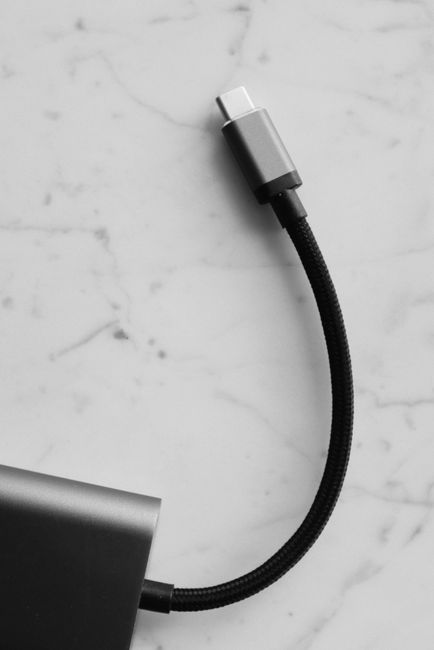
Cable compatibility takeaway: The cable determines what power levels and data modes you can get. A cable can charge your phone but fail to support high-power laptop charging or video output.
USB‑C is a connector. But inside the cable, different wiring and specs matter. That’s why you can see “USB 2.0,” “USB 3.2,” “USB4,” and “Thunderbolt” labels (or no label at all).
Here’s the clean way to think about cables for power users:
Charging only cables (good for phones, risky for laptops)
Charging-only cables may not carry the signals needed for high-power profiles. They might also limit current. If you use them with a laptop, expect slower charging or unstable behavior.
I keep one charging-only cable for my smartwatch or a backup phone charger. I don’t use them for my laptop anymore.
High-power charging cables (what you want for laptops)
For laptop charging, you want a cable that’s rated for the wattage you plan to use. Many brands now state something like “100W” or “5A” on the cable packaging.
If the cable says 100W, that’s a strong sign it’s meant for higher-power PD profiles. If it says nothing, I treat it as “maybe okay for phones, not reliable for laptops.”
One more real-world detail: longer cables lose performance. A short 1–2 meter cable tends to be more dependable than a very long cheap one at high wattage.
Data and video cables (for docks and external monitors)
If you use a dock, you need the right data capability. Power alone won’t help you get Ethernet, USB peripherals, or video to a monitor.
USB4 and Thunderbolt cables have extra capability. You don’t need those for every setup, but if your dock uses advanced video/data features, the cable must match.
And yes—this is where people get burned. They buy a high-watt charger and then connect it with a random cable that can’t carry video signals.
Multi-Port Chargers and Docks: The Hidden Gotchas
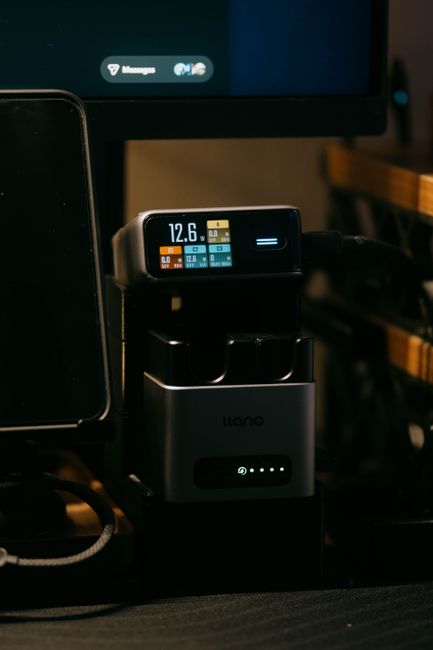
Gotcha takeaway: With multi-port chargers and docks, output is often shared. You can plug everything in “correctly” and still get reduced wattage because the charger is splitting power across ports.
In 2026, the most common mismatch I see is:
- A laptop charger that works alone
- But when used with a dock or second device, laptop charging drops
This happens when the power supply has a total limit and the USB‑C ports are not independent.
How to check port sharing fast
Look at the charger’s manual or label. It usually lists output like “Port A: up to 65W” and “Ports A+B: up to 45W + 20W” or similar. If it doesn’t, don’t guess—assume sharing will reduce what you need.
My rule: if the charger only tells you “Total 100W,” you should still try to find the port-by-port table. Otherwise you’ll find out by watching battery percentage go the wrong direction.
Docks need extra headroom for heavy loads
When you plug a laptop into a dock, the laptop might draw full power during video calls, exports, or game testing. If your dock + charger combo can’t supply that power, you’ll see slower charging or “power throttling” (the device reduces performance to avoid draining).
For power users, I recommend choosing a charger with extra wattage headroom when possible.
Even if the dock can negotiate 65W, your laptop might need 75W under load. You’ll notice when fans spin harder and the battery doesn’t rise.
People Also Ask: Quick Answers About USB‑C Charging Compatibility
Why does my USB‑C charger charge slowly?
Direct answer: Your device and charger likely negotiated a lower power profile, or your cable can’t support the higher current needed.
First check the obvious things: did you use the correct charger wattage? Then check the cable rating. After that, check whether the charger is a multi-port model that reduced power due to another connected device.
Does USB‑C fast charging require a specific cable?
Direct answer: For many phones, a decent USB‑C cable works. For laptops and high-watt charging, the cable rating matters a lot.
If your charger is 100W class and your cable is “unbranded and unlisted,” expect performance loss. For maximum charging speed, use a cable rated for the relevant wattage (often labeled 60W/100W or 5A).
Can I use a USB‑C cable from my phone to charge my laptop?
Direct answer: Sometimes, but not reliably. Phone cables often charge fine at low wattage, and laptop charging needs higher current support.
If your laptop supports 45W and your cable only reliably supports lower power, you’ll likely get slow charging. It’s not dangerous, but it’s not the experience you want.
Is it safe to use a non-brand USB‑C charger?
Direct answer: It can be safe, but only if it supports USB PD correctly and includes proper safety and output profiles.
I’m careful here. If the charger is missing basic specs, it can negotiate wrong or fail under load. I stick to chargers that clearly list USB PD and the voltage/current profiles they support.
If you’re buying for a work laptop, I’d rather spend an extra $15–$30 on a known-quality charger than risk hours of troubleshooting.
Will USB‑C charge my laptop without power delivery?
Direct answer: Usually it will charge only slowly or not at all. Without USB PD, many laptops can only pull basic “default” power like 5V.
Some devices have partial support through other means, but you shouldn’t count on it. Look for explicit USB PD support for the laptop power input.
My Power-User Setup: How I Avoid Cable and Compatibility Headaches
Personal takeaway: My whole setup is built to remove guesswork. I keep cables and chargers grouped by job, and I label them so I don’t mix the “safe for laptop” kit with the “phone-only” kit.
Here’s what I do in my day-to-day bag:
- One main USB‑C PD charger (65W or 100W class depending on the laptop I’m carrying).
- Two cables: one short, high-power cable for the laptop and a spare for the phone.
- A dock cable that matches the dock’s data/video needs (so I don’t lose monitor output).
- Verification habit: when I plug in, I check the OS charging details. If it shows low power, I swap cables immediately.
This saves time. It also reduces wear and tear, because I’m not constantly swapping random cables while a meeting is starting.
If you want to go deeper on safe device use, you may also like our cybersecurity angle on USB risks: see the article on USB device attack safety tips (use a trusted source and avoid unknown “juice” ports). Even if your main focus is charging, security still matters when cables can also move data.
Security Sidebar: USB‑C Can Carry Data Too (Not Just Power)
Security takeaway: A USB‑C cable can be more than a charger. It can also move data, which means you should think about USB-based attacks if you plug into unknown ports.
Real-world example: I’ve seen situations where “free charging stations” were fine for low-risk devices, but a laptop connected through a data-capable cable could trigger unexpected prompts.
If you’re traveling, use a cable that matches your needs. If you only need power, consider a power-only approach where appropriate and safe for your device. For higher security, use a known-good cable and avoid public ports for data.
If you want more practical steps, I also recommend browsing our How-To & Guides category for device safety checklists and incident response basics. (The exact steps depend on your OS and workflow.)
Quick Action Checklist: Get USB‑C Right in 5 Minutes
Action takeaway: You can fix 90% of USB‑C charging problems with a short checklist: confirm device requirements, confirm charger PD profiles, and use a properly rated cable.
- Step 1: Find your device’s charging spec. Look for USB PD wattage (like 45W/65W/100W) and voltage profiles.
- Step 2: Buy (or choose) a USB‑C charger that supports USB PD and has equal or higher wattage.
- Step 3: Use a cable labeled for high-watt charging when powering laptops.
- Step 4: If using a multi-port charger or dock, check port sharing output limits.
- Step 5: Plug in and verify. If charging is slow, swap cable first, then charger, then check port sharing.
This is also a good way to decide what’s “worth replacing.” I usually replace the cable before replacing the charger, unless the label says the charger doesn’t support USB PD properly.
Featured Cheatsheet Recap (Copy/Paste)
Cheatsheet takeaway: Match the wattage tier you need, confirm USB PD support, and use a cable rated for that power level.
- Phone: USB PD 20–30W is a solid baseline; look for PPS if your phone supports it.
- Tablet: USB PD 30–45W is often the sweet spot.
- Laptop: 45W/65W for many models; 90W+ for heavier laptops under load.
- Dock + laptop: Use a charger with headroom and check shared port limits.
- Cable: For laptops, use a cable rated for 60W/100W (or the specific wattage/current your setup needs).
If you follow only one rule, make it this: USB‑C charging speed comes from the USB PD negotiation, and your cable is part of the negotiation.
Bottom line: In 2026, “USB‑C” doesn’t mean “universal fast charging.” Power users treat charging like a matched system: USB PD wattage + the right cable + the right port conditions. Do that, and you’ll stop guessing—your devices will charge the way they’re supposed to, every time.
Image SEO note for your CMS: Use an image with alt text like: “USB‑C 101 for power users: PD charger and compatible cable wattage profiles.”
About the Author