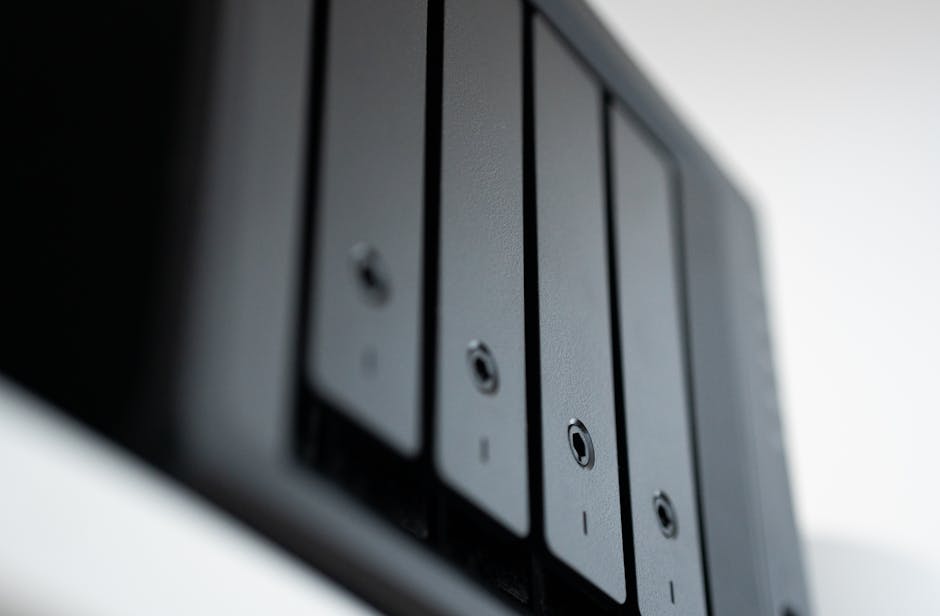
If you’ve ever lost a phone’s photos or had a hard drive die mid-backup, you already know the painful truth: your “media library” is also your backup plan. A NAS (network-attached storage) turns that library into something you can keep, share, and restore when life gets messy.
Choosing a NAS for media and backups is mostly three things: picking the right RAID level, planning storage so you don’t run out, and locking it down so it can’t become a target. I’ll show you what I look for, the mistakes I’ve made (so you don’t repeat them), and a practical way to size your NAS for 2026.
Choosing a NAS for Media and Backups: the quick answer on RAID, storage, and security
Pick RAID for uptime, not for “backup.” Plan capacity based on how your files grow (not today’s folder size). Then secure the NAS like it’s a small computer on the internet: updates, strong logins, and no risky exposure.
That’s the whole game. Everything else is details—details you’ll thank yourself for later.
RAID levels explained for home media: what RAID protects (and what it doesn’t)
RAID is a way to combine multiple drives so the NAS can keep running and/or tolerate a drive failure. RAID is not a replacement for backups. I’ll say that again because it’s the most common misunderstanding.
RAID 0: fast but unforgiving
RAID 0 is stripe-based storage. It means data is spread across drives, but if any one drive dies, you lose everything in that RAID set. For media libraries, RAID 0 is usually a bad trade.
I only recommend RAID 0 for special cases where the drives are temporary and you’re absolutely sure you’ll have strong external backups. For most people, skip it.
RAID 1: simple mirroring with a big peace-of-mind
RAID 1 mirrors data. If one drive fails, the NAS stays online and you can swap the dead drive without losing the data.
Pros:
- Good protection against a single drive failure
- Easy to understand
- Great for smaller 2-bay NAS units
Cons:
- Only half your raw space is usable (2 drives become 1 “effective” drive)
- If you lose the NAS to theft, ransomware, or accidental deletion, RAID 1 doesn’t save you
If your main goal is “keep the lights on for my movies and photos,” RAID 1 is often the easiest win.
RAID 5: popular balance, but watch the rebuild time
RAID 5 uses parity. It can survive one drive failure, and you get better capacity than RAID 1.
What I stress with RAID 5 today: rebuild time. Large drives take longer to rebuild, and during that time performance can drop. Also, during a rebuild, the chance of a second problem is higher than people think.
In plain words: RAID 5 is fine when your NAS has good cooling, you’re using quality drives, and your backups are real. But I prefer RAID 6 for bigger multi-bay setups.
RAID 6: two-drive fault tolerance for bigger libraries
RAID 6 is like RAID 5 but can survive two drive failures. That matters when you’re running 4+ bays with large capacity disks (and yes, we are in that world in 2026).
Pros:
- More safety during rebuild
- Better for bigger arrays and heavier use
Cons:
- You lose more usable space than RAID 5
- Slight write penalty (usually not a deal-breaker for home media)
If you’re building a “media + backups” NAS and you want fewer worries, RAID 6 is my default suggestion for 4-bay and above when budget allows.
RAID 10 (1+0): top reliability, less usable space
RAID 10 stripes and mirrors. You lose space, but you get strong safety and good performance. The best part is predictability.
If you’re running a lot of concurrent streams (like multiple people watching at once) or you’re doing frequent large uploads, RAID 10 is a strong pick. The downside is cost: you need more drives to get the same usable space.
What about JBOD and single disks?
JBOD means “just a bunch of disks.” It does not protect you from drive failure in a RAID set. If one drive dies, the files on that drive are gone.
Single-disk setups can still work if you keep backups off the NAS. But if you’re using your NAS as your main media home, JBOD is risky unless you’re very disciplined.
Storage planning for a NAS for media and backups: the math that prevents regret
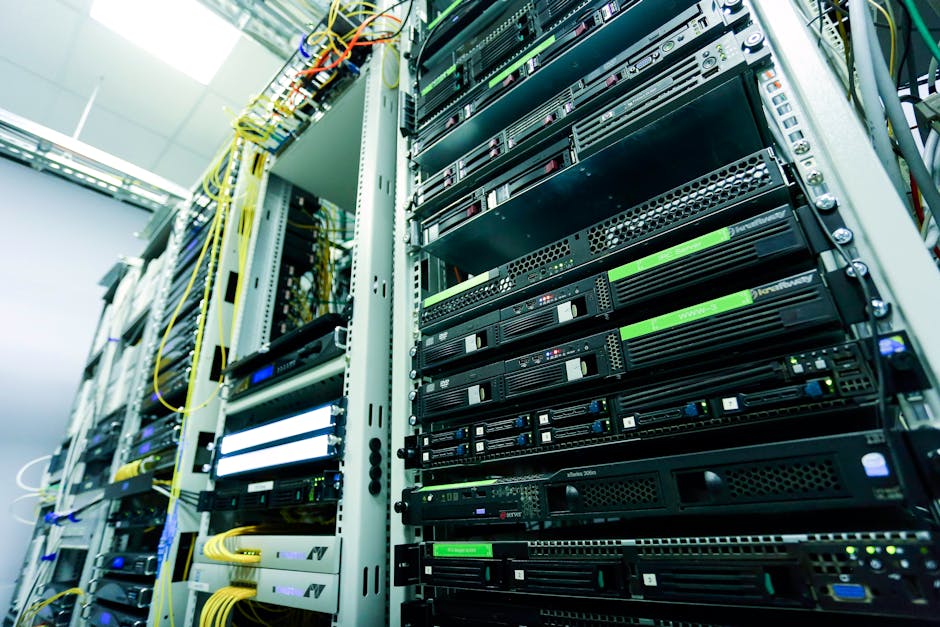
Most people size their NAS by looking at today’s folder size. That’s the wrong starting point. Media grows fast, and backups grow even faster once you add version history.
Here’s a method I use in real installs.
Step 1: estimate your media growth (not just current size)
Take your total current media size and estimate how much you add per month. If you don’t know, think in real life: phones, game capture, camera sessions, and downloaded movies add up.
Example: If you have 3 TB today and you add about 300 GB per month (photos, videos, ripped discs, and a few downloads), that’s 3.6 TB added in a year. At that rate, a “4 TB NAS” stops being enough quickly.
Step 2: account for copy + version history
If you plan to use the NAS for backups with snapshot versions, you need headroom. Snapshots store changes over time, and that can eat storage. Even if each snapshot is “only changes,” those changes add up.
A simple rule: plan on 1.2x to 2.0x your backup data size depending on how long you keep versions. If you keep snapshots for a month, it’s usually less. If you keep snapshots for a year, it’s more.
Step 3: translate raw drives into usable space
RAID reduces usable space. Here’s a quick reference for typical small-to-mid arrays:
| Drives | RAID 1 usable | RAID 5 usable | RAID 6 usable | RAID 10 usable |
|---|---|---|---|---|
| 2 | 50% | — | — | 50% |
| 4 | 50% (2 mirrors) | 75% | 67% | 50% |
| 6 | 50% (depends on layout) | 83% | 67% | 50% |
Note: RAID 1 with more than two drives can be built in different ways. Some NAS systems offer “RAID 10” instead, which is the mirrored + striped design.
Step 4: size by a target fullness (don’t fill it to the ceiling)
For best performance and fewer headaches, I plan around 70% full. When a NAS gets too full, writes slow down and maintenance tasks can feel painful.
So if you think you “need” 10 TB usable, I plan for 14 TB usable capacity in the array when possible.
Real-world sizing example (the one I use for 2026 installs)
Let’s say you want 6 years of use.
- Current media: 4 TB
- Additions: 250 GB/month (~3 TB/year)
- Backups: same data set plus changes, assume you keep versions for 30–90 days
Over 6 years: media becomes roughly 4 TB + (3 TB/year × 6) = 22 TB. Then add backup overhead. If your NAS backup uses snapshots for a few months, you may need 25–35 TB usable total.
For a 6-bay RAID 6 with 12 TB drives: raw is 72 TB, usable is about 48 TB (67%). At 70% fullness, you’re using around 34 TB. That’s in the right ballpark for this scenario.
This is why RAID 6 often shows up in “media + backups” builds: it gives you space for growth and breathing room.
What most people get wrong about storage planning
- They ignore snapshots and end up with a full NAS while trying to restore old files.
- They buy drives based on marketing size instead of usable space after RAID and overhead.
- They don’t estimate peak usage like months when you’re traveling and importing tons of photos.
Security essentials for a NAS for media and backups: defend it like it’s internet-facing
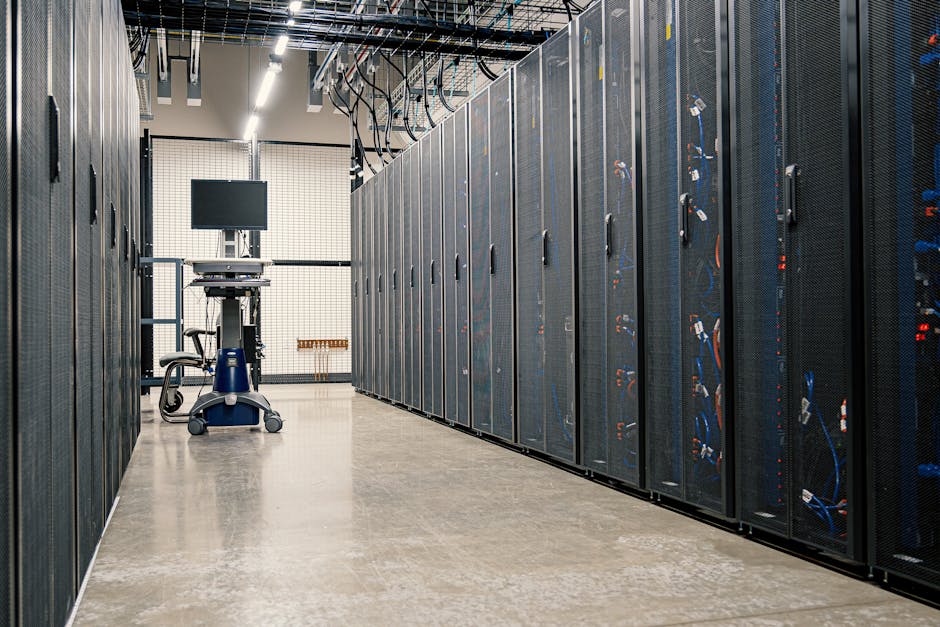
Your NAS needs two roles: storing files and staying safe. The biggest risk isn’t “a drive failing.” It’s ransomware and stolen credentials.
In 2026, the best practice is boring: keep it updated, use strong passwords, and don’t expose it in risky ways.
Lock down access: accounts, permissions, and MFA
Start with accounts and permissions. I create separate users for each person and give the least access needed.
If your NAS supports it, turn on MFA (multi-factor authentication). It adds a second check, so stolen passwords don’t automatically mean instant disaster.
Also avoid using the admin account for daily tasks. Change the admin password and keep it for emergency use only.
Updates are a security feature, not “maintenance”
When new security fixes land, they often matter for NAS devices as much as for phones and laptops. I check for updates every month, and I set alerts when my NAS platform offers them.
Most people delay updates because “everything’s working.” That logic fails when a breach uses a flaw in an older system.
Don’t forward ports unless you truly know why
If you open your NAS to the internet with simple port forwarding, you increase your exposure. Hackers scan for NAS ports constantly.
My default approach: use a secure remote access method such as a VPN (virtual private network). For example, many NAS systems support VPN features, or you can run WireGuard on your home router. This keeps access private without making your NAS publicly reachable.
If you do need remote access, use a tool with strong authentication and logging.
Enable logging and set alerts
Turn on security logs and email alerts for failed logins, unusual activity, or repeated access attempts. In one setup I worked on, logs helped catch a mis-typed password loop from a smart TV app before it turned into a bigger problem.
Don’t ignore the logs once they exist. They’re only useful if you actually check them.
Use encryption where it helps (and understand the tradeoff)
At rest encryption protects files if drives are removed from the NAS. Some NAS systems support shared folder encryption and even whole-volume encryption.
Encryption can add CPU load, but modern NAS units handle it well for home use. I recommend turning it on when your NAS supports it and your workload stays reasonable.
One limitation: if you encrypt a lot and forget the keys, restoring can become harder. Store encryption keys in a safe place.
Backups must be separate, offline, and versioned
Here’s the non-negotiable part: your backups can’t be writable on the same NAS at the same permission level as your main media. Otherwise ransomware can encrypt your “backup” too.
Your goal is at least one of these:
- An offline backup (like an external drive you disconnect)
- A separate device backup (another NAS or backup server)
- Immutability (snapshots that can’t be deleted easily, depending on your setup)
This connects to broader cybersecurity habits too. If you want more on safe backup thinking, check out our post on ransomware-safe backup strategies.
Media features that matter: streaming, indexing, and real performance
Storage is only half the story. Media playback depends on file formats, network speed, and how your NAS handles streams.
Streaming protocols: pick what fits your devices
Most NAS systems support DLNA/UPnP, plus apps for iOS/Android. Some setups also use Plex or Jellyfin. I usually recommend one “main” approach so users don’t end up with five different paths for the same files.
If you want quick playback on smart TVs and game consoles, DLNA can be the easiest. If you want a nicer library view, Plex (often paid) or Jellyfin (free) can be better.
Hardware matters more than people think
Transcoding (when a video is converted to match a device) needs CPU power. If you plan to direct-play most videos, you can go lighter on CPU.
If your house has mixed devices—older TVs, tablets outside the home, or phones on mobile data—transcoding becomes more likely. In that case, I size the NAS with a stronger CPU and enough RAM.
For a “real life” test, ask yourself: how many streams at once, and what resolution? 4K streams are common now, and network bandwidth becomes the next limit after CPU.
Use solid folder structure so backups stay sane
Before you copy anything, decide on a structure. I like keeping:
- Movies/TV
- Music
- Photos (by date or by person)
- Documents
- Backups (separate share)
Then backups and media don’t mix. When you need to restore, you won’t be hunting through messy folders.
How to choose the right NAS model class for your needs (2026 buying checklist)
When you compare NAS options, don’t just look at drive bays and pricing. Look at the “plumbing”: CPU, RAM, network ports, and how the software handles snapshots and security updates.
Buying checklist I use before I recommend anything
- How many drive bays? If you want RAID 6, you usually need 4–6+ bays.
- CPU and RAM? If you plan Plex/Jellyfin with transcoding, don’t starve it.
- Network ports? 2.5GbE is a nice sweet spot for many homes in 2026. 10GbE is great if you’re moving huge files often.
- Software features: snapshots, versioning, user permissions, and secure remote access.
- Drive compatibility and cooling: NAS systems are pickier than desktop towers.
- Expandability: some systems can expand later. Others lock you in.
2-bay vs 4–6-bay: the practical difference
A 2-bay NAS is often great for a small household. RAID 1 or an equivalent setup is easy, and it’s simpler to manage.
When you start mixing “media + backups + version history,” you quickly want more space. That’s when 4–6 bay models feel worth it. RAID 6 gives you more safety during rebuild, and you have room to grow.
Common “value” trap I see
People buy a cheap NAS with 2 bays, then later realize they needed RAID 6, better CPU, or more network performance. They end up buying again.
My take: if you’re serious about media and backups, spend enough up front to avoid a forced upgrade in 18–24 months.
People also ask: RAID and NAS for media + backups
Is RAID enough for backups?
No. RAID helps if a drive fails, but it doesn’t protect against accidental deletion, file corruption, ransomware, or a bad app update. A real backup means you can restore after mistakes and attacks.
I always recommend at least one backup that is separate from the NAS storage itself—like an external drive you disconnect or a different device with version history.
What RAID level should I use for a NAS that stores photos and movies?
For most home media libraries:
- 2-bay NAS: RAID 1
- 4–6+ bay NAS: RAID 6 (or RAID 10 if cost/performance fits)
Use RAID 5 only if you’re comfortable with rebuild time for your drive sizes and you keep strong backups.
Should I use snapshots for backups on my NAS?
Yes, if your NAS supports snapshots and you also protect them from being deleted by the same admin account. Snapshots are great for “oops” recovery, like when a folder gets overwritten.
But snapshots are not the only backup. You still want something separate, so a total NAS failure doesn’t wipe everything at once.
How do I make my NAS secure against ransomware?
My checklist:
- Use MFA for NAS logins
- Disable risky public exposure (avoid port forwarding where possible)
- Keep the NAS software updated
- Limit write permissions for backup services
- Use versioned backups and keep at least one backup offline or on another device
If you want deeper steps, pair this with our guide on securing a home NAS for safer remote access.
Do I need to encrypt my NAS drives?
If your NAS can store sensitive info, encryption is a good idea. It protects against someone stealing drives or accessing data from removed disks.
It’s less critical if you only store public media, but for photos and documents, I recommend it.
My setup pattern: how I organize backups so I can restore fast
Here’s the pattern I use because it works under stress. When something goes wrong, you don’t want to think—you want to click “restore” and move on.
Step-by-step: secure media + backups layout
- Create separate shares: one for media (read mostly), one for backups (restricted write).
- Use admin sparingly: create a daily account with limited rights.
- Turn on snapshots for the backup share with a clear retention period.
- Add an external backup: monthly or weekly, depending on how fast your data changes.
- Test a restore once after setup. Don’t wait for disaster. Pick a small folder and restore it.
- Verify space: schedule a check so the NAS doesn’t fill up silently.
This last step is more important than it sounds. A full NAS can stop backups mid-run, and you won’t notice until you need it.
Cost reality: what you’ll spend beyond the NAS
People budget for the NAS box but forget the rest:
- Hard drives (often more than the box)
- UPS (uninterruptible power supply) if power glitches are common in your area
- Network upgrades (2.5GbE/10GbE switch, extra cables)
- External backup drive or second storage device
In 2026, the “best value” often comes from buying a NAS that supports the features you’ll need later, instead of fighting the limitations with workarounds.
Conclusion: your NAS should survive drives, not your mistakes
Choosing a NAS for media and backups is about more than picking the “right RAID.” RAID keeps your NAS running when a drive dies. Backups are what save you when you delete a file, get ransomware, or suffer a total system failure.
My actionable takeaway is simple: plan for RAID 6 (or RAID 1 for 2-bay), size storage for growth and snapshot overhead, and secure the NAS with updates, MFA, and safer remote access. If you do those three things, you’ll end up with a NAS that feels boring—in the best way.
If you’re still comparing options, read our related guide on best NAS picks for home media in 2026 and our cybersecurity checklist for home storage at securing a home NAS.
Featured image alt text suggestion: “RAID setup for choosing a NAS for media and backups with multiple drives and a network connection”
About the Author