If your laptop storage is full, you feel it fast—apps lag, updates stall, and projects take longer than they should. The twist is this: your next “upgrade” might not be an internal SSD at all. Many people get more real-world speed and far better portability by using an external NVMe drive correctly.
Laptop SSD vs external NVMe is really a question of how fast your computer can move data and how easy it is to carry that speed with you. In 2026, the best choice depends on your laptop’s ports (especially USB speed and Thunderbolt support), the drive you buy, and what you do every day—gaming, video editing, backups, or cybersecurity work.
Key takeaway: “Fast” isn’t only the SSD—it’s the connection between the drive and your laptop
When people compare a laptop SSD vs external NVMe, they often look at the drive’s top read/write speeds. Those numbers are important, but the connection is what usually limits you. For an external drive, USB 3.2 Gen 2 and Thunderbolt 3/4 behave very differently.
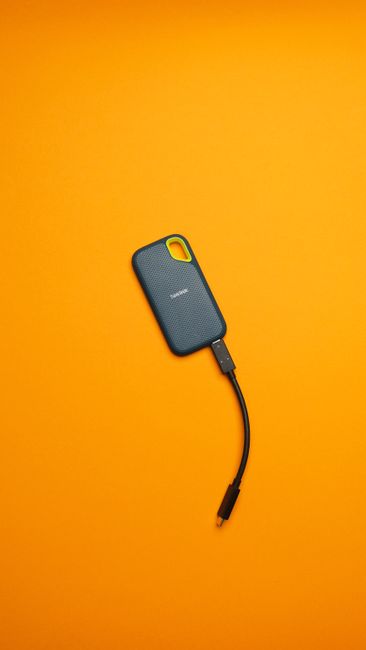
External NVMe refers to an M.2 NVMe SSD inside an enclosure (the box with the cable). The enclosure then talks to your laptop over USB or Thunderbolt. That extra layer can add speed limits, heat, and sometimes worse sustained performance if cooling is weak.
Internal laptop SSD is direct. Your laptop’s PCIe lanes (the path inside the computer) feed the drive with less overhead. In practice, internal SSDs still win for peak and steady performance—unless the external NVMe is on a fast-enough port and you manage it right.
What you’re actually buying: internal SATA SSD, internal NVMe, and external NVMe enclosures
To choose well, you need to know what “SSD” means in your laptop and what “external NVMe” means in the store listing.
Laptop SSD types: SATA vs NVMe (and why it matters)
A SATA SSD is usually 2.5-inch or uses an older interface. It’s still faster than old hard drives, but it can’t match NVMe. An NVMe SSD is built for PCIe and uses a modern command system that keeps up better under heavy workloads.
In plain terms: SATA SSD is like a solid highway, NVMe is like an express lane. Both get you places, but the express lane stays quicker when traffic gets heavy.
External NVMe: M.2 NVMe + enclosure + cable + your port speed
Most external NVMe drives use an M.2 NVMe SSD in a USB or Thunderbolt enclosure. The enclosure controls heat and speed stability. The cable and port control whether you get “near NVMe” performance.
One of my own quick checks: on a work trip, I used an external NVMe with a Thunderbolt 4 dock. The same drive later on a friend’s laptop over USB 3.1 Gen 1 felt noticeably slower. Same SSD. Different port. That’s why this choice is not just about the storage chip.
Speed comparison: internal laptop SSD vs external NVMe in real tasks

Here’s the honest answer: internal SSD is usually faster in bursts and stays fast longer. External NVMe can be close when you use the right port—but it depends heavily on your setup.
Realistic read/write expectations for common ports (as of 2026)
These are typical ranges, not exact promises. Real results vary by drive model, enclosure, and how full the SSD is.
| Connection | Typical external NVMe performance ceiling | What you’ll notice |
|---|---|---|
| USB 3.2 Gen 2 (10Gbps) | Often ~800–1000 MB/s reads | Very fast for most people, but not “full NVMe.” |
| USB 3.2 Gen 1 (5Gbps) | Often ~400–600 MB/s reads | Great upgrade over HDD, but slower for big files. |
| Thunderbolt 3 / 4 | Often ~1500–3000 MB/s depending on drive | Close to internal SSD speed on good enclosures. |
| Internal NVMe (PCIe) | Often ~1500–7000 MB/s (depends on model) | Best sustained speed and lowest overhead. |
Best-fit tasks: which one speeds up what you do?
If you do any of these, you’ll feel the difference fast:
- Video editing (4K/6K footage): internal NVMe wins for smooth scrubbing, especially with multiple caches.
- Game installs: external NVMe over Thunderbolt can be surprisingly good, especially if you keep the games there while you play.
- Photo catalogs + Adobe-style caches: internal SSD reduces stutter. External NVMe helps when you need extra space for projects.
- Backups and transfers: external NVMe is easier. It’s the same reason people still love USB drives for moving files.
- Cybersecurity labs: external NVMe is great for keeping tools, VM images, and evidence bundles portable. But your VM host and malware sandbox will run smoother from an internal SSD.
If you do security work, think about where your images live. Running VMs (Virtual Machines) from a slow drive can slow boot time and increase scanning delays. A common setup I’ve seen: internal NVMe for active VMs, external NVMe for archived datasets and offline test images.
Storage strategy: capacity, heat, and “where should my data live?”
Speed is one side. Storage fit is the other side, and it often decides the real winner.
When an internal laptop SSD makes the most sense
Go internal if you want fewer slowdowns during daily use. An internal SSD also saves you from managing power settings and drive sleep issues that can happen with some external enclosures.
Here are the times I recommend internal upgrades:
- You’re running out of space for apps, browser cache, and system updates.
- You keep large projects open for hours (video timelines, huge codebases, large VM environments).
- Your laptop supports it and the upgrade is easy or your warranty allows it.
When external NVMe is smarter than internal
External NVMe wins for portability and for keeping your laptop “clean.” You can also rotate drives for different jobs.
Choose external if:
- You want to carry a full workspace between home and work.
- You frequently travel and don’t want to open your laptop.
- You want a fast backup target (and you want it separate from your main drive for safety).
- Your laptop’s internal storage is soldered or hard to upgrade.
One thing most people get wrong: they buy a fast NVMe enclosure but then plug it into a slow USB port. If you’re shopping in 2026, check your laptop’s port labels. “USB-C” alone is not enough. Look for “10Gbps,” “20Gbps,” or Thunderbolt icons.
Heat and throttling: the sneaky reason external drives feel slower
External NVMe enclosures can run hot during long transfers or heavy workloads. When the drive gets hot, it may throttle (slow down) to protect itself.
My practical rule: if you plan to do long copy jobs—like transferring a 200GB media library—choose an enclosure that has proper thermal design and don’t assume every model performs the same. Also keep airflow around the drive. Don’t stack it under a laptop stand.
Portability and security: the travel-proof setup that actually works

This is where external NVMe often wins, especially in 2026 when remote work is still the norm.
Portability checklist for external NVMe buyers
- Choose an enclosure with a good cable: avoid tiny cables that can wiggle and disconnect.
- Pick the right protocol: Thunderbolt 3/4 enclosures are ideal if your laptop supports it.
- Use a drive case: a bare enclosure scratches easily in bags.
- Have a backup plan: an external SSD is not a backup by itself if you still keep only one copy.
Cybersecurity angle: how I’d structure evidence and tools storage
If you do incident response training, digital forensics labs, or malware analysis, you care about integrity and repeatable setups.
- Keep tools and active VMs on internal NVMe for speed and smooth performance.
- Store datasets, wordlists, disk images, and exported logs on external NVMe for portability and to keep your main drive smaller.
- Use checksums when copying: generate SHA-256 hashes for evidence files so you can verify nothing changed.
- Consider encryption: Windows BitLocker or macOS FileVault (internal) plus container encryption for external drives.
This split setup is not just “nice.” It reduces the chance of accidentally overwriting something important during experiments.
How to choose: a step-by-step decision guide
If you want a quick path to the right buy, follow this order. It saves money because you won’t buy an external NVMe that your port can’t feed.
- Check your laptop’s ports (this is the biggest factor for external NVMe).
- Decide where your biggest workloads should run (apps/VMs vs backups/transfers).
- Measure your real bottleneck with a quick disk test.
- Pick capacity first, then speed.
- Buy based on sustained use (cooling and enclosure design matter).
Step 1: Find your laptop’s connection speed
On Windows, you can check port specs and details in Device Manager and system info. On macOS, look at whether the port supports Thunderbolt (the icon matters). If you see only basic USB without speed markings, assume USB 3.1 Gen 1 or worse.
If you’re unsure, do this simple test: copy a big folder (like 10–30GB) to the external drive and watch transfer speed in Task Manager (Windows) or Activity Monitor (macOS). You’ll learn quickly if the link is slow.
Step 2: Match the storage style to your workflow
Ask yourself: do I need the data to be fast all day, or do I need it to move fast between places?
- If you need “fast all day,” internal SSD is the better home.
- If you need “fast between places,” external NVMe is the better choice.
- If you need both, do the combo: internal NVMe for active projects and external NVMe for portability and backup.
Step 3: Use a disk benchmark the right way (so you don’t get fooled)
I recommend running at least two tests: one for sequential speed (big file reads/writes) and one for mixed/random behavior. Some SSDs look great on one chart but feel average in real use.
Tools like CrystalDiskMark (Windows) or similar benchmark apps can help, but don’t chase one number. Compare internal vs external on your own laptop with the same test settings.
People Also Ask: Laptop SSD vs External NVMe
Is an external NVMe faster than a laptop SATA SSD?
Usually, yes. Most external NVMe drives can beat SATA SSDs on both reads and writes, as long as you connect them to a fast port (USB 3.2 Gen 2 or Thunderbolt). If you use an older USB port, the gap shrinks, but NVMe typically still feels faster than SATA in many real tasks.
Can I use external NVMe as my boot drive?
Sometimes, depending on your laptop and how it handles boot from USB. Some systems allow boot from Thunderbolt enclosures, others need specific settings in BIOS/UEFI. If your goal is fast startup and daily use, internal NVMe is still the safest and smoothest route.
Will an external NVMe slow down over time?
External NVMe can slow down if the enclosure overheats, if the drive is very full, or if the SSD performs extra background work. The good news: you can reduce this by keeping extra free space and using a well-designed enclosure with solid cooling.
Do I need a special driver for external NVMe?
In most cases, no. External NVMe enclosures that follow standard USB mass storage or NVMe passthrough should work with current Windows, macOS, and modern Linux setups. If you’re on an older system, check compatibility before buying.
What’s the biggest mistake when buying an external NVMe?
The biggest mistake is pairing a fast enclosure with a slow port. Another common one is ignoring the enclosure’s heat design. If you plan to copy large files for hours, that matters more than the marketing speed on the box.
Recommended buying combos (based on common real-life scenarios)
Here are setups I’d choose for different people, based on what I’ve seen work in real use.
Scenario A: You edit videos and run VMs
Pick internal NVMe for your active workloads. Add external NVMe for project backups, exports, and extra footage libraries. This keeps scrubbing smooth while still giving you portable storage.
Scenario B: You travel with a laptop and need a “mobile workspace”
Buy external NVMe with Thunderbolt support if your laptop has it. Keep your work folders, tools, and caches on the external drive. It’s fast enough for most tasks and easy to move between machines.
Scenario C: You’re mainly doing backups and moving files
External NVMe is the best pick. Look for an enclosure that supports your port speed and offers good thermal protection. For backups, the biggest win is not speed—it’s consistency. Do the same backup schedule and store copies in more than one place.
Scenario D: Your laptop storage is upgradeable and you want one clean solution
Internal SSD upgrade is the simplest. You’ll get fewer headaches: less setup, fewer cables, and better sustained performance. If you later want portability, you can still add an external NVMe for backups.
Quick pros/cons table: laptop SSD vs external NVMe
Use this table when you want a fast decision without overthinking.
| Factor | Laptop SSD (Internal) | External NVMe (Enclosure) |
|---|---|---|
| Peak speed | Usually higher and more consistent | High, but depends on port speed |
| Sustained speed | Often better due to better cooling | Can throttle if enclosure runs hot |
| Portability | Low (built-in) | High (carry it in a pocket case) |
| Setup time | Upgrade work or service | Plug and go in most cases |
| Security / isolation | Less portable, but internal encryption is easy | Good for separating data, but you must encrypt and back up |
| Cost per GB | Often good (varies by model) | Costs more because you pay for the enclosure |
Security tips if you pick external NVMe
External drives are convenient, but they also get lost more often. That’s why security habits matter.
- Turn on full-disk encryption (BitLocker on Windows, FileVault settings on macOS for internal; for external, use an encrypted container or drive encryption tools).
- Use strong passwords on anything you store there.
- Don’t reuse old accounts for test malware samples. Keep lab accounts separate.
- Verify backups: after copying, check a few files or hashes, not just the file count.
If you want more practical security steps, you might like our guide on USB security best practices and our fast backup strategy for busy people.
My bottom line for 2026: the best choice is usually a combo
If you force me to pick only one, internal laptop SSD wins for day-to-day speed. You’ll feel it in app launches, VM performance, and editing timelines.
But in the real world, most people get the best results with a two-drive setup: internal NVMe for active work, external NVMe for moving files, backing up, and keeping your workspace portable. It also makes your life safer—because losing one drive hurts less when your key data isn’t all in one place.
Actionable takeaway: check your laptop’s port speed first, then choose internal SSD if your main goal is constant performance. Choose external NVMe if your main goal is portability and easy backups. If you can do both, you’ll get speed, space, and peace of mind without regret.
Image alt text suggestion: “External NVMe enclosure connected to a laptop via Thunderbolt, showing laptop SSD vs external NVMe speed setup.”
About the Author