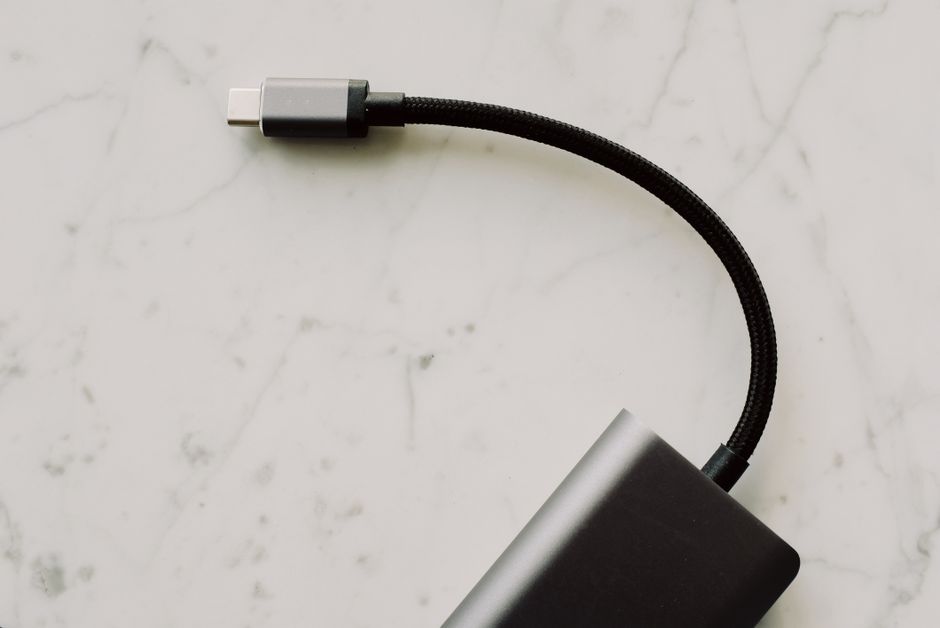
The first time I plugged my phone into a “fast charging” USB‑C cable, it charged… like a regular charger. Not dangerously slow, just annoyingly slow. That’s when I learned a harsh truth: with USB‑C, the connector is the same, but the cable and power rules can be totally different.
USB‑C Explained starts with one simple idea: USB‑C is a shape and a set of pins, not a guarantee of speed or charging power. In 2026, people still buy the wrong cables because the labels are vague and the standards are spread across multiple parts of the USB‑C story.
USB-C Explained: What the connector really tells you (and what it doesn’t)
USB‑C Explained begins with the definition: USB‑C is a reversible plug standard with up to 24 pins inside, designed to carry both power and data. The port can support different charging wattages and different data protocols, depending on the device and the cable.
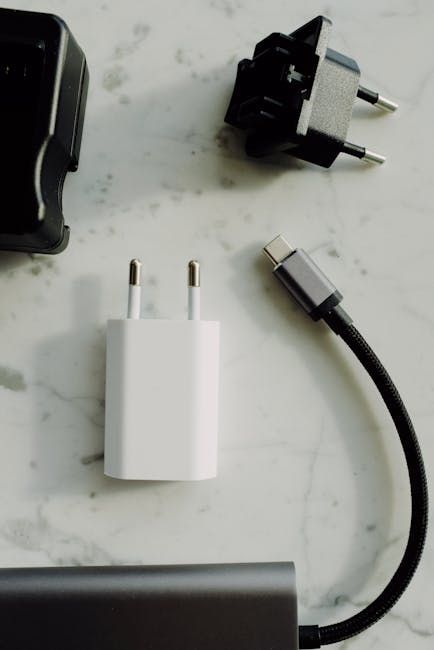
Here’s the part that trips people up. Two cables can both be “USB‑C,” but one might be built for 60W power and 480 Mbps data, while another supports 100W power and 10 Gbps data. The connector looks identical, so your wallet takes the hit after you plug it in.
When you’re shopping, focus on what the cable is rated for, not what the box says in big letters. If a listing only shows “USB‑C,” that’s basically like saying a car is “a car.” You still need to know the engine.
Charging Standards on USB‑C: PD, PPS, and the real meaning of watts
Charging standards are the rules that decide how much power gets sent and how smart the phone or laptop is about it.
USB Power Delivery (USB‑PD) is the main standard for serious charging
Most modern fast charging on USB‑C is based on USB Power Delivery (USB‑PD). USB‑PD is a protocol where the charger and the device “talk” to agree on a power level.
In plain terms: PD is how your charger and device coordinate so your phone can ask for the right wattage. Without PD, USB‑C falls back to basic charging levels.
Common PD power tiers you’ll see (as of 2026 in lots of mainstream products): 15W, 18W, 20W, 25W, 45W, 60W, and 100W. A laptop often wants 65W, 75W, or 100W depending on the model.
PPS (Programmable Power Supply) for smoother fast charging
PPS stands for Programmable Power Supply. It lets the charger change the voltage in smaller steps during charging.
I’ve seen this matter most for phones that support PPS and battery health features. With PPS, the charger can stay efficient while giving the phone better control over heat. In real life, that can mean the phone doesn’t feel as warm during long charging sessions.
Quick checklist: if your phone’s spec page says “PPS fast charging,” use a charger that explicitly supports PPS. A charger without PPS might still charge fast, but it won’t match the phone’s full “smart” mode.
USB-C charging “watts” aren’t enough without the charger profile
Watts are power. But USB‑C charging isn’t just “more watts equals faster.” A 45W charger that only supports one fixed voltage profile will behave differently than a 45W charger that supports multiple PD modes.
Example: some chargers advertise 65W, but they still don’t support the profiles a specific phone needs. Your device will negotiate what it can use. That’s why you can have a high-watt charger that still doesn’t trigger “fast charging” on every device.
USB‑C Data Speeds Explained: USB 2.0 vs USB 3.x vs Thunderbolt
Data speeds on USB‑C are a mess because the same plug can carry multiple standards.
Definition time: data speed is the maximum rate at which files move over the cable, like photos from your camera to a laptop. Charging can work even when data is disabled, which is why people are shocked when their “charger cable” won’t sync photos.
USB 2.0 (480 Mbps) cables: common in cheap “charge-only” bundles
USB 2.0 is the older standard. In USB‑C terms, it’s still used a lot because it’s cheap and many accessories don’t need high speed.
If your cable is USB 2.0, file transfer will feel slow. For phone backups, it’s tolerable. For moving a large video project or copying a big folder from a camera, it becomes painful.
In my own setup, a USB 2.0 cable can turn a 10-minute transfer into 45 minutes depending on the drive and file size. It’s not “broken,” it’s just the standard.
USB 3.2 and 10 Gbps: the sweet spot for everyday fast transfers
For most people in 2026, the practical target is 10 Gbps class speeds (often marketed under USB 3.2 Gen 2 or similar names).
When a cable supports 10 Gbps, you’ll usually see much faster photo syncing, drive copying, and external SSD performance. This matters if you use a bus-powered SSD for travel.
Still, watch out: the device port and the cable both have to support the same high-speed mode. If either side only supports USB 2.0, the whole link slows down.
Thunderbolt over USB‑C: fast, but only when you have the right hardware
Thunderbolt is a higher-performance standard that can run over USB‑C ports. It’s not the same thing as “USB 3.x.” Thunderbolt usually supports much higher data speeds and can carry video too, depending on the setup.
Look for a Thunderbolt logo on the laptop and the cable. If you just have USB‑C with no Thunderbolt support, don’t expect Thunderbolt-level performance.
One more real-world note: Thunderbolt setups often need a cable that’s certified for that standard. A random “10 Gbps” cable can fail to carry video or run at lower speeds.
How to tell the speed without playing guessing games
If a listing only says “USB 3” but never says 5 Gbps or 10 Gbps (or shows a clear speed spec), treat that as a red flag. Search within the product page for phrases like “10Gbps,” “SuperSpeed,” or “USB 3.2 Gen 2.”
Better yet: match the cable spec to your device requirements. If your laptop supports USB 3.2 Gen 2, you want a cable rated for at least that.
The expensive cable mistake: buying the right connector but the wrong cable type
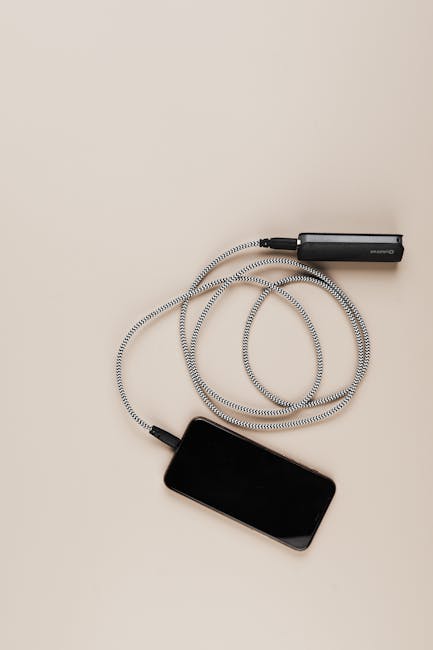
The most common expensive cable mistake is buying a USB‑C cable that can charge but can’t do fast data—or can’t do data at all.
Charge-only USB-C cables exist, even when the ends look identical
Some cables are built with power wires but missing the full data wiring. They plug in fine, and your phone charges, so you think you’re good.
Then you try to transfer files and nothing happens, or it takes forever. If you do this for work—like moving design files to a client laptop—you feel the pain fast.
I’ve seen this with store-bought “multiport travel” cables too. The box looks promising. The cable ends up being a power-only line disguised as a general USB‑C cable.
“Fast charging” isn’t the same as “fast data,” and that matters for laptops
Many people assume the cable speed matches charging speed. It doesn’t. A cable can be rated for 100W charging but still be limited to USB 2.0 data.
If you use a dock with a phone, or you connect an external SSD for video editing, you need to care about both:
- Power rating (like 60W or 100W)
- Data rating (like 5 Gbps or 10 Gbps)
When you buy one without the other, you get the slowest part of the chain as your real-world limit.
Buy a cable that matches your highest real use case
Here’s my rule from 10+ troubleshooting sessions: buy for the worst job you’ll do in the next year.
If you only charge phones, a basic USB‑PD cable is fine. If you do work files, use 10 Gbps USB‑C cables. If you do video output with Thunderbolt gear, use Thunderbolt-certified cables.
Spending a bit more upfront usually costs less than replacing your phone storage time after time.
Quick guide: choosing the right USB‑C cable and charger for 2026
Choosing the right USB‑C cable is easier when you shop by requirements instead of brand promises.
Match the power: what watts does your device need?
Start with your device specs. On many phones, you’ll see “supports up to 25W” or “supports up to 45W” and sometimes “PPS.” On laptops, you’ll see “65W adapter recommended” or “90W charger recommended.”
Then buy a charger and cable that meet or beat that number. Example: if a laptop uses a 65W adapter, don’t pair it with a cable or charger that only reliably supports 15W.
Match the data: pick your transfer tier
Use this simple table when you’re deciding what cable category you need.
| What you’re using USB‑C for | Recommended cable rating | What you can expect |
|---|---|---|
| Phone charging only | USB‑PD supported (often 18–30W) | Fast charging depending on phone support |
| Phone + basic syncing (photos, backups) | USB 2.0 is usually enough | Works, but bigger transfers take longer |
| External SSD / lots of file moves | 10 Gbps class (USB 3.2 Gen 2) | Noticeably faster transfers |
| Video output / high-end docks | Thunderbolt certified (if your device supports it) | Video and high-speed data on one cable |
Don’t ignore port support: the device side is just as important
A cable can be fast, but your device might not be. Some laptops use a USB‑C port that’s charging-only or data-limited. Others support high-speed data but not video.
If you’re unsure, check your laptop manual or the product page for each USB‑C port. Many models have multiple USB‑C ports with different capabilities.
This is the part that feels unfair, but it’s reality. In tech reviews and fixes, I’ve seen people buy a “perfect” cable only to learn their port is USB 2.0 on the data side.
People also ask: USB‑C questions I get all the time
Is USB‑C always fast charging?
No. USB‑C only supports fast charging if your phone (or laptop) and charger agree on a fast USB‑PD profile, and the cable supports the required power.
USB‑C is like a universal adapter for an outlet shape. Fast charging needs the right rules behind it: PD, PPS (if supported), and a cable built for the wattage.
Does a USB‑C cable that charges also support data?
Not always. Some cables are power-focused and skip the full data lines. If your cable is “charge only,” your computer won’t detect the phone for file transfers.
Quick test: plug the cable into a laptop and see if it shows the phone as a device. If you only get charging with no device detection, you’ve found the mismatch.
What’s the fastest USB‑C data speed you can get?
It depends on your hardware. For many consumer setups in 2026, 10 Gbps (USB 3.2 Gen 2 class) is a strong target. For much higher performance and special features like video, you need Thunderbolt support.
If your laptop doesn’t support Thunderbolt, buying a Thunderbolt cable won’t magically increase USB 3.x speed. The port still sets the limit.
Can I use any USB‑C cable for a laptop?
You can try, but you shouldn’t assume it will work correctly. Laptop charging needs enough power support. A cheap cable might handle charging at low wattage but refuse higher power modes, causing slow charging or unstable power delivery.
For best results, match cable specs to the laptop’s recommended wattage and power delivery support.
My real-world examples: what goes wrong in day-to-day life
Here are a few scenarios I’ve seen repeatedly with USB‑C setups.
Example 1: The “dock cable” that killed my external SSD speeds
I once tested an external SSD with a travel cable. The SSD “worked,” but file copies were painfully slow. The laptop detected a USB device, but the speed matched USB 2.0 behavior.
Switching to a cable rated for 10 Gbps fixed the transfer time right away. Same SSD, same laptop, different cable. That’s when I stopped trusting generic “USB‑C” labels.
Example 2: Phone charges fast, but my computer never sees it
A friend bought a new USB‑C cable for her phone. Charging was quick, but her laptop wouldn’t connect for transfers. We checked the cable: it was power-only.
Once we swapped it for a data-capable cable, photo imports started working instantly. That saved her from thinking her phone was the problem.
Example 3: Laptop video works only sometimes
Some USB‑C to HDMI setups are picky. If the port doesn’t support video output, the adapter won’t work. If the cable isn’t rated for the needed data lanes, video can drop or never start.
In those cases, I recommend checking whether the laptop port supports DisplayPort Alt Mode (a common video-over-USB standard) or Thunderbolt, depending on the device. This is where reading the laptop’s port specs pays off.
Safety and cybersecurity angle: why USB‑C isn’t just about speed
USB‑C can also be a security risk when you plug unknown devices into your laptop. If you connect through a port that supports data, a malicious device can try to talk to your computer.
I’ve covered practical steps in our USB port security tips for travel guide, including how to use safer workflows when working in airports, conferences, or coworking spaces.
Even with a normal cable, treat unknown USB devices as untrusted until you’ve verified them. For extra protection, use a data-restricted approach when you only need charging (like a charge-only cable) — but only if that’s truly your goal.
Internal battery care: how to charge smarter (and avoid heat spikes)
Fast charging creates more heat, so charging habits matter. For phones and tablets, use the recommended charger and don’t leave the device under a pillow or on a soft bed while charging.
If your phone supports PPS, using a charger with PPS can reduce stress because the charger and phone can fine-tune power. That’s good for long charging sessions and overnight charging habits.
For laptops, fast-charging is usually fine, but repeated heat is still not great for battery life. If you’re doing long work sessions, keep the laptop on a hard surface for airflow.
How to read USB‑C labels without getting tricked
Labels are where people get fooled. Here’s what to look for when you’re scanning a product page.
- “Power” wording: look for USB‑PD, PPS, and the wattage rating (like 60W/100W).
- “Data” wording: look for explicit speeds (like 5Gbps or 10Gbps) or “SuperSpeed” ratings.
- “Compatibility” wording: see if it mentions charging + data or charging only.
- Port logos: Thunderbolt logos matter for Thunderbolt setups.
If a cable listing only shows “USB‑C” and a generic compatibility line, don’t buy it if you need fast data. Buy it only if you truly just want charging.
What to do if you already bought the wrong USB‑C cable
Fix it fast instead of suffering through slow transfers.
- Test the cable with a computer. If the device shows up for data transfer, you’re good. If not, it’s likely charge-only.
- Check speed on your laptop using a simple file copy from an internal SSD to the external drive (if you’re testing a data cable).
- Match the charger too. Sometimes the cable is fine, but the charger doesn’t support the needed PD profiles.
- Return it when possible. In 2026, many retailers still allow returns for unopened items within the first weeks.
If you’re stuck without a return option, you can still use the cable for low-stakes jobs like charging in a car or powering a non-critical device.
Best practice setup: a “one-cable” life that actually works
The best USB‑C setups are boring and predictable.
My recommendation for most people in 2026:
- One USB‑PD charger that matches your laptop needs (often 65W or 100W).
- One 10 Gbps USB‑C cable for data + power (if your devices support both).
- One short charging-only cable for “just in case” travel (especially for public charging stations).
This way you don’t keep swapping cables for different tasks. You also avoid the “it charges but doesn’t sync” problem that wastes time.
If you want a broader guide to keeping your gear safe and secure while traveling, you can pair this with our USB‑C dock buying guide and our 2026 USB standards roundup coverage.
Conclusion: Avoid the cable gamble and make USB‑C behave
USB‑C Explained in one takeaway: the connector doesn’t guarantee charging power or data speed. Fast charging comes from USB‑PD (and often PPS). Fast data comes from the right USB 3.x or Thunderbolt support, and the cable must be built for it.
If you want fewer problems, shop by wattage and speed ratings, not just “USB‑C.” Match the cable to your highest real-world use case, and always test data support the first time you use a new cable. That simple habit has saved me from slow transfers, mystery “no device detected” moments, and the annoying cost of buying twice.
Featured image alt text: USB-C charging and data speed cable labeled for USB‑PD and 10Gbps transfer in 2026
About the Author