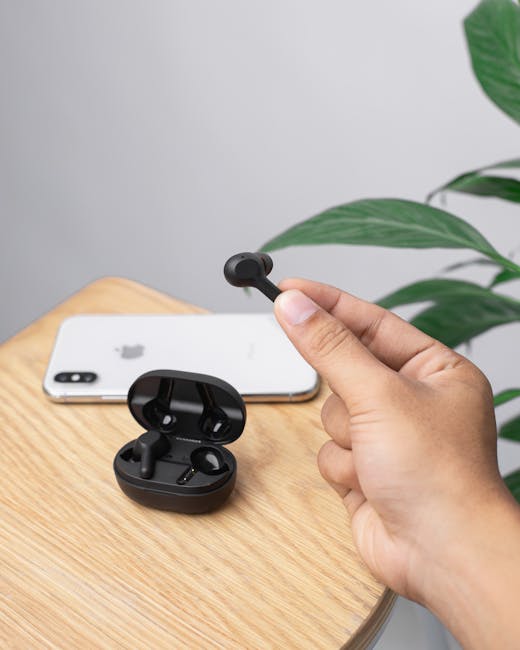
I still remember the first time I thought my headphones were broken. The sound kept cutting out, and the mic picked up random robot noises. The real problem wasn’t the headset—it was Bluetooth range and pairing quirks on my phone after I switched between two laptops.
Here’s the good news: most Bluetooth problems follow the same patterns. This Bluetooth troubleshooting guide focuses on the three issues people hit most: range drops, pairing failures, and audio latency (lag). If you follow the steps below, you’ll usually fix it the same day.
Bluetooth Troubleshooting Guide Basics: what “pairing,” “range,” and “latency” really mean
Quick takeaway: Bluetooth issues often come from connection setup (pairing), signal strength (range), or how fast audio buffers (latency) move through your device.
Bluetooth is a short-range radio link. “Pairing” is the one-time trust step where your phone and headset agree on a shared key. “Range” is how far the radios can talk with enough signal. “Latency” is the delay between what your phone sends and what you hear.
One important idea: Bluetooth isn’t like Wi‑Fi. Wi‑Fi usually gives you stable bandwidth. Bluetooth is more sensitive to walls, interference, and the way devices switch audio modes.
Fix Bluetooth Range Problems: drops, crackling, and sudden cutouts
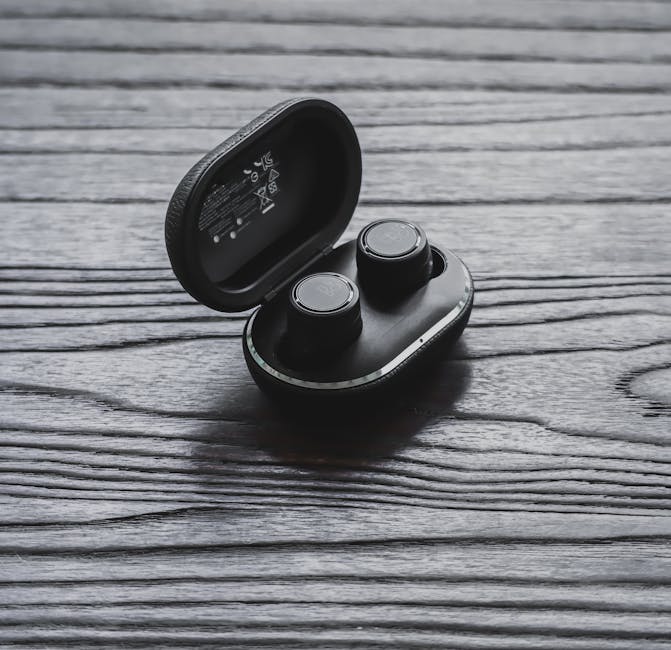
Quick takeaway: If your audio cuts out, start by improving signal strength and checking interference before you touch pairing settings.
Do a 1-minute “range test” in the real room
Before you troubleshoot for an hour, test the basics. Walk around your space while playing audio. Note where it cuts out: near a window, behind a cabinet, or when your hand covers the phone’s antenna area.
In my apartment (thin walls, lots of Wi‑Fi), my earbuds stay solid at about 10–15 feet. The moment I walk into the kitchen with metal shelves, it drops hard—often within 6–8 feet. That kind of pattern usually screams interference or physical blockage, not a broken headset.
Change your position and remove blockers
These steps sound too simple, but they work:
- Keep the phone in the same “line of sight” as the earbuds. A wall can cut the signal a lot.
- Avoid placing your phone in a back pocket when you walk. The body absorbs radio signals.
- Don’t store the headset case on a metal desk. Metal can reflect signals badly.
Reduce interference from 2.4 GHz devices
Bluetooth uses the 2.4 GHz band. That means it shares space with Wi‑Fi, many wireless keyboards, microwaves, and some smart home hubs.
Try this quick experiment: turn off your Wi‑Fi hotspot or pause a big download for 30 seconds and see if the cutouts stop. If they do, your next step is to move your Wi‑Fi router to a less crowded channel.
If you’re in an office with lots of laptops and headsets, you’ll also see problems spike during meetings. That’s because many people are trying to connect at the same time.
What most people get wrong about “Bluetooth range”
People often blame the headset and start replacing it. But the bigger issue is that Bluetooth “range numbers” are usually tested in open space with ideal conditions. In real life, walls and interference can shrink the stable range by half or more.
Another common mistake: leaving two devices connected. When your laptop and phone both try to stream audio, the headset may switch between them, causing dropouts that look like range problems.
Fix Bluetooth Pairing Failures: can’t connect, won’t show up, or keeps looping
Quick takeaway: Pairing problems are usually saved by “forgetting” the device, then pairing again in the right order.
Start with the fast checklist (15–30 minutes total)
- Turn off Bluetooth, then back on on your phone or PC.
- Power off the headset and power it back on.
- Put the headset in pairing mode (for many models, it’s a hold on the power button until you see a blinking light or hear “pairing”).
- Clear the old pairing: remove the headset from the Bluetooth list on your phone.
This sequence matters. If you re-pair without clearing old pairing data, your device can try an old link setup and fail again.
Forget the device the right way (and why it matters)
On Android and iPhone, “forget” removes the saved pairing keys. That forces a fresh setup. On Windows, removing the device does the same thing. It’s like telling your phone, “Stop assuming you know how to talk to this headset.”
I’ve fixed “won’t connect” issues just by doing: forget → restart phone → restart headset → pair again. It’s boring, but it works because it wipes the broken connection history.
Pair in the right order when you have multiple devices
If you use the headset with both a laptop and a phone, do this:
- Turn Bluetooth off on the device you’re not using (at least temporarily).
- Pair to the device you want first.
- Then turn Bluetooth back on for your other device only after audio plays normally.
In 2026, lots of headsets support fast switching and multi-device audio, but it still causes messy behavior when one device is half-sleep or has a stuck Bluetooth service.
If it won’t show up in the list
Here’s a simple way to narrow it down:
- Check the headset battery. Low battery can make pairing unreliable.
- Make sure you’re in pairing mode, not just “connected but idle.”
- Try pairing with a second phone or a friend’s device. If it pairs there, your first device has the issue.
People Also Ask: Why does Bluetooth fail to pair after a software update?
Software updates can change Bluetooth audio settings, power saving rules, or how your phone handles multiple connections. The fix is usually the same: forget the headset, reboot, then re-pair. If you’re on a PC, also restart Bluetooth services or reinstall Bluetooth drivers if pairing stays broken after multiple attempts.
Fix Bluetooth Audio Latency (lag): video sounds off, games feel delayed
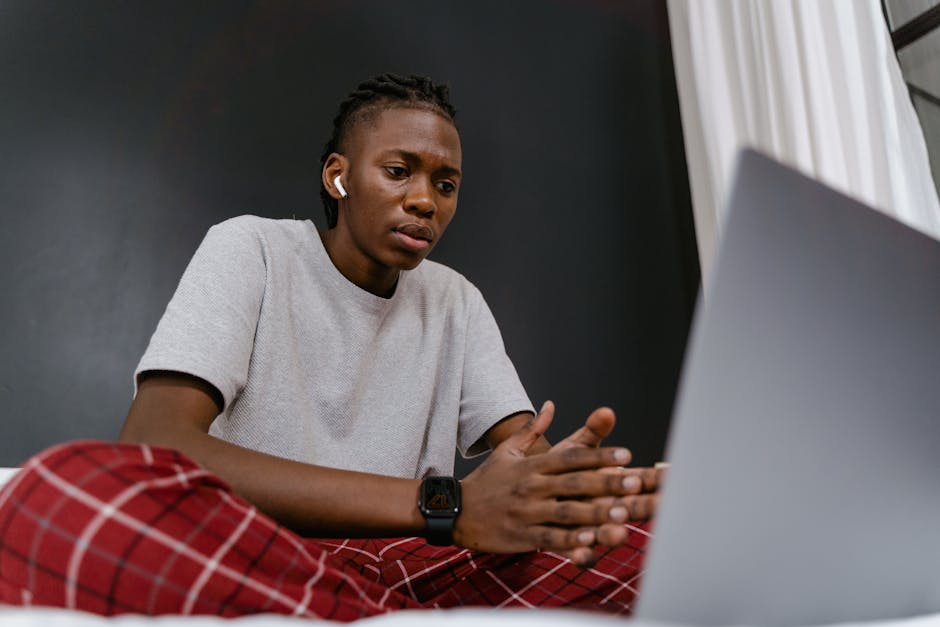
Quick takeaway: Audio latency is not just “Bluetooth being bad.” It’s often caused by codec settings, audio mode, or a mismatch between your device and headset.
Understand the two common latency killers: audio codec and audio mode
An audio codec is the method your headset and phone use to compress and send sound. Some codecs are lower delay than others. Audio mode also matters: using a “hands-free” profile (for calls) can make audio feel slower than “media” playback.
When my headset starts lagging during YouTube, it often happens after I made a call earlier. Switching the audio back to media mode fixes it fast.
Set your audio output to the correct profile (media vs calls)
If your phone or PC shows multiple Bluetooth options for the same headset, pick the one for music/media.
- On Windows: Settings > Sound > Output, then choose the headset’s stereo/music option (not the hands-free one).
- On Android/iPhone: Use the sound output chooser in the media player or Control Center.
This is one of the most reliable Bluetooth fixes for latency. People usually ignore it because the headset name looks the same, but the profiles behave differently.
Check your connection type: “headset hands-free” can add delay
Bluetooth headsets often switch between call mode and music mode. Call mode uses different data settings, which can add noticeable delay. That delay is fine for chatting, but it feels awful while watching videos.
Try these latency fixes in order
- Reconnect the headset (disconnect, then connect again).
- Close extra audio apps (music apps, browser tabs with audio, meeting tools).
- Disable “noise canceling” temporarily if your headset supports it. Some active noise features add processing delay.
- Update firmware for the headset using its companion app.
In my testing, firmware updates helped more than I expected. Headset makers tweak the Bluetooth stack and audio timing over time, especially around 2025–2026 releases.
Latency in gaming: use the right tool for the job
For fast games, Bluetooth audio can never match a wired headset or a low-latency USB dongle. If you play rhythm games, FPS, or anything where timing matters, I recommend a low-latency wireless headset instead of classic Bluetooth.
That’s my strong opinion: Bluetooth is great for walking around. For competitive play, a dedicated gaming dongle beats it.
People Also Ask: How do I reduce Bluetooth lag on Android for video?
Start with media output mode. Then disconnect and reconnect the headset. If it’s still laggy, check if your headset app has a “low latency” or “game mode” setting. As a last step, forget the device and re-pair. This combination fixes the issue in most cases I’ve seen.
Step-by-step Bluetooth Troubleshooting Flow (use this like a checklist)
Quick takeaway: Follow the steps in this order and you’ll avoid wasting time on the wrong fix.
1) Identify the symptom
- Range: crackling, cutting out, signal drop after you walk away.
- Pairing: can’t connect, keeps failing, won’t appear.
- Latency: delay during video, lip-sync problems, game timing off.
2) Use the quickest reset that matches the symptom
- Range: move your phone closer, remove blockers, test interference.
- Pairing: forget device, reboot both sides, re-pair in pairing mode.
- Latency: switch to the media output profile, reconnect, reduce audio processing features.
3) Confirm with a second device
This is the fastest way to find the culprit. Pair your headset to a different phone or laptop. If it works there, your original device has the settings or drivers problem. If it fails there too, the headset is the likely issue.
4) Update firmware and drivers (but don’t do it blindly)
Firmware updates can improve timing and stability. Driver updates on Windows can fix Bluetooth connection glitches, too. Just don’t spend hours updating everything at once. Update one side, test, then move to the next.
Cybersecurity note: Bluetooth risks people forget (and what to do)
Quick takeaway: Pairing failures and connection weirdness can sometimes be security settings issues, not only signal problems.
Bluetooth can be abused through fake pairing attempts, especially when “discoverable” is left on or when you pair with unknown devices. This is rare for modern systems, but it still happens.
Simple safety steps:
- Turn off discoverable mode when you don’t need it.
- Only pair with devices you recognize.
- Remove old pairings you don’t use anymore (forget devices you no longer trust).
If you want more on device safety, check out our related post on Bluetooth security basics (it covers common attack paths and practical habits).
Real-world fixes I’ve used (and what didn’t work)
Quick takeaway: The best fix depends on whether the problem is radio signal, saved pairing keys, or audio mode.
Case 1: Range drops during walks with earbuds
I had a pair of wireless earbuds that worked fine at home. Outside, the signal got choppy near cars and trees. The fix wasn’t new firmware—it was turning off my smartwatch’s Bluetooth streaming and moving my phone to a front pocket instead of the back pocket.
That small change improved stability by a lot. It also confirmed the issue was interference and signal absorption, not the earbuds failing.
Case 2: Pairing loop after switching laptops
Another time, my headset would connect for 2 seconds and then disconnect. The Bluetooth list still showed it as “connected” even when the sound didn’t work. Forgetting the device on both Windows and my phone, then re-pairing only to the laptop, fixed it.
What didn’t help: repeatedly hitting “connect” without clearing the saved pairing. That just replays the same broken setup.
Case 3: Video lag that gets worse after calls
After I used the headset for a call, YouTube started sounding delayed. I didn’t change anything in the headset. The fix was switching the output device from the headset’s “hands-free” option to the stereo/music option in Windows.
That’s the kind of detail most people miss because both options share the same headset name.
Quick comparison: best fixes by symptom
Quick takeaway: Match the fix to the problem, and you’ll solve it faster.
| Problem | Most likely cause | Best first step | What to try next |
|---|---|---|---|
| Crackling / cutouts | Low signal, interference, blockers | Move closer and remove walls/metal | Turn off nearby 2.4 GHz devices; avoid back pockets |
| Can’t pair / won’t connect | Stale pairing keys or wrong pairing mode | Forget device + reboot | Re-pair only one device at a time |
| Audio delay / lip-sync issues | Wrong audio profile or codec/mode | Select stereo/media output | Reconnect; update firmware; reduce processing features |
When to stop troubleshooting and replace (or return) the headset
Quick takeaway: If the same headset fails on multiple devices after pairing reset, it’s time to suspect hardware.
If your headset won’t pair on two different phones and two different computers even after you forget and re-pair, that points to a headset hardware or battery issue. If you have an active return window, use it. Headsets should work right out of the box.
Also pay attention to battery behavior. A weak battery can cause sudden dropouts and weird pairing loops.
Related reads on this site
Quick takeaway: If your Bluetooth issues started after setting up new gear, the rest of your device settings may be the hidden cause.
- Wi‑Fi interference check: how I find the noisy devices
- Best budget wireless earbuds (2026): what actually affects call and music quality
- Bluetooth updates in 2026: what changed for audio and stability
Bottom line: your next move for Bluetooth Troubleshooting
Quick takeaway: Use the symptom-first checklist: fix range with signal and interference steps, fix pairing by forgetting + re-pairing, and fix latency by switching to the media output profile and reconnecting.
If you only do three things after reading this, do these: walk closer to test range, forget and re-pair when pairing fails, and pick the headset’s stereo/media option when audio lags. That combo clears up the vast majority of Bluetooth problems I see in 2026—and it’s way faster than random button mashing.
If you want, tell me your device model (phone/PC) and headset brand, plus what symptom you’re getting (range cutouts, pairing loop, or lag). I can help you choose the right next step without guessing.
Featured image alt text suggestion (use on your blog): “Bluetooth troubleshooting guide showing device pairing, range test, and audio latency checks on 2026 setup”
About the Author