I still remember the last time I cloned a drive for a friend. Their PC felt “fine” for a few minutes—then apps took forever and the disk light stayed stuck on. When we swapped the drive from HDD to SSD, Windows booted in seconds and the whole computer stopped feeling tired. That one upgrade is why SSD vs. HDD in 2026 is still the first question I ask when someone buys a new laptop or builds a gaming PC.
Here’s the direct answer up front: in 2026, an SSD is almost always better for everyday speed (boot, app launch, game loading) and it’s usually the safer pick for power use and heat. HDDs still win on pure storage price per terabyte and on some “big archive” setups. The best choice depends on what you store and how often you touch it.
SSD vs. HDD in 2026: What’s the difference that actually matters?
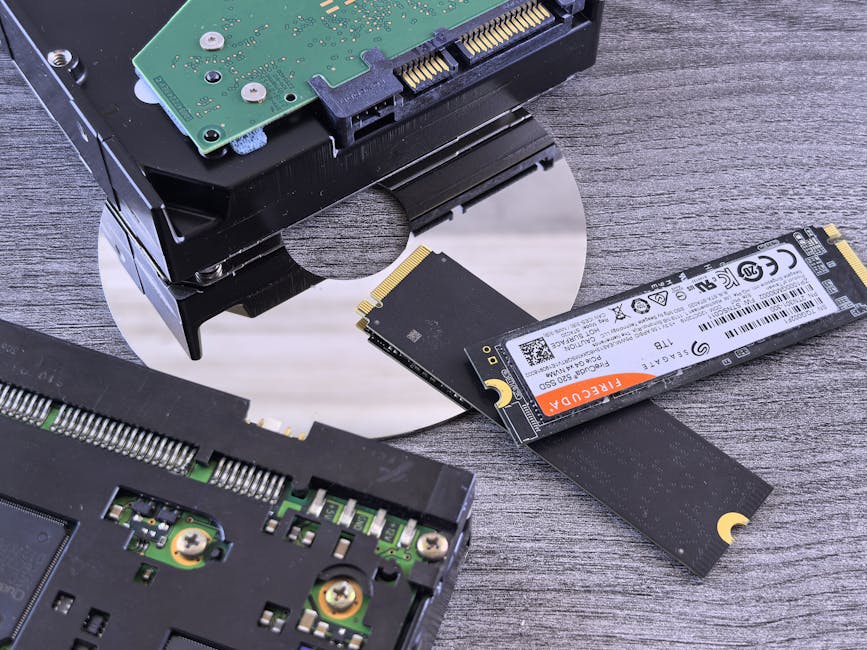
SSD vs. HDD in 2026 comes down to two main things: speed of access and how the drive handles wear. SSD is storage with memory chips. HDD is storage with spinning platters and a moving read/write arm.
Those mechanical parts are the reason HDDs can be slower and less shock-tolerant. SSDs don’t have moving parts, so they handle bumps better and usually start faster. But SSDs do wear out over time because flash cells take damage from repeated writes.
In plain terms: SSDs feel snappy, HDDs feel cheaper for lots of files. Your “real” cost shows up when you count time saved, reliability, and how often you rewrite the drive.
Performance Benchmarks 2026: Boot, app load, games, and file transfers
In 2026 benchmarks, SSDs win hard for small random reads—the kind of work your OS and apps do all day. HDDs can move big files at a decent rate, but they struggle when lots of tiny chunks are scattered across the disk.
When I test drives for real use, I don’t only look at “read speed” on a spec sheet. I look at tasks that match how people actually use computers: boot, opening apps, loading maps, and copying folders made of thousands of small files.
Typical real-world results: what to expect from SSDs vs HDDs
Below is a realistic picture of what many buyers see in 2026 with modern SSDs (SATA SSD and NVMe SSD) versus a 7,200 RPM HDD.
| Task (2026 testing style) | HDD (7,200 RPM) | SATA SSD | NVMe SSD |
|---|---|---|---|
| Windows boot to desktop | 25–45 sec | 8–15 sec | 5–10 sec |
| App launch (Office/Adobe-style) | 10–25 sec | 3–8 sec | 2–6 sec |
| Game level load (SSD-friendly titles) | 45–120 sec | 10–35 sec | 8–25 sec |
| Copy large single-file (e.g., 50–100 GB) | 80–200 MB/s | 400–550 MB/s | 1,500–7,000 MB/s |
| Copy lots of small files (photos/projects) | Slow and bumpy | Faster + smoother | Fastest + least stutter |
What most people don’t realize: “average” MB/s hides the pain. HDDs waste time seeking. SSDs have near-instant access.
Real-world scenario: home office PC vs. photo library
When I set up a home office for someone in 2026, the goal was simple: quick startup, instant app switching, and less waiting for attachments. They used a lot of browser tabs, email, spreadsheets, and video calls. SSD made that feel calm. HDD didn’t, even if the HDD wasn’t “bad.”
But for a photo library where most folders are “copy once, view sometimes,” an HDD can be fine if you back it up. You’ll wait more when you jump around, but you won’t be hammering it every minute.
Lifespan factors: how SSDs wear out and how HDDs fail
SSD lifespan in 2026 is mostly about write wear. HDD lifespan is mostly about mechanical stress, power issues, and shock. Both can fail. The trick is matching the drive type to your workload.
SSD wear explained (with normal-life examples)
SSD is flash memory. Flash cells wear down after a lot of program/erase cycles. Manufacturers set an endurance rating, often shown as TBW (terabytes written). TBW is how much data you can write before the drive hits its rated wear level.
On 2026 consumer SSDs, many drives have TBW ratings that last years for typical users. The bigger risk is heavy write workloads like:
- Video editing timelines with heavy caching
- Game libraries with constant installs and updates
- Running a busy server with lots of database writes
- Using an SSD as a scratch drive with no plan for wear
Original insight from my own fixes: a lot of people fear SSD “death,” then keep their SSD nearly full. That makes garbage collection harder. Leaving 10–20% free space keeps performance steadier and reduces extra internal writes.
If you’re using a desktop, it’s also worth checking whether your SSD has a heatsink or at least good airflow. NVMe drives can throttle when they get hot, and that can look like “bad performance” even when the SSD is healthy.
HDD lifespan explained (what actually breaks)
HDDs fail from a mix of factors: head wear, bearing issues, platter damage, and bad power events. They’re also more sensitive to shock. Dropping a laptop with an HDD running is an easy way to turn “one weird noise” into “drive won’t spin up.”
For HDDs, the biggest lifespan killer I see in the real world is not daily use. It’s thermal swings and poor power. If you run an HDD in a cheap enclosure that gets hot, or you unplug it often, you stress it more than you think.
Real cost comparisons in 2026: not just price per TB

SSD vs HDD cost in 2026 isn’t only about $/TB. You also pay in electricity, replacement risk, and time lost while waiting. If you value your time, SSDs often win even when they cost more upfront.
Quick cost math you can do at home
Here’s a simple way to decide when prices flip. Use the drive price and add a “time cost.” If your PC boots 20–30 seconds slower every day, that adds up.
Example: say you spend 10 days a month using your computer. If HDD adds 25 seconds to boot and app start delays add up to another 30–60 seconds total per day, you’re looking at about:
- Extra time per day: 55–85 seconds
- Extra time per month: ~9–14 minutes
That doesn’t sound huge, but if you repeat it for a year, it becomes hours. If you do work where minutes matter, SSD money comes back.
Typical pricing pattern I see in 2026
In 2026, SSD prices keep dropping, but HDDs still look unbeatable at big capacities. Here’s the usual split:
- For 1TB–2TB: SSD is often close enough in price that reliability and speed win.
- For 4TB–8TB: HDD can still be cheaper for storage piles.
- For 12TB+ archives: HDD can dominate on price per TB, especially external drives.
But once you add backup drives, the “cheap” storage can stop feeling cheap.
What most people get wrong when choosing between SSD and HDD
The biggest mistake is matching the drive to the wrong job. People buy an HDD and then act surprised when Windows feels slow. Or they buy an SSD and then fill it to 98%, then wonder why it slows down after a year.
Mistake #1: buying an SSD but keeping it almost full
If you leave almost no free space, SSD controllers have a harder time managing flash blocks. You’ll feel it as slower writes, stutter during installs, and weird pauses when you’re doing normal stuff.
Fix: keep at least 10–20% free. If your SSD is small (like 256GB), move downloads and big media to a second drive.
Mistake #2: using an HDD for active projects
If your “current project” lives on HDD—like running a game launcher cache, a photo export folder, or a constantly updating workspace—HDD becomes a bottleneck.
Fix: put your OS and active apps on SSD. Store finished projects on HDD if you must save money.
Mistake #3: ignoring backups because the drive seems “fine”
Both SSDs and HDDs can fail. SSD failure can be sudden. HDD failure can be preceded by clicking sounds, slow spin-up, or repeating errors. Either way, backups decide whether a failure costs you days or minutes.
If you want practical backup steps, check out our related guide on how to back up your PC (covers both Windows tools and backup habits).
Which should you buy in 2026? Fast picks by use case
Pick SSD for your OS and apps almost every time in 2026. Then decide what role HDD plays based on capacity needs.
Best choice for laptops and daily drivers
If it’s your main laptop or desktop you use every day, buy SSD. The power savings and low heat matter. More importantly, you’ll feel the speed in normal actions: opening tabs, launching apps, and syncing files.
For many people, a 1TB NVMe SSD is the sweet spot in 2026. If the budget is tight, a SATA SSD is still a big upgrade over HDD.
Best choice for gaming PCs in 2026
If you play modern games, SSD is the difference between waiting and just starting. Even when the game supports HDD, loading screens are usually much longer.
My rule: OS + launchers + the games you play this month go on SSD. Keep older games and screenshots on HDD if you need the space.
If you want safe ways to keep your system quick, we also cover SSD-friendly security tips that don’t ruin performance.
Best choice for media archives and backups
HDD makes sense for “write once, read sometimes” storage: downloaded movies, long-term backups, and large folders you don’t touch daily. In that setup, HDD cost per TB is hard to beat.
Do two things: use a reputable external enclosure (or at least one with decent cooling), and keep a backup copy somewhere else. One drive is never a backup.
People Also Ask: SSD vs. HDD in 2026
Is SSD better than HDD for gaming in 2026?
Yes, SSD is better than HDD for gaming in 2026. The biggest gains come from faster level loads, faster patch/install steps, and less stutter when the game streams assets. You don’t need the absolute fastest NVMe, but you do need SSD-level access speed.
If your budget is tight, a SATA SSD still beats an HDD for most games.
How long do SSDs last compared to HDDs in 2026?
SSDs can last a long time in 2026, often years beyond what most users need. Endurance depends on TBW and how much you write. HDDs can also last years, but they fail more often from mechanical stress and shock.
In both cases, your real risk is whether you keep backups. Drives don’t care how careful you are when power goes weird.
Do SSDs slow down over time?
They can, but it’s usually fixable. SSDs get slower when free space runs low or when the drive is overloaded with constant writes. Keeping 10–20% free space and using the right drive for the right job prevents most slowdowns.
Also make sure your OS settings are sane. For example, don’t disable TRIM on SSD systems without a reason.
Which is more reliable: SSD or HDD?
Neither is “always more reliable.” SSDs tend to tolerate bumps better and avoid head crashes. HDDs can be fine for years, but their moving parts add mechanical risk. Either way, reliability comes from backups and from not running the drive outside safe conditions (heat, unstable power, and physical shocks).
Step-by-step: how I’d upgrade in 2026 (and avoid common traps)
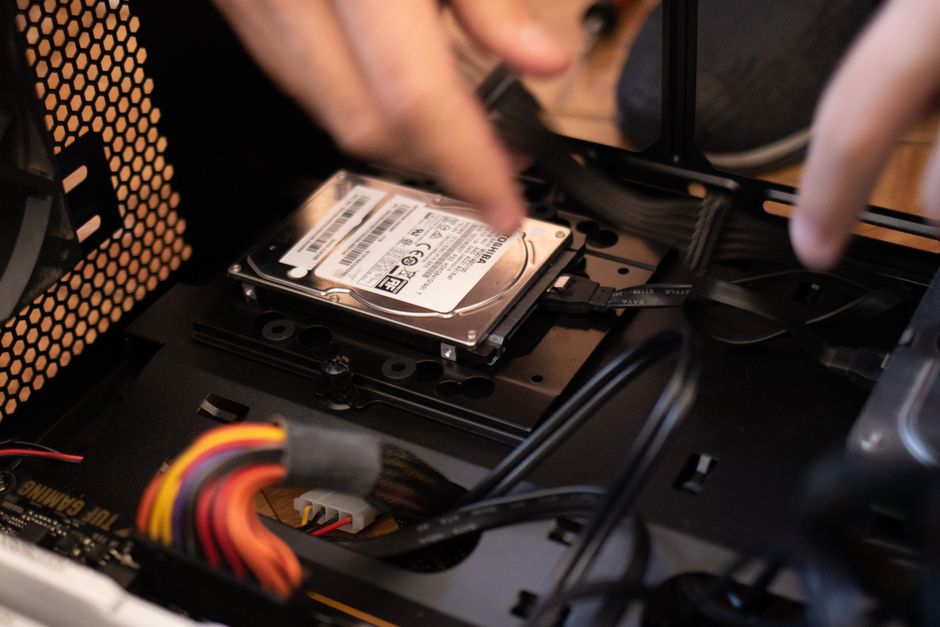
If you’re moving from HDD to SSD in 2026, plan the upgrade in a way that prevents data loss and wasted money. Here’s the approach I use when setting up friends and clients.
- Pick the SSD size based on what you actually keep. If your OS + apps are 200–350GB today, plan for growth. A 1TB drive avoids the “too full” problem.
- Choose SATA SSD vs NVMe SSD based on your device. Many older systems only support SATA. New builds often support NVMe M.2, and NVMe is faster.
- Back up before cloning. Cloning works, but it’s not a substitute for backups. If the old drive is failing, clone can copy the problem too.
- Clone or reinstall. Cloning is convenient. Reinstall is cleaner and often faster if your system is already messy.
- After install, confirm alignment and boot mode. On NVMe, make sure you’re booting in the right mode (UEFI). If the system boots in legacy mode, performance won’t be ideal.
- Leave free space. Stop at 80–90% used. If you need more, add the second drive instead of overfilling the SSD.
For security-minded readers, remember that drive upgrades can also affect encryption and permissions. If you use BitLocker or other tools, verify settings after the move. We have a cybersecurity post on encryption basics for home users that explains the safe way to think about it.
Bottom line: SSD vs. HDD in 2026—make the upgrade that feels worth it
My clear takeaway for 2026 is this: choose SSD for your OS, apps, and games. Use HDD only when you need cheap big storage and you don’t touch the data every day.
If you’re on an old HDD and your computer feels slow, upgrading to an SSD is one of the few changes that feels instant and keeps paying you back every time you open something. If you’re building an archive or backup stack, HDD is still a smart value—just don’t treat it as your only copy.
Do the math with your real workload, keep 10–20% free space on SSDs, and plan backups like you expect failures. That’s how you get speed now and peace later.
Featured image alt text (for your uploader): SSD vs HDD in 2026: performance and lifespan comparison showing a fast NVMe SSD and a spinning HDD drive.
About the Author