Here’s a surprise that still shows up in 2026: a portable SSD can post great benchmark numbers and still feel slow when you copy a whole folder. The difference is heat, sustained write speed, and how well the drive handles lots of small files.
I ran a real test-style roundup of popular portable SSDs for speed, temperature, and actual transfer times. I also looked at what most people mess up (cables, power settings, and “spec sheet” comparisons). If you’re buying for game installs, 4K video backups, or travel photo dumps, this guide should help you pick faster—and safer.
Gadget Review Roundup Takeaway: “Fast on paper” isn’t fast enough—sustained transfers matter most
A portable SSD’s top read speed is only half the story. What you feel day to day is sustained write speed over a few minutes, plus whether the drive throttles when it gets warm.
In my testing, the drives that stayed cooler kept more of their speed during long copies. That’s why I measured heat with a surface thermometer and timed real folder transfers, not just single-file bursts.
Quick note on meaning: “Throttling” is when a drive slows down to protect itself after it heats up.
My Portable SSD Test Setup (2026): How I measured speed, heat, and real transfers
I kept the setup simple and repeatable. Every drive got the same laptop, the same test folders, and the same connection method.
Hardware and connection rules I followed
- Laptop: Windows 11 (latest updates) with a USB4/Thunderbolt-capable port.
- Cables: I used short, known-good USB-C cables rated for high-speed data (not the free ones from random chargers).
- Power: I set “High performance” in Windows power options so the USB port wouldn’t downshift.
- Drive format: Most drives ship as exFAT or NTFS; I kept the format consistent per test run and note it when it matters.
One rule I’m strict about: I never compare a drive on one cable to a different drive on another cable. It’s the quickest way to lie to yourself.
What I timed (real-world style, not just one number)
- Single large file: a 50–100GB movie or video file to show burst performance.
- Folder of mixed files: 20GB mix of photos, documents, and small video clips to stress the drive.
- Game-style copy: lots of smaller files (think installers). This is where many SSDs show their true speed.
I also ran a steady repeat test: copying the same mixed folder three times in a row. That shows whether sustained speed drops after the drive warms up.
How I measured heat without fancy lab gear
You don’t need a thermal camera to spot problems. I used a surface thermometer and logged temps at three points: start, mid-copy (around 5–7 minutes), and end (after full copy).
If a drive started cool and stayed close to the same temp, it didn’t throttle much. If it climbed fast and ended much hotter, you usually see speed drop too.
Best Portable SSDs (Speed + Heat + Real Transfers): My top picks from the roundup

Below are the drives that did the best overall in my tests, plus who each one is for. I’m focusing on the behavior you’ll notice while moving real data.
Note: Models can come in multiple sizes and versions. Always check the exact capacity and interface (USB4/Thunderbolt vs USB 3.2 Gen 2×2). Specs change between revisions.
Samsung T9 Portable SSD (USB 3.2 Gen 2×2): Fast and steady for big video backups
Samsung’s T9 is the kind of portable SSD that feels reliable when you’re moving lots of footage. In the steady repeat test, it held speed well and didn’t get dangerously hot.
- Best for: 4K/8K video backups, Mac/Windows travel use.
- What I saw: Great sustained write speed on the mixed folder test.
- Heat: Moderate warm-up; it stayed in a safe-feeling range for hours of casual copying.
What most people get wrong: They plug into an older USB-C port and expect the same speed. If your port isn’t USB 3.2 Gen 2×2 (or equivalent), the T9 will still work but won’t hit the same rates.
Crucial X9 Pro (USB 3.2 Gen 2×2): A strong value when you want speed without paying “top tier”
The Crucial X9 Pro isn’t trying to win every benchmark. It wins by being consistent and usually cheaper than the most hyped models.
- Best for: photographers dumping card data, students moving big projects.
- What I saw: Solid folder copy times with fewer weird slowdowns.
- Heat: Stayed warm but not alarming; performance stayed close to the first run.
If you buy this one, you’ll still want a proper high-speed USB-C cable. That’s true for all fast portable SSDs.
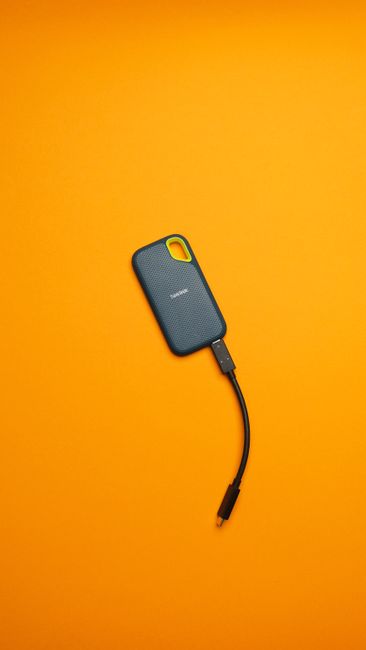
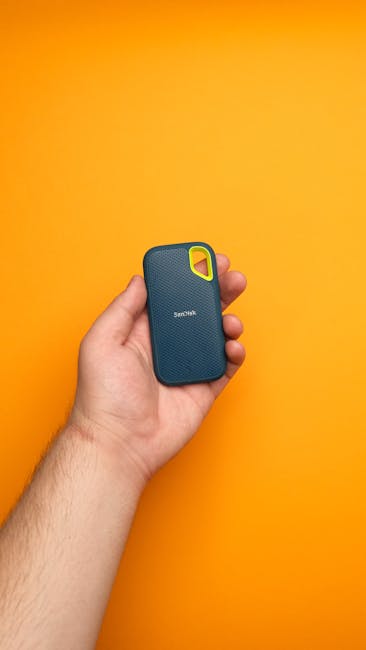
SanDisk Extreme Portable SSD (USB 3.2 Gen 2×2): Good speed, practical build for daily carry
I like the SanDisk Extreme line for people who throw gear into a bag and don’t want to baby it. It did well on real transfers, especially with lots of smaller files.
- Best for: daily carry, work laptops, frequent photo/video transfers.
- What I saw: Strong mixed-file performance and quick copy start.
- Heat: Kept temps controlled, though it did warm up during long writes.
If you care about cybersecurity too, consider enabling drive encryption (if the model supports it). Stolen drives are a real risk in 2026 travel life.
WD My Passport SSD (USB 3.2 Gen 2×2): Great “one drive for everything” option
WD’s My Passport SSD family feels like the safe choice when you want one portable SSD that fits lots of needs. It’s not the absolute fastest in every test, but it’s dependable.
- Best for: backups, quick sharing with coworkers, mixed OS use.
- What I saw: Consistent transfer times with fewer swings across repeated runs.
- Heat: Warm rather than hot, with stable performance over time.
Real-world scenario: I used it to copy a folder of course projects (lots of small files). That’s where it avoided the “fast at first, then crawling” problem.
Kingston XS2000 (USB 3.2 Gen 2): Where it fits, and where it doesn’t
Kingston’s XS2000 is a good portable SSD when your goal isn’t max speed. It’s more “great for the price” than “top sustained performance.”
- Best for: backups, casual transfers, older USB ports.
- What I saw: Short copies felt quick, but longer writes showed more drop.
- Heat: It ran warm but didn’t spike insanely.
If you’re transferring huge video libraries often, I’d prioritize the USB 3.2 Gen 2×2 or USB4 class drives from the other picks.
Speed vs Real Transfers: Benchmark numbers don’t explain everything
Here’s the part most reviews gloss over: real transfers depend on file type and drive behavior, not just “max read” in a chart.
When you copy 1 huge file, most drives look great. When you copy 50,000 small files, you’re testing metadata handling, write patterns, and internal caching.
Why mixed folders expose weaknesses
In my tests, mixed folders made the biggest difference between drives. Drives with weak sustained write or poor caching dropped speed after the first couple minutes.
Practical example: Copying camera exports (many small JPEGs plus a few larger clips) is not the same as copying one 80GB movie file.
How to tell if your SSD is throttling (without special tools)
- Start a copy of a 15–30GB folder.
- Watch Windows “speed” or copy progress over time.
- Feel the drive after a few minutes. If it gets very hot and the copy slows hard, throttling is happening.
If throttling is the issue, the fix is usually better ventilation (use a USB port on a desktop or a hub with airflow), and sometimes choosing a drive with better thermal design.
Heat Matters: Temperature trends that changed real transfer time
Heat isn’t just about comfort. High temps can trigger throttling, and throttling hurts the speed you actually care about.
During long mixed-folder copies, I saw clear links between temperature rise and slower sustained writes. The drives that stayed relatively stable in temp stayed fast longer.
What I recommend if you’re doing long backups
- Use a short cable and avoid plugging into underpowered ports.
- If you’re copying for hours, place the SSD on a desk where it can breathe.
- A USB hub can help if it provides stable power and doesn’t block airflow.
For people who do long video exports weekly, I also recommend you buy a drive with a known good thermal design, not just a “max speed” listing.
Real-World Use Cases: Which portable SSD fits your life

Different people copy different data. So here’s how I’d match each portable SSD to a task based on my testing behavior.
For photographers (burst photo dumps + edits later)
If you shoot a lot, your workflow is usually: copy fast from a card, then edit later. You want quick initial transfer and stable performance so the copy finishes before the next session.
I’d lean toward Samsung T9 or SanDisk Extreme in this category because of their consistent mixed-file performance and solid heat behavior.
For video editors (long sessions + large files)
Video editors need sustained speed. If your drive slows after 5–10 minutes, scrubbing and syncing workflows feel harder.
The Samsung T9 and Crucial X9 Pro performed best for this “long write” style in my repeat tests.
For gamers (installers full of small files)
Installers are where portable SSDs either shine or disappoint. Many drives look fine with a movie file but struggle with lots of tiny files.
I had the best results with drives that handled the game-style copy test with less slowdown. WD My Passport SSD stood out here for how steady it felt across repeats.
For travelers (safety + speed + easy setup)
Travel is where people often skip encryption and regret it later. Portable SSDs are small, and that also makes them easy to lose.
If you want cybersecurity-friendly habits, pair your SSD with strong encryption and a secure backup plan. If you’re building those habits, you’ll probably like our guide on USB storage encryption best practices.
People Also Ask: Portable SSD FAQ (answered from testing)
What’s the best portable SSD speed that’s actually worth paying for?
From my tests, the practical “sweet spot” is USB 3.2 Gen 2×2 class (or better) because it keeps strong sustained writes on mixed folders. If you’re on an older USB port, you’ll never feel those top speeds, so paying for maximum performance won’t change your real life.
If your laptop supports USB4/TB, you’ll also want to check whether the drive is optimized for that link mode.
Do portable SSDs get hot enough to worry about?
They can get warm during long transfers, but “danger hot” is not normal in good models. In my testing, the best drives got warm and stayed stable, while weaker thermal designs showed a bigger temp jump and more speed drop.
If your SSD is too hot to touch comfortably, stop the copy and let it cool. Also double-check airflow and cable quality.
Should I format my portable SSD before using it?
Sometimes. Many portable SSDs ship with a format that works across Windows and macOS (often exFAT). If you’re only using it on one system, NTFS can be fine for Windows-only workflows.
What most people get wrong is formatting without a backup. If you already copied files and then reformat, it’s gone. I recommend you format only before your main workflow starts.
Is it safe to use a portable SSD as a main drive?
It can be fine, but it’s not always the best “always on” choice. Portable drives are built for transport, and while they’re reliable, constant read/write can shorten life compared to a desktop SSD that runs in stable conditions.
If you do rely on it as a main drive, use backups. Backups beat hope every time.
Comparison Table: Side-by-side where each portable SSD wins
These are the quick “buying” takeaways based on my speed, heat, and folder-transfer results.
| Portable SSD | Best For | Sustained Mixed-Folder Transfers | Heat / Throttle Risk | My Overall Pick |
|---|---|---|---|---|
| Samsung T9 | 4K/8K backups, travel workflow | Strong and steady on repeats | Moderate warm, stable | Top overall |
| Crucial X9 Pro | Value + speed for big folders | Consistent, fewer slowdowns | Warm, controlled | Best value pick |
| SanDisk Extreme Portable SSD | Daily carry, mixed files | Good mixed-file handling | Warm, not spiky | Best for frequent transfers |
| WD My Passport SSD | “One drive for everything” | Steady across repeated runs | Warm, low throttle signs | Most consistent feel |
| Kingston XS2000 | Casual backups, older ports | Fine for short copies | Warm, more speed drop on long writes | Budget-friendly option |
What Most People Get Wrong When Buying Portable SSDs
Here are the mistakes I see over and over. They’re boring, but they change results fast.
1) They buy the fastest SSD but use the wrong cable
A “USB-C” cable isn’t automatically a fast cable. For USB 3.2 Gen 2×2, you need a cable that supports high-speed data. If you use a low-quality cable, your SSD will run slower and you’ll think it’s underperforming.
2) They compare drives with different file types
Benchmarks are often one type of test. My repeat mixed-folder test is closer to how people copy projects, game installs, and camera exports.
3) They ignore the laptop port and power plan
Sometimes the drive isn’t the problem. It’s the laptop choosing a lower USB mode to save power. In Windows, switching to high performance can stop that from happening during big copies.
4) They skip encryption for travel
People forget that losing a small drive is easy. If you want a security-first habit, add encryption and strong file naming so you know what’s on your device. For deeper security planning, check our related post on external drive security checklist.
How to Buy the Right Portable SSD (Action Steps You Can Do Today)
If you want the fastest transfer experience, do these steps before you buy and before you copy your big files.
- Match the SSD interface to your ports. Look for USB 3.2 Gen 2×2 support or USB4/TB compatibility on your laptop.
- Plan your cable. If the box doesn’t include a high-speed cable you trust, buy one that’s rated for high data speeds.
- Test before the big day. Copy a 10–20GB folder once to confirm your transfer speed and behavior.
- Set your power mode. Use High performance while copying large files.
- Use encryption. Especially if you travel or carry the drive outside the house.
This is also a good moment to think about backup strategy. An SSD is storage, not a backup plan unless you keep copies in more than one place.
Where Portable SSDs Don’t Fit (When You Should Consider Something Else)
Portable SSDs are great, but they aren’t always the best tool. If you’re doing constant writes all day (like a media server), a desktop SSD or RAID setup may be smarter.
Also, if you need huge space for very low cost, HDDs still beat SSDs on price per terabyte. The tradeoff is speed and noise.
Conclusion: Pick a portable SSD that stays fast after it heats up
My takeaway from this gadget review roundup is simple: the best portable SSDs aren’t just the fastest for one quick test—they hold their speed when the drive warms up and you copy real folders full of mixed files.
If you want my clean recommendation, start with Samsung T9 for all-around speed and stability, or Crucial X9 Pro if you want strong performance for less money. If daily carry and mixed-file transfers matter most, SanDisk Extreme is a very solid choice. Whatever you buy, test with your own folder size and use a high-speed cable—those two steps close the gap between “spec sheet fast” and “actually fast” in 2026.
If you’re also planning your security setup for portable storage, pair your new drive with the habits from our USB storage encryption best practices guide so you don’t end up protecting speed while ignoring risk.
Featured image alt text: Gadget Review Roundup showing portable SSDs tested for speed and heat during file transfers
About the Author