Quick answer: If you want the safest choice for video + fast data, buy a Thunderbolt (or Thunderbolt 4) setup. If you’re on a budget and only need display output, look for USB-C with DisplayPort Alt Mode. If your goal is just charging and basic accessories, a plain USB-C port is usually enough.
I’ve had this exact problem in my own desk setup: I bought a “USB-C to HDMI” cable, plugged it in, and got a blurry 1080p picture on a 4K monitor. The cable wasn’t broken. My laptop simply didn’t support the right display mode on that USB-C port. That’s why this comparison matters.
USB-C vs Thunderbolt vs DisplayPort Alt Mode boils down to one question: what can your laptop’s USB-C port actually send—video, power, and data—and how reliably?
USB-C vs Thunderbolt vs DisplayPort Alt Mode: the simple rule
Key takeaway: USB-C is the connector type; Thunderbolt is a brand/spec; DisplayPort Alt Mode is a feature that lets some USB-C ports carry video.
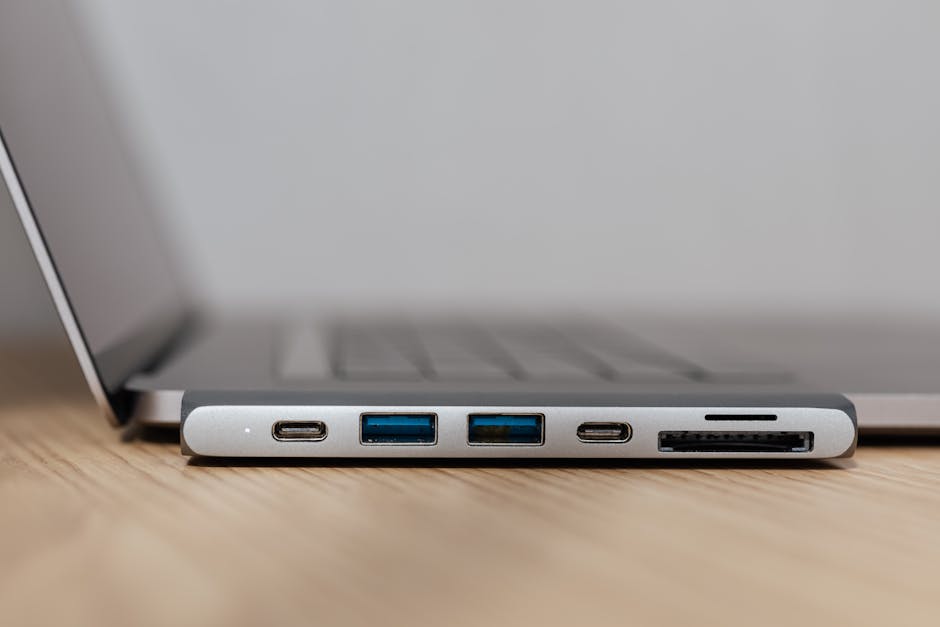
USB-C refers to the shape of the port. Many devices have it, but not all USB-C ports do the same things. Some ports only charge. Some also do data. And some can send video out.
Thunderbolt is a specific fast standard created by Intel. It’s more than just a “better USB-C.” It has strict rules for speed, device support, and signal quality, which is why it tends to work with fewer surprises.
DisplayPort Alt Mode is a way for a USB-C port to send a DisplayPort video signal. In plain terms, it’s how you get a monitor picture using USB-C—when the laptop supports it.
What you actually get from each option (video, speed, and power)
Key takeaway: Thunderbolt gives you the most consistent combo of video + fast data; DisplayPort Alt Mode is great for video; plain USB-C is often just charging and slower data.
Here’s the part that confuses people: a laptop can have a USB-C port that looks identical, but only one of them might support video out. On my previous laptop, the left USB-C port supported video, but the right one didn’t. Both were “USB-C,” and both had the same plug.
So you need to match your goal to the port.
USB-C (basic) for charging and accessories
Most USB-C ports support charging. Many also support USB data transfer, but that can range from slow (like older USB 2.0 speeds) to faster USB 3.x speeds.
If you’re plugging in a mouse, keyboard, or a phone charger, you’re usually fine. If you’re connecting a monitor, the port needs video support.
DisplayPort Alt Mode for monitors over USB-C
DisplayPort Alt Mode is designed for video. When it’s available, your USB-C cable can carry a monitor signal.
In real life, this is the difference between “my laptop shows my screen on the monitor” and “my cable only charges the phone.”
Thunderbolt for everything: video + fast data + docks
Thunderbolt is the “it just works” option when you’re building a multi-monitor or dock setup.
Thunderbolt ports are built to handle high data rates and display signals at the same time. That’s why Thunderbolt docks can run Ethernet, USB peripherals, audio, and display output from one connection.
Display quality: what cable standards can really handle in 2026
Key takeaway: Your display resolution and refresh rate depend on the port + cable + your GPU. Thunderbolt usually covers your bases better.
Let’s talk numbers, because “4K” can mean different things.
- 4K at 60Hz is the common target for office setups and most gaming monitors.
- 4K at 120Hz is harder and depends heavily on the laptop GPU and the dock/cable.
- 1440p at high refresh (like 144Hz) is often easier, but still not guaranteed on every port.
With DisplayPort Alt Mode, you can often hit solid 1080p and 1440p. Getting 4K/60 can work, but it’s not guaranteed across every laptop model and cable type. With Thunderbolt, you’re far more likely to get the display mode you expect, especially when using a known dock.
My rule in 2026: If you care about a specific refresh rate (like 4K/60 or 1440p/144), don’t guess. Check the laptop spec sheet and the dock spec. That one step saves hours of “why does it look wrong?” troubleshooting.
Compatibility check: how to tell what your USB-C port supports
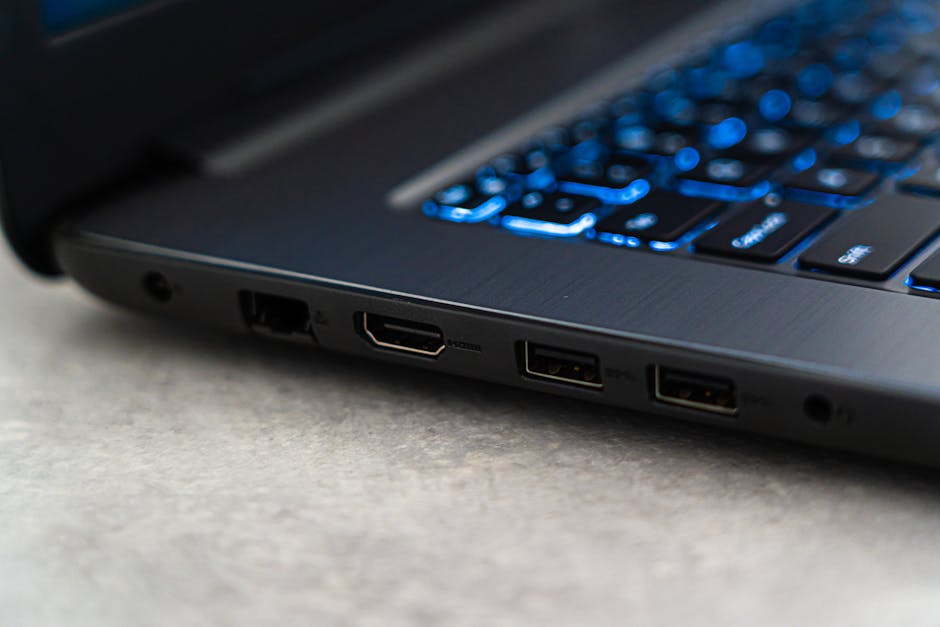
Key takeaway: Don’t rely on the port shape alone. Use real signs on the laptop and port settings.
Most of the pain I see (including my own) comes from assuming every USB-C port behaves the same.
Step 1: Look for the port icons on your laptop
Manufacturers usually print small symbols near the port. Common hints:
- Thunderbolt icon (often a lightning bolt)
- DisplayPort style symbol (looks like a DP logo)
- USB-only symbols (sometimes “SS” for SuperSpeed USB)
If you see a lightning bolt, you’re in Thunderbolt territory. If you see a DisplayPort symbol, you’re likely looking at DisplayPort Alt Mode support.
Step 2: Check your laptop’s spec page (not the marketing page)
I like to find the exact laptop model and read the “ports” or “graphics” section in the official spec sheet. It’s boring, but it’s where the truth lives.
Search for terms like “DisplayPort Alt Mode,” “USB-C video,” “Thunderbolt 4,” or “external display support.”
Step 3: Test the port with a known-good dock or adapter
If you have access to a friend’s setup or a returnable adapter, test quickly. My quick test takes 5 minutes: plug in, open display settings, and check if the resolution/refresh rate matches what you expected.
If you can’t get at least 1080p properly, stop there. Don’t spend 2 hours tweaking settings with the wrong connection type.
Which one should you buy? (pick based on your real use case)
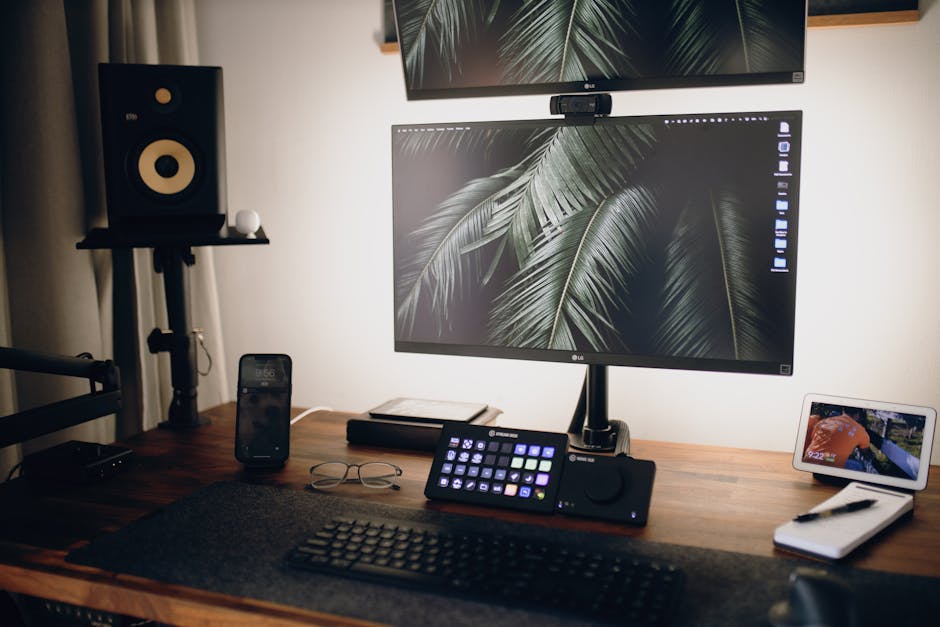
Key takeaway: Choose based on what you’re plugging in, not what the box says.
Here are common scenarios I see, plus what I recommend for each.
| Scenario | Best choice | Why | What to watch for |
|---|---|---|---|
| One external monitor at 1080p/1440p | USB-C with DisplayPort Alt Mode | Good video support without Thunderbolt pricing | Confirm 4K/60 support if you want 4K |
| 4K monitor at 60Hz (work + casual media) | Thunderbolt (or verified USB-C DP Alt Mode) | More consistent display output and fewer issues | Cheap adapters may limit refresh |
| Docking: laptop + Ethernet + USB + monitor | Thunderbolt dock | One cable handles power and peripherals reliably | Make sure your laptop supports charging + video over that port |
| Dual monitors | Thunderbolt | Most dependable multi-display support | Some USB-C DP Alt Mode ports support only one external display |
| Gaming laptop + high refresh monitor | Thunderbolt if available | Less “why is it capped at 60Hz?” trouble | Resolution + refresh depend on the GPU and dock spec |
What most people get wrong (and how to avoid it fast)
Key takeaway: The common mistakes are assuming all USB-C cables support video and assuming all “USB-C to HDMI” adapters are the same.
Mistake #1: Buying a “USB-C to HDMI” cable without checking video support
A lot of USB-C to HDMI adapters work only when your laptop port supports the right video mode. If the port can’t send video, the adapter will still charge or do nothing.
Fix: Verify “DisplayPort Alt Mode” (or Thunderbolt) support for your specific USB-C port.
Mistake #2: Confusing Thunderbolt 3/4 with generic USB-C
Thunderbolt ports are not just “faster USB.” They’re a different spec with backward compatibility rules. A cable that works for one Thunderbolt device might not work the same way with a different port type.
Fix: When you see a Thunderbolt laptop, buy a dock/cable labeled for Thunderbolt (and match the laptop’s Thunderbolt version).
Mistake #3: Ignoring refresh rate caps
Even if you get a picture, you might not get the speed you paid for. I’ve seen 1440p/144Hz monitors drop to 60Hz because the adapter chain can’t carry that bandwidth.
Fix: Check your monitor settings and your OS display settings. On Windows, confirm both the resolution and refresh rate. If you see only a few refresh options, your chain is likely the limiter.
Step-by-step: how to set up your monitor without the trial-and-error spiral
Key takeaway: Use a quick checklist so you don’t waste time on the wrong combination.
- Identify the right port on your laptop (look for Thunderbolt or DisplayPort icons).
- Use the right adapter type:
- For DisplayPort Alt Mode: use a reputable USB-C to DisplayPort/HDMI adapter that clearly states DP Alt Mode support.
- For Thunderbolt: use a Thunderbolt dock/cable built for video + power + data if you want one-cable setups.
- Plug directly once (no extra hubs) to confirm the base signal works.
- Set display output in your OS. Pick the resolution you want first, then set refresh rate.
- Confirm the link by watching for artifacts (flicker, random black screens). If you see issues, change the adapter or try a different port.
For extra peace of mind, I keep a short “return window” plan: I test everything within 7–14 days so I’m not stuck with the wrong hardware.
People Also Ask: USB-C vs Thunderbolt vs DisplayPort Alt Mode
Is Thunderbolt always better than DisplayPort Alt Mode?
Key takeaway: For reliability and multi-device setups, Thunderbolt is usually the better choice. For a simple single-monitor setup, DisplayPort Alt Mode can be just as good if your laptop supports it.
Thunderbolt has stricter standards, which means docks and cables tend to behave consistently. DisplayPort Alt Mode can be great, but support varies by laptop model and even by which USB-C port you use.
Can I use any USB-C cable for Thunderbolt or DisplayPort Alt Mode?
Key takeaway: No. Cable quality and internal wiring matter, especially for video and high-speed data.
USB-C is a connector, not a guarantee of bandwidth. For video, you need a cable/adapter that’s built for that use case. For Thunderbolt, you want cables that are rated for Thunderbolt speeds and certified for the device class.
Does DisplayPort Alt Mode work with USB-C to HDMI?
Key takeaway: It can, but only if your USB-C port supports DisplayPort Alt Mode and the adapter is designed for it.
Most USB-C to HDMI adapters do the conversion from DisplayPort to HDMI. If your laptop can’t output DisplayPort over that USB-C port, the adapter can’t magically create video out of thin air.
Will USB-C charging work while powering a monitor?
Key takeaway: Often yes, but it depends on power delivery (PD) support and the dock/adapter.
In many 2026 setups, USB-C power delivery can charge your laptop and run a display at the same time. Still, some budget adapters can be under-powered or only support certain power levels.
How can I tell if my laptop supports external display over USB-C?
Key takeaway: Look for the DisplayPort Alt Mode or Thunderbolt mention in your laptop specs and confirm with the port icons.
Windows and macOS settings can also show external display options, but the most reliable check is the official spec for your exact model.
Cybersecurity angle: cables and docks are “low tech,” but they still matter
Key takeaway: When you use a dock, you’re not just connecting video—you’re also enabling USB data. That can increase your risk if you plug in unknown devices.
Here’s a real-world pattern I’ve seen: people test a new dock with their laptop plugged into it, then they plug in random USB devices at work (chargers, thumb drives, even “free” ports at events). If your dock exposes USB data lanes, those devices can act like regular USB peripherals.
That’s where cybersecurity basics come in. USB devices can be used for attacks like badUSB-style behavior (a malicious device that pretends to be a keyboard/mouse or uses automation). It’s not magic. It’s just how USB works.
What I recommend in 2026:
- Prefer docks that let you control which ports are active, if your work setup allows it.
- Use OS settings that restrict autorun behavior and limit unknown device prompts.
- Don’t plug random thumb drives into the dock’s USB ports. Plug into a dedicated test machine instead.
If you want more practical steps, check our guide on USB risk tips for work laptops.
Real product examples (what I’d buy in common setups)
Key takeaway: Look for docks and cables that clearly state Thunderbolt or DisplayPort Alt Mode support. Avoid vague listings.
For Thunderbolt setups, I gravitate toward docks from major brands that publish tested compatibility lists. In my experience, this matters more than people think because the dock has to work with both display output and power delivery.
For DisplayPort Alt Mode, I focus on adapters that explicitly mention “DP Alt Mode” (not just “USB-C to HDMI”). If the listing is unclear, I don’t gamble—especially if I’m trying to hit 4K/60.
If you’re also thinking about what to buy for your home office, you might like our best USB-C dock picks for Mac and Windows roundup. It’s written with the same “port support first” mindset.
Bottom line: the buying decision you should make today
Key takeaway: Buy Thunderbolt if you want the most reliable one-cable docking and consistent display behavior. Buy USB-C with DisplayPort Alt Mode if you’re on a budget and you only need monitor output.
Here’s the exact checklist I’d use before clicking “Buy”:
- Confirm your laptop model and the exact USB-C port support (Thunderbolt icon or DisplayPort Alt Mode mention).
- Match your target resolution/refresh rate to the adapter/dock spec, not just the ad copy.
- If you’re using a dock, be smart about USB devices for basic cybersecurity hygiene.
If you follow that, you won’t repeat the most common frustration: getting a picture but not the quality you expected. And in a 2026 desk setup, that’s the difference between a smooth work day and a two-hour troubleshooting session.
Actionable recommendation: For most people buying new hardware now, the safest “future-proof” pick is Thunderbolt (Thunderbolt 4 when available). For simpler budgets, choose USB-C with DisplayPort Alt Mode and double-check 4K/60 support before you commit.
For more tech buying advice, you can also explore our guide to which laptop ports matter so you don’t get stuck with the wrong cable again.
About the Author