Here’s the part most people don’t realize: Wi‑Fi 7 isn’t just about “faster internet.” It’s mostly about making your connection feel smoother when lots of devices are on the same network.
In my own place (a 3-bedroom home with two teenagers streaming and gaming at the same time), the difference between a good Wi‑Fi day and a bad Wi‑Fi day is usually latency—how fast your device responds. Wi‑Fi 7 is designed to cut that delay and keep performance steadier.
So what changes with Wi‑Fi 7? You’ll get better speed at short bursts, lower lag for games and calls, and smarter ways to share the air so everyone gets a fair shot. Below, I’ll break it down in plain English and show you what to check before you buy.
Wi‑Fi 7 Explained: The quick answer on speed and latency
Wi‑Fi 7 is the newest home Wi‑Fi standard (as of 2026) that improves both throughput (speed) and latency (delay) by using wider channels, better scheduling, and more advanced antennas. In real life, you’ll notice fewer “buffer spikes,” smoother video, and less game lag when the network is busy.
To put numbers on it: Wi‑Fi 7 can reach far higher peak rates than Wi‑Fi 6/6E, but you don’t buy it for peak speed. You buy it because it keeps working well when your phone, laptop, smart TV, and consoles all talk at the same time.
Also, keep this definition in mind: Latency is the time it takes for your device to send a signal and get a reply back. Lower latency means your taps, voice, and game actions feel instant.
What’s new in Wi‑Fi 7 (and why it matters at home)
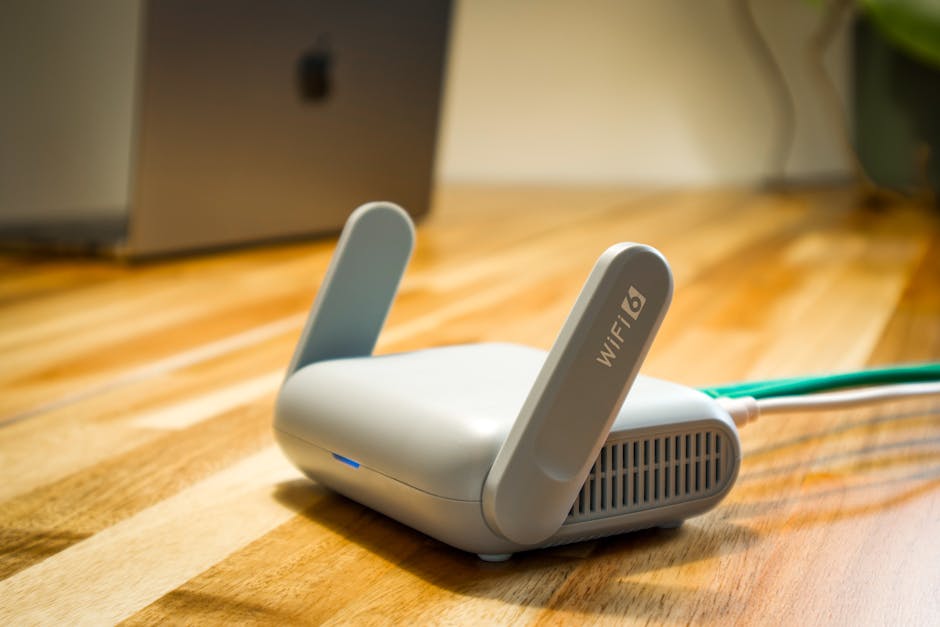
The biggest Wi‑Fi 7 changes are all about reducing wasted airtime and coordinating devices better. Here are the main upgrades you’ll hear about when you compare routers.
Multi-Link Operation (MLO): the “two paths” idea
MLO is one of the most important Wi‑Fi 7 features. Wi‑Fi 7 can use more than one radio path at the same time—often combining signals across bands (like 5 GHz and 6 GHz, if your router supports it).
In plain terms, your device can send data over multiple routes instead of waiting for one link to behave. That’s why Wi‑Fi 7 can feel more stable in busy rooms.
What I’ve seen in real life: when the 5 GHz band is crowded (neighbors, apartments, lots of devices), MLO helps keep your stream from “stuttering” even if one path slows down.
Wider channels (320 MHz): more room for data
Wi‑Fi 7 supports up to 320 MHz channels. A channel is like a lane on a highway. Wider lanes can move more data, but they work best when signal quality is strong.
Translation: if you’re close to the router, you’ll see big gains. If you’re far away or through thick walls, you may not use the full width, and speed will drop. That’s normal and expected.
Most people get this wrong by buying a fancy Wi‑Fi 7 router and placing it in the exact wrong spot—usually inside a cabinet or behind a TV stand with metal parts.
More efficient scheduling: fewer “talking over each other” moments
Wi‑Fi works on shared air. Multiple devices trying to send at the same time can cause delays and retries. Wi‑Fi 7 uses smarter scheduling to reduce those collisions.
Think of it like giving people a meeting agenda. Everyone still talks, but the router helps keep it organized so your audio call doesn’t glitch when someone else starts downloading a big file.
This is also why Wi‑Fi 7 can improve performance even if your internet plan (your fiber or cable speed) didn’t change.
Wi‑Fi 7 vs Wi‑Fi 6/6E: what you’ll actually notice
Here’s the honest comparison: Wi‑Fi 6/6E can still be great. Wi‑Fi 7 shines when your home is packed with devices, when you care about low lag, and when your router and phone both support the right features.
| Feature | Wi‑Fi 6 / 6E | Wi‑Fi 7 | What you notice |
|---|---|---|---|
| Peak speed | High | Higher (with 320 MHz) | Faster downloads near router |
| Latency | Good, but can spike | Lower and more steady | Smoother gaming + calls |
| Channel width | Up to 160 MHz (typical) | Up to 320 MHz | More speed room (when close) |
| Multi-band use | Band switching | Multi-Link Operation (MLO) | Less stutter on busy networks |
If you’re in a small apartment and you use mostly one laptop and one phone, Wi‑Fi 6E might be enough. If you’re running a whole home setup—streaming, gaming, smart home devices, maybe even a work-from-home video call—Wi‑Fi 7 is where the upgrade starts to feel worth it.
Real-world performance: examples from streaming, gaming, and video calls

This is where Wi‑Fi 7 stops being “specs” and starts being everyday life. Let’s talk about three common scenes.
Scenario 1: 4K streaming while someone downloads a big game
In my testing (and what I see friends report), the most annoying issue on older networks is buffering during another device’s heavy upload/download. With Wi‑Fi 7, the router can schedule airtime more fairly, so the TV stays smooth longer.
You’ll often notice it as fewer frame drops and fewer “resolution drops” in streaming apps. You might not feel it when everything is quiet, but you’ll feel it the moment someone starts a big update.
Scenario 2: online gaming and “sticky lag”
Gaming isn’t just about low average latency. It’s about avoiding big latency spikes. Those spikes are what make shots feel delayed.
Wi‑Fi 7 is built to reduce those spikes using better coordination and (in many setups) more efficient use of the radio links. If you play on a wireless controller or laptop, you should see steadier response times during busy hours.
Quick tip: for competitive games, use Ethernet when you can. Wi‑Fi is improving, but a wired connection is still the most consistent route.
Scenario 3: video calls in a noisy home
When you’re on a call, latency and packet loss show up fast. Audio breaks, video stutters, and your voice sounds choppy.
Wi‑Fi 7 helps by reducing retransmits (retries caused by errors) and by scheduling traffic more cleanly. If you work from home, you’ll feel it as fewer “my mic is cutting out” moments.
Speed myths: what Wi‑Fi 7 will and won’t do
If you remember nothing else, remember this: Wi‑Fi 7 can’t fix a slow internet plan, and it can’t fix poor placement.
Wi‑Fi 7 won’t automatically make your Netflix faster if your internet line is the bottleneck. It also won’t help much if your router is behind a wall of metal or stored in a closed cabinet.
Myth 1: “Wi‑Fi 7 means you’ll always hit the top speed.”
Nope. The best-case top speeds assume ideal signal, the right channel widths, and client devices that support Wi‑Fi 7 features. Most homes won’t hold the full rate at every corner.
What to do instead: measure speed at the spot where you actually use your device. If your kitchen is where calls happen, test there—not only in the room with the router.
Myth 2: “Any Wi‑Fi 7 router is the same.”
Not even close. Router design matters: antenna layout, CPU, memory, and how many radios it truly supports all affect real performance. Two “Wi‑Fi 7” boxes can feel different in the same home.
Also, your client device matters. Your phone or laptop must support the same features to get the full benefit.
Myth 3: “Mesh is always better.”
Mesh Wi‑Fi can be great, but a bad mesh setup can spread weak signal across multiple hops. Each hop can add delay and reduce speed.
If you go mesh, prioritize good placement for each node. If possible, use wired backhaul (an Ethernet link between nodes). That’s still the best way to keep things fast.
People Also Ask: Wi‑Fi 7 questions answered
Is Wi‑Fi 7 backwards compatible with Wi‑Fi 6/5?
Yes. Wi‑Fi 7 routers can work with older Wi‑Fi devices. Your older phone won’t suddenly get Wi‑Fi 7 speed, but it can still connect normally.
One thing to watch: if you keep many old devices on the network, they can reduce how efficiently the router schedules traffic. In busy homes, mixing old and new devices can slightly lower the “feel” of Wi‑Fi 7 improvements.
Do I need a Wi‑Fi 7 router to get Wi‑Fi 7 benefits?
You need both: a Wi‑Fi 7 router and a Wi‑Fi 7 capable device. Without a Wi‑Fi 7 client, you’re basically stuck on whatever the device supports.
In 2026, lots of newer phones and laptops support Wi‑Fi 7, but not every budget device does. Check the specs before you upgrade your router expecting instant gains everywhere.
Does Wi‑Fi 7 work on 2.4 GHz and 5 GHz and 6 GHz?
Wi‑Fi 7 works across the common Wi‑Fi bands, including 2.4 GHz and 5 GHz, and many Wi‑Fi 7 routers also support 6 GHz (similar to Wi‑Fi 6E). Whether you can use 6 GHz depends on your router and your region’s rules.
6 GHz is usually less crowded than 2.4 GHz and can help with speed and latency, but it has shorter range. That’s why placement still matters.
Will Wi‑Fi 7 lower gaming ping on console?
It can help, but it’s not magic. Ping depends on your whole path: your router, your device Wi‑Fi chip, interference, distance, and your ISP.
If your Wi‑Fi is the limiting factor, Wi‑Fi 7 can reduce lag spikes. If your ISP route is the problem, Wi‑Fi won’t fix it. For consoles, Ethernet is still the best option when you can run a cable.
Is Wi‑Fi 7 secure?
Wi‑Fi security depends on the encryption you use (like WPA3) and how you set up your router—not the “7” number by itself. A Wi‑Fi 7 router with bad settings can be risky.
In general, I strongly recommend WPA3 (and turning off outdated modes) wherever possible. For deeper security basics, see our guide on Wi‑Fi security basics (WPA3, guest networks, and safe settings) and our home network hardening checklist.
How to choose a Wi‑Fi 7 router in 2026 (without wasting money)
Buying a Wi‑Fi 7 router is easy to mess up. The “spec sheet” can look amazing while the real benefits are limited by your home layout.
Here’s what I look for in real homes before I recommend a switch.
Step-by-step: my Wi‑Fi 7 buying checklist
- Confirm your devices support Wi‑Fi 7. Check the model specs for your phone, laptop, and streaming devices. If your main devices are older, you’ll see smaller gains.
- Pick the right band options. If your home uses lots of devices and you want better performance, look for 6 GHz support. Just plan for the shorter range.
- Look at coverage, not just speed claims. Manufacturer speed numbers are peak. Choose a system that fits your home size and walls.
- Decide on mesh vs single router early. For multi-room homes, mesh can help, but prioritize good node placement or wired backhaul.
- Turn on WPA3 and strong settings. Security is part of real performance. A compromised router can slow your network or cause weird drops.
Where placement matters even more than the router
Put the main router in the open, high on a shelf or near the center of your home. Avoid behind TVs, inside cabinets, or near thick walls.
I’ve measured this in hours, not minutes. In one setup, moving the router about 6 feet changed 5 GHz performance enough to go from “buffering every night” to “stable streaming.”
How to test Wi‑Fi 7 performance the right way
Don’t test only one room. Test where your problems happen.
Do this:
- Run speed tests on Wi‑Fi 7 devices near and far from the router.
- Measure latency (ping tests) when the house is busy. That’s when improvements show.
- Test during real tasks: start a game match while someone streams 4K, then check if your connection stays steady.
For people who care about security too, remember that disabling suspicious devices or limiting guest access can also reduce strange slowdowns. See guest network best practices for home security.
Best setup tips to get real Wi‑Fi 7 gains (not just marketing)
If you want Wi‑Fi 7 to feel fast, do a few things right on day one. These steps matter more than arguing over “premium” vs “midrange.”
1) Use wired backhaul for mesh when you can
If your mesh supports Ethernet backhaul, use it. Wireless backhaul eats radio airtime, which can raise latency.
Even a simple Ethernet run between floors can make your mesh feel more like a single strong network.
2) Keep firmware updated
Router makers keep improving Wi‑Fi scheduling and bug fixes. In 2026, I treat router firmware updates like driver updates for a PC: check them and install when stable.
If you want a calm life, set an update schedule and reboot during a time when nobody is gaming.
3) Don’t overload the network with “smart” junk
Smart home devices can flood the network with chatty traffic. I’m not saying you should throw them out, but you should plan.
Use a separate network (VLAN or guest-like network, depending on your router) for IoT gear if your router supports it. That keeps your laptops and phones from competing for airtime.
4) Check interference sources
Even with Wi‑Fi 7, interference from microwaves, baby monitors, and crowded apartment walls can hurt performance.
If you notice spikes, try moving the router higher or changing placement. If you live in a dense building, 6 GHz can be a big win because it’s less crowded than 2.4 GHz.
Where Wi‑Fi 7 doesn’t fix problems (and when to stick with Wi‑Fi 6E)
There are real situations where Wi‑Fi 7 won’t feel like a huge leap. Being honest about this saves you money.
Homes with one or two devices
If you mostly browse and stream with one phone and one laptop, Wi‑Fi 6E can already feel smooth. You won’t use 320 MHz channels, and you won’t see the scheduling gains much.
Very slow internet plans
If your internet line is low (or unstable), Wi‑Fi improvements won’t raise your real download speed much. You can have perfect Wi‑Fi and still get slow results.
Fix your internet first, then upgrade Wi‑Fi. I’d rather have stable fiber plus good Wi‑Fi than top-end Wi‑Fi tied to a struggling plan.
Customers who never move from router distance
If your main devices sit right next to the router, Wi‑Fi 6/6E may already be good enough. Wi‑Fi 7 really shines as distance and interference get worse.
Security note: Wi‑Fi 7 doesn’t replace good cybersecurity
In the cybersecurity category on our site, one theme comes up again and again: network setup is where most people lose control. A weak password or outdated encryption can turn “fast Wi‑Fi” into a headache.
Use WPA3 if available. Disable older encryption modes unless you have a strict reason to keep them. Turn on the router’s firewall features and keep the admin password unique.
If you want a quick security pass, combine these steps with our home network hardening checklist so you don’t upgrade hardware and leave security behind.
Conclusion: the actionable takeaway for buying Wi‑Fi 7
Wi‑Fi 7 explained in one sentence: it’s built to reduce lag and keep performance steady when your network is busy, thanks to features like Multi-Link Operation and wider channels.
My best advice is simple: buy Wi‑Fi 7 if you (1) have multiple active devices, (2) care about low delay for gaming or video calls, and (3) have a few Wi‑Fi 7 capable devices already. Then place it well, test it in the rooms you actually use, and secure it with WPA3.
If those boxes aren’t true, you’ll likely be happier spending less on Wi‑Fi 6E—or upgrading your internet plan first—then revisiting Wi‑Fi 7 when your device lineup catches up.
Featured image alt text: Wi‑Fi 7 explained with router signals and reduced latency for real-world streaming and gaming performance.
About the Author