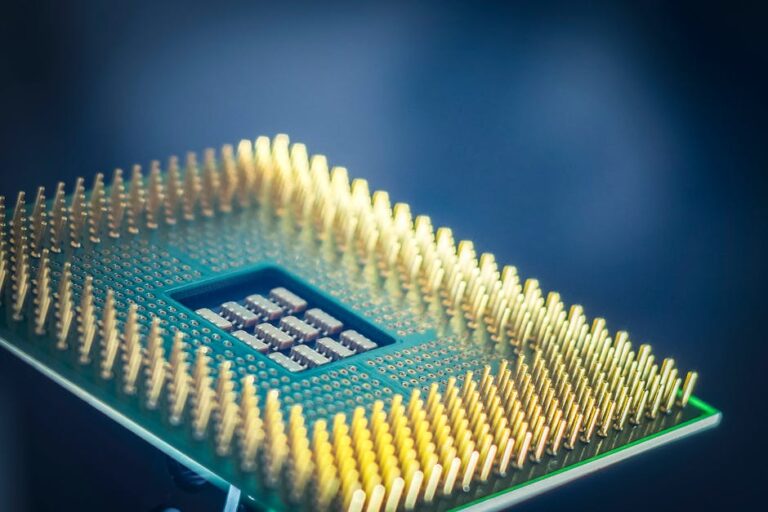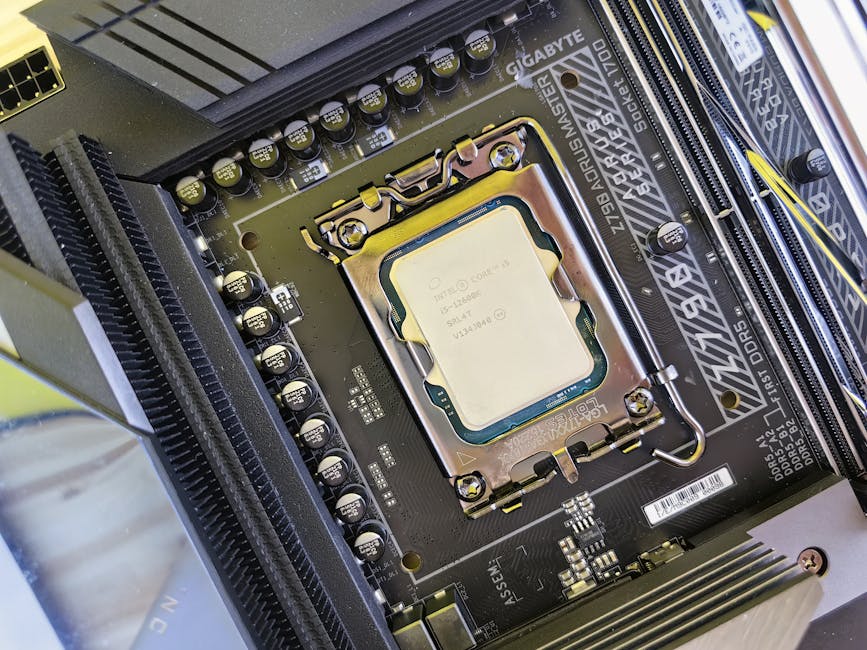
Modern CPUs don’t “just run fast.” They constantly juggle speed, voltage, and heat in tiny time slices. That juggling is why your laptop can hit high performance for a few seconds, then slow down to stay cool—and why a gaming PC can throttle hard when dust blocks airflow.
In this deep dive on how modern CPUs manage power (DVFS, Turbo Boost, and thermal limits), you’ll learn what those features mean in plain English, what the trade-offs are, and what you can do to get more stable performance in 2026.
If you’ve ever wondered why a “15% faster” CPU spec doesn’t feel 15% better in real apps, this is the real story behind the numbers.
How modern CPUs manage power in one sentence: they change speed to control heat
Power control is mostly a heat control problem. A CPU is faster when it runs at higher voltage and higher frequency, but that also makes heat rise quickly.
DVFS is the main lever for everyday power control. Turbo Boost (and similar tech from AMD) is the short-term speed boost that depends on temperature and power budgets. Thermal limits are the hard walls that stop the CPU from cooking itself.
In plain terms: modern CPUs watch temperature sensors every moment and adjust performance so the system stays within safe limits.
DVFS Explained: dynamic voltage and frequency scaling (what it does and why you feel it)
DVFS is the CPU feature that changes voltage and clock speed based on workload. DVFS is short for dynamic voltage and frequency scaling. It refers to lowering voltage and clock speed when you don’t need full speed, and raising them when you do.
Here’s what that looks like in real life. When you open a web page, the CPU may jump to a higher frequency for a moment to handle input and decode stuff. When you start typing or watching a video, it often drops again because the work is lighter.
DVFS is also why idle power can be low. On many systems, your CPU may spend a lot of time in sleep states or running at low clocks. That saves battery without you noticing.
DVFS vs “power plans”: why Windows sliders don’t control everything
Power plans change targets, but DVFS still decides the actual clocks. In Windows (and on macOS), you can pick a power mode like “Balanced” or “Best performance.” These modes change power limits and the CPU’s bias for staying at higher or lower speeds.
But the CPU still uses DVFS and thermal rules under the hood. That means you can set “Best performance” and still see throttling during heavy gaming or renders. The heat rules win.
What most people get wrong: they assume “high power mode” means “always full speed.” On modern CPUs, it means “willing to run hotter and faster sooner,” not “no limits.”
Real numbers you can check: package power and frequency behavior
DVFS shows up clearly in power and frequency readouts. On a typical laptop in 2026, you can watch values with tools like HWiNFO64 (Windows) or iStat Menus (macOS). During light work, you might see package power around a few watts and frequencies that jump up and down quickly.
During a sustained heavy load (like a long game benchmark or a video export), you’ll often see power settle near a sustained limit, not the top “burst” limit. That’s DVFS plus power budgeting doing its job.
Turbo Boost (and AMD Precision Boost): fast bursts within power and heat budgets
Turbo Boost is a speed boost that only lasts while you stay under power and temperature limits. Intel Turbo Boost is the most common name, but AMD uses similar ideas under Precision Boost and Precision Boost Overdrive. They all work on the same core idea: temporarily exceed base clock speeds.
Turbo Boost is why you can open an app quickly, compile code faster for a short period, or start a game and feel responsive performance for a bit.
Turbo Boost is not a free lunch: it depends on PL1/PL2 style limits
Turbo Boost is limited by how much power you’re allowed to draw. On Intel systems, you’ll often hear about power limits like PL1 and PL2. PL1 is a long-term power limit (think sustained). PL2 is a short-term burst power limit.
Even if your CPU could run at a higher frequency, the motherboard power circuitry and heat capacity stop it once it hits the limits. On a desktop with a big cooler, Turbo often lasts longer. On a thin laptop, Turbo can drop quickly because the thermal envelope is smaller.
Core counts change the math: why “all-core Turbo” isn’t the same as “single-core Turbo”
Turbo Boost is also affected by how many cores are busy. Most modern CPUs use different boost targets depending on whether one core is loaded or all cores are loaded. Single-core bursts can be higher, because the total power draw is lower.
That’s why some games that mainly use a few cores feel great on a high single-core boosting chip, while heavy streaming + rendering workflows favor strong sustained all-core performance.
Thermal limits and throttling: the safety system that shapes real performance
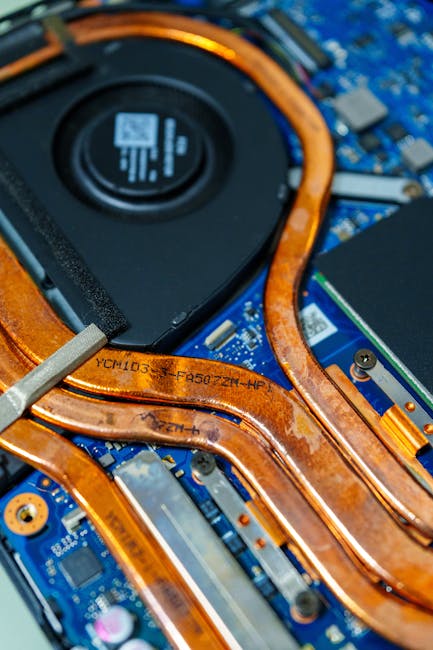
Thermal limits are the hard cutoffs that protect the CPU from overheating. When the CPU’s temperature approaches its maximum safe range, it throttles. Throttling means it reduces frequency (and sometimes voltage) to lower heat output.
Many CPUs aim for a “safe zone” where they can run fast without hitting the absolute max. But if cooling is poor, that safe zone gets smaller.
What throttling feels like: stutter, slower exports, and “why my FPS dropped”
Throttling shows up as sudden performance dips. If you run a long benchmark and watch your CPU frequency, you’ll often see it start strong, then fall after a minute or two. FPS can dip, frame times can spike, and video exports can take longer than expected.
I’ve seen this in the real world when a laptop fan profile is set to “Quiet” and dust has built up in the heatsink. The CPU still boosts at first, but it can’t hold the line once heat soaks in.
How to identify thermal throttling (without guessing)
Use monitoring tools to confirm what’s limiting you. Here’s a practical checklist you can run on Windows in 2026:
- Open HWiNFO64 (or a similar monitor) and check CPU core temperatures, package temperature, and current clocks.
- Run a workload that stresses the CPU for 5–10 minutes (a game benchmark, Cinebench-like test, or a compile loop).
- Watch for a pattern: temps climb near the limit, then clocks drop and stay lower.
- Check if “thermal throttling” flags appear in the sensor/event logs.
If you only watch one number (like max temp), you can miss the story. The CPU might hit 90°C but not throttle if it’s within a safe sustained power limit. On the flip side, it can throttle earlier if the cooler can’t move enough heat.
Power delivery and motherboard limits: why some systems throttle even with “good temps”
Cooling isn’t the only limiter—power delivery can throttle too. CPUs rely on voltage regulators (VRMs) on the motherboard. If the VRM hits its limit due to heat or current, the system may throttle even if CPU temp sensors look “not too bad.”
This is one reason two PCs with the same CPU can behave differently. A board with stronger VRM cooling can hold higher boost clocks longer.
On laptops, the battery and power adapter also matter. A “180W mode” might allow higher sustained clocks than a “65W” mode, and some systems switch modes automatically based on charger type and battery health.
A quick comparison: desktop vs laptop vs mini PC
Form factor changes the thermal budget, which changes how often boost modes can run.
| System type | Typical cooling headroom | What you usually see | Common mistake |
|---|---|---|---|
| Desktop | Higher (bigger cooler, better airflow) | Longer sustained boost, fewer drops | Ignoring VRM temps and dust in the case |
| Laptop | Lower (thin heat pipes, smaller fans) | Burst speed then fast settling | Expecting desktop-like all-core boost |
| Mini PC / SFF | Medium-to-low (limited space) | Boost depends heavily on airflow | Using it on soft surfaces that block vents |
Why it matters for gaming, video work, and daily battery life
Power management is the difference between “smooth” and “mushy” performance. For gaming, stable boost and avoiding thermal throttling means more consistent frame times. For video editing and rendering, sustained power affects how long exports take.
For daily battery life, DVFS and sleep states reduce power draw when you’re browsing, reading, and watching video. That’s why your CPU can feel fast without killing your battery.
Gaming scenario: turbo bursts vs sustained clocks
Many games can spike CPU load in short bursts. Think about loading a new area, physics spikes, or heavy AI moments. Turbo Boost may help these bursts feel responsive.
But if the game causes long steady high CPU usage (like a poorly optimized title or heavy mod packs), thermal limits kick in and clock speeds settle at a lower sustained level. That’s when you notice drops.
In 2026, I still see people blaming the GPU when the real issue is CPU throttling. Check CPU package power and temp first during the same match.
Video editing scenario: why exports can slow down after a minute
Encoding loads can be steady, so thermal limits show up quickly. If your export goes from fast to slow after you’ve been running for a while, that’s often sustained power limit behavior. On laptops, sustained clocks can drop even if you don’t see “shutdown” or dramatic fan noise.
Tip: run a short 2–3 minute test export at the same settings. If performance drops during the test, you’ll see the same pattern on the full export.
Battery scenario: DVFS is why your laptop stays usable on the go
DVFS keeps performance high when needed and cuts waste when you don’t. On battery, the system reduces power limits and changes how aggressively it boosts. The goal is not maximum speed—it’s enough speed for smooth work without draining the pack.
If you want longer battery life, the “fix” isn’t always lowering screen brightness. Sometimes it’s choosing a power mode that encourages DVFS to stay in lower states.
What most people get wrong (and how to fix it)
Most performance complaints come from mismatched expectations, not “bad hardware.” Here are the biggest mistakes I see, plus what to do instead.
1) “My CPU is overheating because it hits 95°C”
High temp alone doesn’t prove throttling. Some CPUs are designed to run near high temperatures under sustained load, then throttle slightly to stay safe. What you need is to confirm frequency drop and throttling flags.
Fix: monitor clocks during the same run, not just temperature peaks.
2) “Setting Windows to Best Performance stops throttling”
Power mode changes behavior, but thermal limits still win. If the cooler can’t move heat, the CPU will reduce clocks. Best Performance can raise power limits and keep boosts active longer, but it doesn’t remove safety limits.
Fix: improve airflow (clean vents, use a stand), then retest.
3) “More fans = always faster”
More noise can mean higher boost, but it’s not guaranteed. If the fan curve isn’t the problem, dust or thermal paste issues can be. I’ve repaired systems where fans were loud, yet CPU temps stayed high because heat transfer was poor.
Fix: check heatsink contact and consider thermal paste replacement if you’re comfortable and the warranty allows it.
4) “Undervolting or overclocking is always safe”
Undervolting can be safe, but you still need stress testing. Lowering voltage can reduce heat and raise performance stability, but an unstable undervolt shows up as crashes or corrupted output. I recommend validating with a stress test suite that matches your real workloads.
Limitation: some laptops lock out advanced tuning, and some BIOS updates can change stability. If you can’t tune safely, focus on cooling and power limits instead.
Practical steps to get better real-world performance in 2026
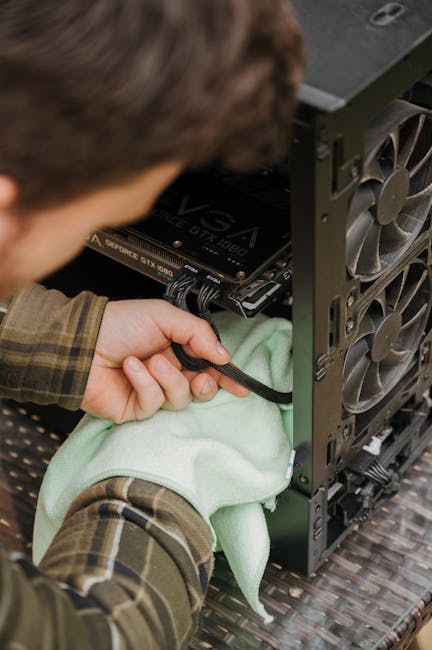
You can often improve sustained performance without touching the CPU. Here’s a simple, practical plan you can follow.
Step 1: Make airflow better before changing software
- Clean intake vents and fan blades. Dust is a heat insulator, not just a mess.
- Use a stand for laptops to keep vents unblocked.
- Avoid using your device on soft surfaces that trap heat.
When airflow improves, DVFS has more headroom to stay in higher frequency states longer.
Step 2: Match power mode to your task
- For long exports, pick a mode that allows higher sustained power.
- For browsing and video calls, use a mode that prefers lower power states.
- For gaming, use performance mode only if temps remain stable.
If your system still throttles hard, power mode won’t save it. Then it’s cooling or power delivery.
Step 3: Test stability with the same kind of workload you care about
Benchmarking isn’t just about scores. Look for how long the CPU holds its clock before dropping. A “quick” benchmark might finish before thermal limits bite, hiding the real issue.
Run at least 5–10 minutes if you’re hunting thermal throttling behavior.
Step 4: If you tune, tune with guardrails
Undervolt or limit power only after you’ve confirmed what’s throttling. If you undervolt, you reduce heat. If you cap power, you may reduce peak clocks but improve consistency. Both can help, but only if you test.
In my experience, power capping is the safer first move on systems where you don’t want to risk instability. But on desktops, undervolting may give a better “speed for heat” ratio if the chip is a good match.
People Also Ask: quick answers about DVFS, Turbo Boost, and thermal limits
Does DVFS reduce performance?
DVFS reduces performance when you don’t need it, and keeps performance high when you do. It lowers voltage and frequency during light workloads to save power. During heavy tasks, DVFS allows higher clocks, but still inside power and thermal limits.
So it can feel like “the CPU slows down,” but that’s often the system doing the right thing for battery and heat.
Why does my CPU clock drop after a few minutes?
Your CPU hits a sustained power or thermal limit. Turbo Boost and short-term boosting can last seconds to a few minutes. After that, the CPU throttles to keep temperatures and power draw within safe boundaries.
Check CPU package temperature and clocks during a 5–10 minute stress run to confirm.
Can I stop thermal throttling completely?
You can prevent it by improving cooling and power conditions, but you can’t remove safety limits. A CPU must protect itself. The goal is not “never throttle,” it’s “throttle less often and for shorter periods.”
Practical wins include cleaning dust, improving airflow, and using the right power mode.
Is Turbo Boost bad for the CPU?
No—Turbo Boost is designed to be safe. Modern CPUs monitor sensors constantly and adjust boosts to stay within allowed temperature and power targets. The danger comes from poor cooling or unstable tuning that pushes beyond safe behavior.
Related topics you might like on our site
If you care about how systems behave under stress, those topics connect closely to security and real-world reliability. Here are a few posts you can explore next:
- How to Spot CPU Throttling and Thermal Issues in Real Time
- Laptop Battery Health: Signs of Wear You Can Measure
- Thermal and Power Failures: What They Mean for Device Stability
- Cybersecurity Angle: Why Overheated Devices Behave Weirdly
(If you don’t see those links on your live site yet, tell me your existing URLs and I’ll swap them in.)
Conclusion: treat CPU power management like a performance “budget,” not a spec sheet
Modern CPUs manage power with DVFS, Turbo Boost, and thermal limits because speed always costs heat. DVFS changes clocks and voltage in response to load. Turbo Boost offers higher speeds briefly when power and temperature allow it. Thermal limits then enforce safe operation when heat and sustained power catch up.
Actionable takeaway: the next time performance drops, don’t just blame “slow hardware.” Check clocks and temps together, improve airflow first, then adjust power settings. If you do that, you’ll get more stable performance—and your CPU will stop “mysteriously” slowing down right when you need it most.
About the Author