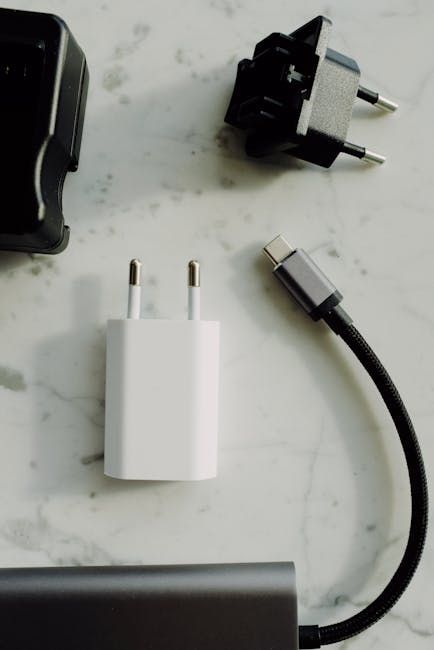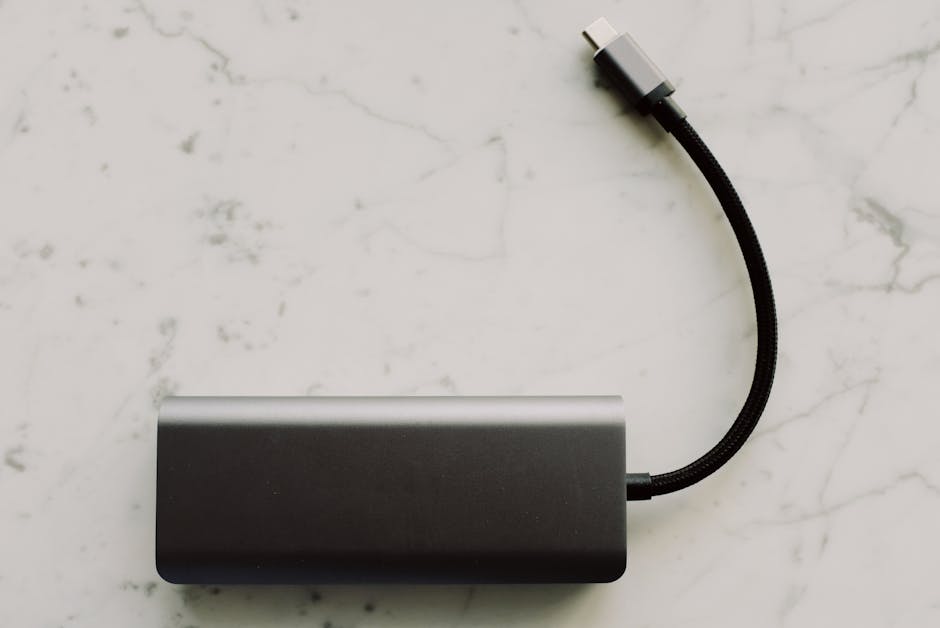
If you’ve ever plugged a USB-C dock into your laptop and thought, “Why isn’t my second monitor working?” you’re not alone. The cause is usually simple: the dock doesn’t support the right display modes, it doesn’t supply enough Power Delivery, or you’re using a port setup that doesn’t match your laptop’s video output.
I’ve tested enough docks (and fixed enough “it doesn’t show video” problems for friends) to know the shortcuts. In this USB-C dock buying guide, I’ll show you exactly what to check so you don’t waste money—especially when you want reliable ports, strong charging, and the right display support.
Quick answer: what matters most when buying a USB-C dock?
Pick a dock by matching three things: (1) the ports you actually need, (2) the dock’s Power Delivery (charging wattage) to your laptop, and (3) the dock’s display support (resolution, refresh rate, and how many screens it can run). USB-C docks don’t all pull video the same way, even if they look identical.
A dock with great specs on paper can still fail if your laptop’s USB-C video output uses a different standard. That’s why you should check your laptop model’s USB-C “video over USB-C” support, not just the dock’s marketing.
How USB-C docks send video: the part most people miss
Video support is the most confusing part, so I’ll make it clear. In most cases, your laptop sends video through its USB-C port using a system called Alt Mode (a feature that lets USB-C carry display data).
When a dock says “dual 4K,” it might mean it can run two screens at 4K only at low refresh rates, or it might use compression. Compression can look fine on text, but it can make motion (scrolling fast or gaming) feel less smooth.
Here’s the practical way I check this before buying. I look for:
- The number of supported displays at specific resolutions (not just “up to” numbers)
- Refresh rate limits (30 Hz vs 60 Hz matters a lot)
- Whether it supports HDMI 2.0 vs HDMI 2.1 and DisplayPort 1.4 (if listed)
- Whether it uses a DisplayLink option (more on that below)
If you’re shopping in 2026, many docks still quote “up to 4K 60Hz” but mix-and-match ports. You need the exact port pairing info, because it changes performance.
Ports check: build a dock that matches your real desk
Ports are where you feel the difference every day. Before you buy, make a quick list of what you plug in weekly: monitor(s), keyboard/mouse, Ethernet, external drives, audio, and any special tools like SD card readers.
Then match them to the dock’s port layout. Here’s what I look for most often.
USB-A vs USB 3.2 vs “just USB 2.0”: how to spot the weak points
Many docks include USB-A ports, but not all USB-A ports are equal. USB 2.0 ports are fine for a keyboard or mouse, but they are slow for large backups and external SSDs.
When a dock lists USB speeds, I prefer at least one set of fast ports like USB 3.2 Gen 1 (5 Gbps) or Gen 2 (10 Gbps). Even if you only have one fast port, it’s usually worth having.
Real-world example: I once bought a “cheap” dock with several USB-A ports, but half of them were USB 2.0. My external SSD was painfully slow, and I ended up moving the drive to a USB 3.2 port on my laptop. Lesson learned.
Ethernet: don’t skip it if you work from home or travel
If you rely on stable internet, Ethernet is still king. Wi-Fi drops during meetings, and VPNs get annoying when the signal changes.
Look for a dock with Gigabit Ethernet (1 Gbps) at minimum. Some 2026 docks include 2.5GbE, which can help if your home router supports it and you transfer files often.
Also check whether the dock uses standard Ethernet drivers or requires a special setup for your laptop’s OS.
Audio and SD cards: small features that save you time
Some docks include a 3.5mm audio jack, which can help if you use a headset at your desk. If you care about mic input, make sure the dock doesn’t just “pass audio out.” Some docks are output-only.
SD card readers are another common “bonus” port. If you edit photos, you want a reader that supports UHS-II (faster cards). If you just move occasional files, even UHS-I can be fine.
What most people get wrong: they buy a dock for video and forget about data speed. Then their backups are slow, even when the monitor looks great.
Power Delivery (PD): how many watts you need for charging
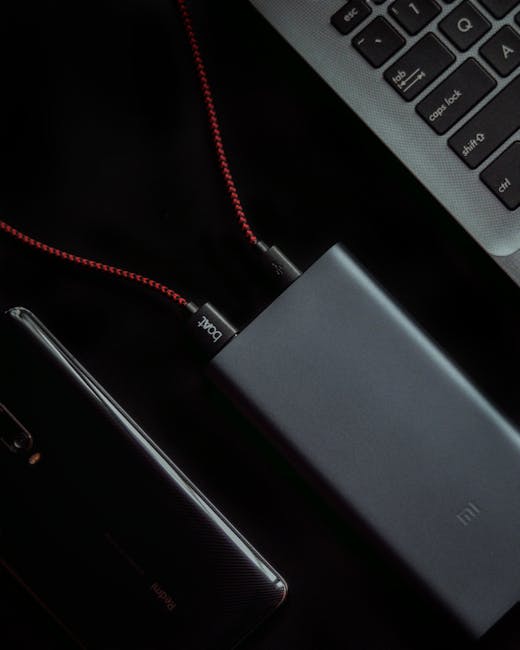
Power Delivery is how your dock charges your laptop through the USB-C cable. This is not just a “nice to have.” If the dock can’t supply enough watts, your laptop will either stop charging or slowly lose battery while you work.
USB-C PD is measured in watts (W). Your laptop’s charger rating is your best clue. If your laptop came with a 65W charger, you should usually buy a dock that can deliver at least 65W.
Find the right wattage: a simple rule that works
Here’s my rule of thumb for 2026: match the dock’s PD rating to (or slightly above) your laptop’s factory charger.
- 45W laptops: look for 45W or 60W PD
- 65W laptops: look for 65W PD minimum
- 90W–100W laptops: look for 90W or 100W PD
If you buy a 45W dock for a laptop that needs 65W, the laptop might run on battery during heavy use. Light tasks might still be okay, but your battery will not hold steady.
Real-world scenario: “It charges, but only when I’m not using the laptop”
I’ve seen this exact behavior. The dock says 100W PD, but it only gives that wattage when no other power-hungry accessories are plugged in.
Some docks reduce power under load (like when you connect fast USB storage, power-hungry devices, or drive multiple displays). The dock’s “max PD” rating can be like a car’s top speed: true, but only in a perfect condition.
That’s why I recommend checking the dock manual or product page for PD power under different setups. If it’s not clear, plan conservatively and expect less performance when you connect multiple extras.
Use the right USB-C cable: not all cables are equal
This is a huge point, and it’s easy to miss. The cable included with some docks is fine for charging, but it might not support full data and charging specs.
For best results, use a USB-C cable that supports USB Power Delivery and the required wattage. If your dock needs 100W, use a 100W-rated USB-C cable.
Also check whether you’re using a dock with a “single cable” setup. Some docks can run displays and power over one cable, but only if your laptop supports the right USB-C bandwidth.
Display support: resolutions, refresh rates, and how many screens
Display support is where buyers get burned. A dock can plug in perfectly and still show only one monitor, or it can show both but at a lower resolution.
Start by asking yourself a clear question: “How many displays do I want, and what quality do I need?” Then buy based on confirmed numbers.
HDMI vs DisplayPort vs USB-C video: what to expect
Here’s the basic idea. HDMI ports usually map to common monitor inputs. DisplayPort often handles high refresh and high resolution better in docks because it’s designed for computer video.
Some docks include both HDMI and DisplayPort. If you want the smoothest results for dual high-resolution screens, pick the dock that lists strong support for HDMI 2.0/2.1 or DisplayPort 1.4, and confirm refresh rates.
My practical advice: if your monitor is 4K, try to connect through DisplayPort when the dock offers it. If you only have HDMI, aim for HDMI 2.0 or higher support.
Two screens vs three screens: why “triple 4K” claims can be tricky
Many docks advertise “up to triple 4K.” In practice, you often get triple screens only at lower refresh rates (like 30Hz) or only with specific port combinations.
Also, your laptop’s USB-C lanes (the lanes inside the USB-C connection) limit how much video data it can carry. Even the best dock can’t magically exceed the laptop’s limits.
Example dock setups that work well (and why)
Based on what I see in 2026 setups, these combinations tend to be stable:
- One 4K monitor + one 1080p monitor at 60Hz on many modern laptops (often with one HDMI + one DisplayPort)
- Dual 4K at 60Hz on docks that explicitly confirm the refresh rate for that exact port pair
- Dual 1440p or dual 1080p where the dock lists support without weird compression limits
If the dock only lists “up to 4K” without refresh rate or port pairing details, you’ll likely end up in the troubleshooting zone.
DisplayLink vs “native” display: the difference in plain English
Native display means the dock sends video using your laptop’s built-in graphics and USB-C video Alt Mode. It’s usually more power friendly and looks good.
DisplayLink (sometimes called “USB graphics”) means the dock uses a software driver to create display output. It can support more monitors on laptops that otherwise struggle, but it can add overhead.
My opinion after using both: for office work and coding, DisplayLink can be great. For high-end gaming or very demanding video work, I prefer native output because it feels more direct.
Step-by-step: how to choose a USB-C dock that won’t disappoint

Here’s the checklist I use before I recommend a dock to anyone. It’s fast, and it avoids the common “gotcha” issues.
- Write down your laptop model and check its support page for USB-C video output and charging.
- List your must-have ports: Ethernet? SD card? How many USB-A devices?
- Match Power Delivery wattage to your laptop’s charger rating (45W, 65W, 90W/100W).
- Confirm display support with exact resolutions and refresh rates for your port pair.
- Check cable support (100W cable for 100W docks, and correct bandwidth for video).
- Plan for your OS: Windows, macOS, and some Linux setups handle docks differently, especially with DisplayLink.
When you do this in order, you avoid most returns. The rest usually come down to bad cable quality or using the wrong port combination.
Comparison table: what to prioritize by your use case
Different people need different dock features. Here’s a quick guide you can use like a shopping filter.
| Use case | Ports to prioritize | Power Delivery target | Display support focus | What to watch for |
|---|---|---|---|---|
| Home office (1–2 screens) | 2x USB-A (fast), Ethernet, HDMI/DP | Match your charger (often 65W) | Dual monitor at 1080p/1440p or 4K with 30–60Hz | Port pairing for dual displays |
| Creator (photos/video) | Fast USB-A/USB-C, SD reader, 2x display outputs | 90W–100W if your laptop needs it | 4K at 60Hz if possible | Compression/driver delays with DisplayLink |
| Travel + presentations | HDMI out, USB-A for mouse, Ethernet optional | 45W–65W | Reliable single display 1080p/4K | Compact power brick size and cable length |
| Office with many peripherals | Enough USB ports, Ethernet, audio, SD optional | 65W–100W depending on laptop | Dual displays for common desks | Driver support across many laptops |
People also ask: USB-C dock questions answered
How many monitors can a USB-C dock support?
A USB-C dock can support different numbers of monitors depending on two things: your laptop’s USB-C video limits and whether the dock uses native video output or a software method like DisplayLink. Many common laptops handle two external displays, but three is less common without DisplayLink.
To be safe, buy based on the dock’s confirmed dual-display specs at your resolution and refresh rate. “Up to” numbers are marketing until you see details.
Why is one monitor working but the other is blank?
Most of the time, it’s one of these: the dock port pairing isn’t supported, your USB-C output mode doesn’t match the dock’s requirements, or you’re using an adapter that breaks the video signal.
I’ve seen this when people use an HDMI-to-VGA adapter and expect it to work with a dock’s HDMI port the same way it works with a laptop. Video adapters can reduce bandwidth or change the signal format.
Try this order: swap the monitor cables, switch to the dock’s other video output (HDMI vs DP), then reboot the laptop. If that fails, check your laptop’s display settings for “Extend” vs “Duplicate.”
Does USB-C docking station support charging and display at the same time?
Yes, as long as the dock supports single-cable charging with enough Power Delivery wattage and your laptop supports video over USB-C. Many 2026 docks do this with one cable, and they’re designed for exactly this setup.
The problem happens when the PD wattage is too low for your laptop, or when the dock reserves power when multiple accessories are attached.
Is Power Delivery from a dock as reliable as a laptop charger?
It can be, but reliability depends on the dock’s power design and your laptop model. If the dock provides the correct PD wattage and you use a good USB-C cable, it’s usually stable.
What I don’t recommend: using a low-power dock with a high-power laptop and expecting it to charge fast under load.
Can I use a USB-C dock with a MacBook?
You can, but check the exact macOS support because docks may require driver installs for extra monitors or Ethernet features. Native support is often the best experience, while DisplayLink can help expand monitors if you install the right software.
Also watch for USB-C port type differences on older Macs. Some older models support video output differently.
Common mistakes when buying a USB-C dock (so you can avoid them)
Here are the mistakes I see again and again, even with careful shoppers.
- Buying based only on “4K” without refresh rate. 4K at 30Hz feels different than 4K at 60Hz.
- Ignoring the laptop’s USB-C video support. The dock can be fine and your laptop just won’t send enough video bandwidth.
- Underestimating PD wattage. Your laptop might run hot and drain the battery.
- Using the wrong cable. A “charging cable” can fail for video or limit power.
- Relying on adapters for “one more thing.” Adapters stack problems. Direct ports are safer.
I try to be practical here: if you need two monitors for work every day, you should pay a bit more for clear display specs and real PD wattage. That cost is cheaper than downtime.
My recommended approach for 2026: pick stability over max marketing
Here’s my personal take from real desk setups. I’d rather have a dock that confidently runs dual displays at 1440p/60Hz with clean charging than one that promises triple 4K but drops to 30Hz when you plug in a USB drive.
In 2026, many brands compete on big numbers, but the fine print matters: port pairing, refresh rates, driver needs, and PD behavior under load.
If you want to go one step deeper on the “why” behind device security (especially when docks add extra USB devices), you can also check our guide on USB device risks and how to stay safe. It’s not about fear-mongering—it’s about being smart when your laptop is connected to more than just a charger.
Related reading: tips that pair well with a dock upgrade
Once your dock works, your setup still needs care. Two topics I often see connected to dock buyers are cable management and OS troubleshooting.
- How to troubleshoot a second monitor when it won’t detect (quick steps you can do in minutes)
- Best USB-C and DisplayPort cables for modern monitors (to avoid the “it’s the cable” problem)
Conclusion: use this checklist and buy with confidence
A good USB-C dock is simple once you stop guessing. Match the ports to your desk, choose the right Power Delivery wattage for steady charging, and buy display support based on confirmed resolutions and refresh rates for your exact port setup.
If you do only one thing before checkout, do this: check your laptop’s USB-C video support and compare it with the dock’s stated monitor performance. That single step prevents most of the frustrating “one monitor works, the other doesn’t” moments.
Get those three matches right, and your dock becomes the boring, reliable part of your setup—the part you don’t have to think about.
About the Author