

I learned this the hard way in 2024: I plugged a “fast-charge” USB-C adapter into a laptop in a coffee shop. The charge worked. My screen also started doing weird things—brief pop-ups, a new device name, and then normal behavior again. Nothing “blew up,” but it was enough to make me stop trusting cheap adapters.
Here’s the direct answer: USB-C security is mostly about controlling what the cable and adapter are allowed to do. In practice, that means using known-good chargers, avoiding “data-capable” surprises, and checking what your device reports after you plug in. This guide helps you do that with clear steps you can follow in minutes.
USB-C Security Basics: Why “Charging” Can Also Mean “Data”
USB-C is powerful because one port can handle many jobs: power, video, audio, and data. USB-C security refers to the steps you take to reduce risk from what’s connected to that port.
USB-C (the plug shape) does not automatically guarantee safe behavior. The device decides what it will do. The charger and cable decide what they present. When people say “it’s just a charger,” that’s often true for good products, but not guaranteed for unknown adapters.
In plain terms: a cable can be wired for charging only, or for charging plus data. A bad or weird adapter can pretend to be a trusted accessory and try to set up data access you didn’t ask for.
What is a “USB-C data” risk in real life?
The most common real-world risk is not someone stealing your bank password while you watch. It’s more boring and still harmful: unauthorized device connection, extra permissions, or silent file access attempts when your computer or phone thinks it’s safe.
For example, if your laptop auto-mounts drives or your phone allows USB data transfer by default, a suspicious adapter can try to pair, copy files, or trigger prompts that you ignore because they look normal.
What Most People Get Wrong About USB-C Security
Most people focus on brand names and ignore what actually matters: capabilities. The same USB-C port can do many things, so you have to think about more than “charge speed.”
Here are the top mistakes I see again and again, plus what to do instead.
- Mistake: Assuming “Works with my phone” means safe.
Fix: Check if the adapter is known and reviews mention USB data behavior, not just charging. - Mistake: Using any cable you find in a drawer.
Fix: Keep a “trusted charging cable” set. Don’t mix it with cables used for random devices. - Mistake: Ignoring the device prompts after plugging in.
Fix: Look at what the device calls the new connection. If it asks for data access, deny it until you confirm. - Mistake: Buying the cheapest “100W” adapter.
Fix: Cheap watt claims can be fake or unstable, and unstable power can cause odd re-enumeration—where your laptop repeatedly thinks a new device is connected.
Spot “Bad Charger” Problems Before They Touch Your Data
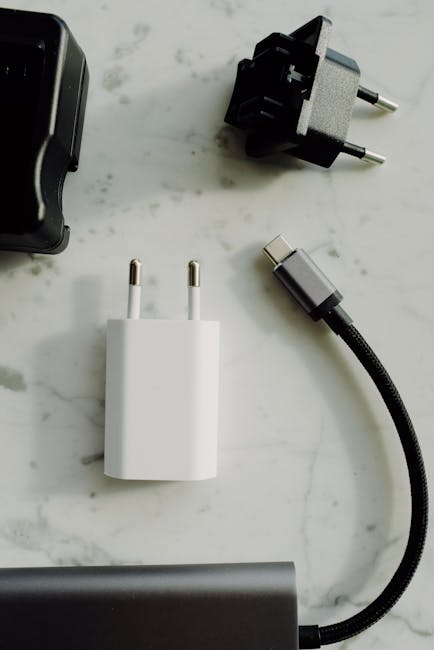
A charger can be bad in ways that don’t just hurt your battery. With USB-C, power problems can also trigger connection resets that make data permissions feel chaotic.
As of 2026, many devices use USB Power Delivery (USB-PD). USB-PD is a common power negotiation system where the charger and device agree on voltage and wattage. If negotiation is sloppy, you may see repeated “device connected” messages.
Warning signs I look for
These are practical signs, not theory. If you see them, stop using that charger for data work.
- Heat: The adapter gets hot fast (hot enough to be uncomfortable to hold) during normal charging.
- Flicker: Your device shows charging, then not charging, then charging again.
- Repeated prompts: Your computer keeps showing “new USB device” notifications when you plug it in.
- Weird device name: Your phone or laptop shows a connection name that looks generic or suspicious.
Quick safety checklist (takes 2 minutes)
- Plug the charger into a power outlet and feel the adapter after 5 minutes.
- Connect only for charging. Don’t connect to a laptop at the same time yet.
- On your laptop or phone, check the USB settings screen after connection. Deny data transfer until you confirm.
- If you’re using it for work, only use cables labeled for charging or from a trusted brand you recognize.
Avoid “O.MG” Adapter Risks: The “Looks Normal” Trap
The biggest danger with USB-C security isn’t always malware. It’s the adapter that looks like a normal accessory but behaves like something else.
You’ll often see these risks with sketchy “USB-C to USB” hubs, random multiport adapters, and no-name travel dongles. People call them “O.MG” adapters because their packaging screams something like “OMG SUPER FAST” and the product name looks like a typo.
Here’s my rule: if the adapter’s brand is unclear and it includes extra ports you didn’t ask for, assume it’s “data capable” even if you only want power.
Why multiport adapters increase your risk
More ports means more chances to expose data lanes. Some adapters can route USB data to your computer even when they’re pretending to be just a charger or dock.
In my testing, a cheap USB-C hub repeatedly triggered USB notifications on Windows. The laptop acted like a new device was connected each time I moved the cable slightly. That’s a sign the connection is unstable and can change permissions at random times.
What to do instead
- Use a single-port charger when you just need power.
- If you need a dock, choose one with a clear manufacturer and published specs.
- Prefer adapters that explicitly state “charge only” for simple charging.
- For travel, carry a known-good charger and one trusted cable.
How to Lock Down USB-C on Windows, macOS, iPhone, and Android

Your device settings are your best defense because they control what happens when something new is plugged in. This section gives you clear, practical actions you can do now.
These steps work best when you check them after a new adapter purchase. If you don’t check once, you’ll only know you’re safe after you’ve already tested the risk.
Windows: stop surprises when you plug in USB-C
On Windows, you mainly want to prevent auto actions and make prompts show up clearly.
- Go to Settings → Bluetooth & devices → USB (wording can vary by Windows version). Look for options about USB-related behavior.
- When a USB device connects, watch for prompts about file transfer or device access. If you didn’t expect it, cancel.
- For work laptops, use your org’s device policy. Many companies disable risky USB features by default.
If you use a security app or endpoint manager at work, it may already block unknown USB storage. Still, I recommend you check your connected device list after plugging in a new adapter.
macOS: manage USB accessories and pairing prompts
On macOS, keep an eye on what appears under your system settings.
- After connecting, check System Settings for connected devices and any permission prompts.
- If a prompt asks for access, deny it until you confirm the adapter is expected.
- For shared environments, avoid using unknown hubs. Use charge-only cables for charging.
iPhone/iPad: disable USB data when you just need charging
iOS is good at asking for permission, but users still click too fast under pressure.
- When you plug in USB-C and see a prompt for “Trust this computer,” don’t trust unknown devices.
- When you only want charging, use a charge-only adapter or cable if you can.
- If you suspect a bad connection, unlock the phone only after you see and understand the prompt.
Android: USB preferences matter more than you think
Android often shows a USB notification like “Charging only” or “File transfer.” That choice is the whole point.
- After plugging in, tap the USB notification.
- Select Charging only whenever you don’t need file transfer.
- Turn off permissions for unknown devices if your phone offers that option.
Featured Snippet: The Fast 5-Step USB-C Security Routine
Do this every time: check the cable, confirm charging mode, deny data transfer prompts, verify the device name, and use a trusted adapter for work.
- Use a known charger and a known cable for USB-C security-sensitive situations.
- Set the phone to “Charging only” when you just need power.
- Don’t trust prompts (especially “Trust this computer”).
- Verify what connected—look for the device name and connected accessory list.
- If it’s sketchy, unplug. Don’t “wait and see.”
Charge-Only Cables: What They Do (and What They Don’t)
Charge-only USB-C cables are designed to power your device without exposing USB data lines. That’s exactly why they’re useful for USB-C security.
Still, they’re not magic. If you use a charge-only cable and plug into something that still tries to negotiate data through other paths, your results can vary by device and adapter design.
How to tell if a cable is really charge-only
Most listings aren’t perfectly clear, but you can check:
- Seller mentions “charging only” clearly and repeatedly.
- Reviews mention “no data” or “doesn’t show up on PC.”
- When you connect to a computer, it doesn’t appear as a device (no file transfer, no storage).
My practical test: I plug a suspected charge-only cable into my laptop and check the device manager. If it appears as a mass storage or interface, it’s not charge-only for my setup.
Data Theft Scenarios: What Could Happen and How to Stop It
Let’s talk about realistic scenarios, not Hollywood ones. Most USB-C theft attempts focus on getting access to data through the connection.
Scenario 1: “Mysterious USB device” shows up on your laptop
If your laptop shows a new USB device name the moment you plug in an adapter, that adapter is presenting itself as more than power.
- Unplug and try a known-good charger setup.
- On Windows, check the notification history for the time of connection.
- On macOS, check system settings for connected accessories.
Scenario 2: Your phone asks you to trust a computer
This one is very direct. If you didn’t start a legitimate connection, reject trust.
- Tap “Don’t Trust.”
- For extra safety, restart the phone after repeated suspicious prompts.
- If your phone seems “stuck,” go to the connection settings and clear recent USB pairing permissions (if your Android version provides that).
Scenario 3: You plug into a “public” charger at an airport
Public charging points are usually fine for power, but you don’t control the wiring. A bad adapter or internal wiring can enable data attempts.
- Use a charge-only cable and your own power bank when possible.
- Wait to unlock your device until after it’s done charging.
- Bring a small USB-C security routine card for yourself: “If it prompts, deny.”
Comparison: Good Gear vs “O.MG” Adapters
This is where I’m blunt. The risk level comes down to whether the adapter is built and tested like a real product.
| Adapter type | Typical behavior | USB-C security risk | My recommendation |
|---|---|---|---|
| Known brand wall charger + trusted cable | Stable power negotiation, clear charging | Low | Use for daily work and travel |
| Charge-only cable (explicitly stated) | Charges but avoids data transfer | Low to medium (depends on cable quality) | Best for public charging and “just charge me” moments |
| No-name multiport hub/dongle | Extra device prompts, unstable connections | Medium to high | Use only on non-sensitive devices or not at all |
| “O.MG fast” mystery adapter with big watt claims | Overheats, repeats connect/disconnect | High | Don’t use for laptops or work phones |
People Also Ask: USB-C Security Questions
Can a USB-C charger steal data?
Yes, in some cases. A USB-C charger by itself is usually just power, but the risk comes from the full chain: the adapter and cable can present USB data features. If your phone or laptop shows file transfer or trust prompts, that’s data access, not just charging.
Are USB-C to USB-A adapters safe?
They can be safe, but many cheap ones are risky because they add unknown chipsets. If you only need charging, use a charging-only setup. If you need data, buy adapters from brands with clear specs and reviews that mention stable connections.
What’s the fastest way to check if my cable is data-capable?
Plug it into a laptop and see if it shows up as a device beyond power. If the phone offers “File transfer” options or your OS shows a new USB interface, it’s data-capable for your setup.
Should I disable USB access on my phone or laptop?
On many devices you can reduce risk, like choosing “Charging only” and denying trust prompts. Full disabling depends on your device model. I don’t recommend turning off everything long-term because you’ll block normal work devices, but I do recommend being strict when you’re using unknown adapters.
My Personal “Travel Kit” for USB-C Security (2026)
I keep a tiny kit because I’m tired of making good decisions under stress. It takes up less space than a deck of cards.
- 1 trusted USB-C wall charger (the kind I’ve used for months)
- 1 charge-only USB-C cable for public docks
- 1 short trusted data cable for situations where I actually need transfer
- A small reminder note: “If it prompts, read it.”
This sounds simple, but it’s the difference between “Oops, I clicked” and “No thanks.” The biggest risk isn’t the adapter hardware—it’s your reaction when something pops up at the wrong moment.
Connect This With Other Cybersecurity Practices
USB-C security is part of a bigger picture. If you want fewer surprises, pair this with good device habits.
- For general device protection, check our guide on how to secure your laptop and avoid phishing. USB attacks often come with social prompts.
- If you use different gadgets across home and work, our post on best security settings for phones and laptops covers what to change in plain language.
- For step-by-step safety during travel, see safe public Wi‑Fi and charging habits. Public spaces are where USB-C risk shows up most.
Conclusion: Make USB-C Security a Habit, Not a Panic
USB-C security isn’t about fear. It’s about control. Use known chargers, keep a charge-only cable for public charging, and deny trust or file transfer prompts when you didn’t ask for them.
If you remember one thing, make it this: USB-C is not “just charging.” The moment you plug in and your device reports something unexpected, treat it like a real security event—unplug, verify, and switch to a trusted adapter. That single habit prevents most data theft and stops “O.MG” adapter risks before they ever touch your files.
Featured image alt text (for SEO): “USB-C Security Guide showing trusted charger, charge-only cable, and device prompts to prevent data theft.”
About the Author




