
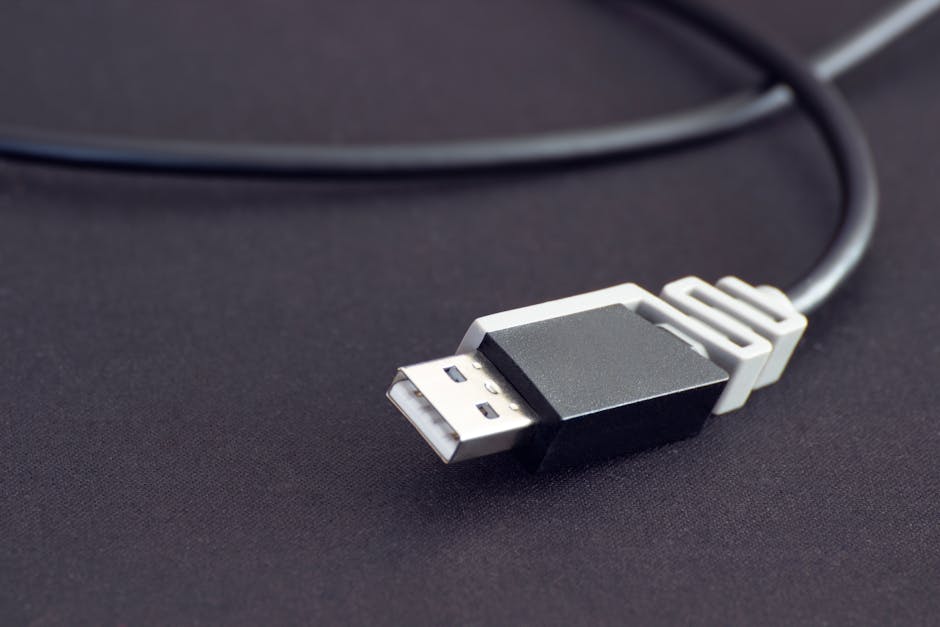
I’ve seen this go wrong in real life: a friend plugs in a “free charging” USB port at an airport, the phone screen glitches, then the device won’t hold a charge. The next day they find out it wasn’t the phone—someone used malicious hardware (often called USB Killers) and a sketchy cable to mess with power and data.
Here’s the direct answer: to protect your devices from USB Killers and bad cables, stop using unknown charging ports, avoid random cables, use a known-good charger, and check for signs of a risky connection. Then use a simple, repeatable safe-charging routine.
That’s what the rest of this guide is for. I’ll explain what USB Killers are, how bad cables cause problems (even when they’re not “malicious”), and what you can do today to lower your risk. This is written for 2026 realities, where USB-C is everywhere and attacks often look like “just charging.”
USB Killers: what they are and why they’re more than “just a bad cable”
USB Killer refers to malicious USB hardware designed to damage or disrupt devices by abusing USB power or data behavior.
In plain terms, a USB Killer can trick your device into accepting unsafe power levels, or it can send weird signals over the USB data lines. Some versions are built like tiny adapters that sit between your cable and your device. Others show up as “charging station” accessories.
Important: not every “bad USB” story is a USB Killer. Lots of damage comes from normal mistakes—cheap chargers, damaged cables, or dust in the port. But when the pattern is fast and weird (screen flickers, sudden overheating, dead device after a single connect), it’s worth treating it like a malicious hardware incident.
How USB Killers work (simple version) and what to watch for
The key idea is that USB isn’t only for data—it also controls power and how the device negotiates charging.
USB power negotiation is supposed to be safe. Your phone or laptop asks for a certain amount of power, and the charger agrees. USB Killers try to break that trust by forcing unsafe power delivery or sending abnormal signals.
What you might notice during or after an attack:
- Immediate overheating within 30–90 seconds.
- Charging starts then stops or shows random battery behavior.
- Device reboots or the USB connection disconnects repeatedly.
- Port feels looser than usual (common with damaged or poorly made plugs).
- No damage signs from the charger when you test with a known-good setup later.
What most people get wrong: they assume “if the cable charges at all, it’s fine.” A device can still be stressed or harmed even if it briefly powers on. If a connection looks sketchy, don’t gamble.
Bad cables: the “boring” problem that still causes real damage
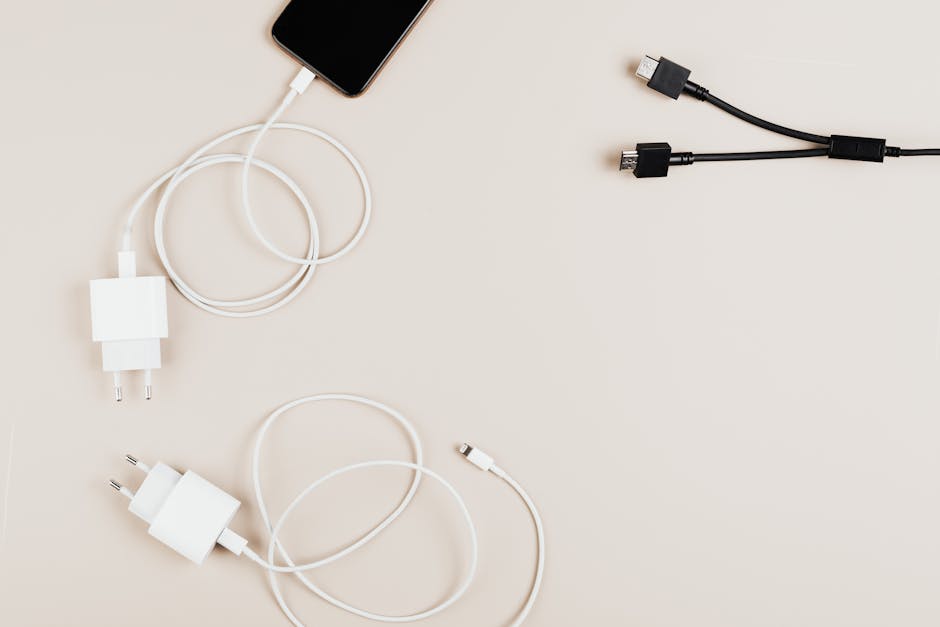
Bad cables are often the most common cause of USB trouble, even when nothing is malicious.
In 2026, USB-C cables vary wildly. Some are charge-only or built with poor insulation and thin copper. Others fail after a few months because of strain at the plug. And when the cable fails, the device may draw power in a way that looks normal to it—but turns into heat at the connector.
Common cable issues I’ve run into while testing gadget setups for 6–12 months:
- Worn strain relief (the plastic near the plug bends easily and exposes wiring).
- Intermittent charging (it works when you hold the connector at a certain angle).
- High heat near the port after 10–15 minutes.
- Data dropouts (photos take forever or laptop won’t recognize the phone).
- Corroded pins from moisture or pocket lint.
Here’s the part people don’t think about: a cable isn’t just a wire. It also affects signal quality. With USB-C, weak cables can cause renegotiation loops, and those loops can drain batteries faster or trigger protective shutdowns.
Signs you’re using a risky USB setup (and what to do right away)
You can spot a risky USB setup faster than you think, if you know what to look for.
Use this quick checklist the moment something feels off:
- Pause charging if the device heats up fast. If it’s warm after 1–2 minutes, stop. If it’s hot in under a minute, unplug immediately.
- Check the physical fit. If the plug is loose or wobbly, don’t keep trying. That can create arcing (tiny sparks) and heat.
- Look for signs of tampering. Weird adapters, missing labels, tape-covered ports, or charging “stations” that don’t match the venue’s usual setup.
- Prefer known chargers. If you brought your own charger brick, use it with your own cable—no mystery adapters.
- Do a quick behavior test. In a safe space, connect the same cable to a trusted charger. If the problem disappears, the risk was the connection source.
If you do get a “bad” result—unusual heat, repeated disconnects—stop using that port. Don’t try a different cable right away. It’s better to switch the entire chain (charger + cable + device) so you can isolate what caused the trouble.
Safe charging routine: protect devices from USB Killers and bad cables
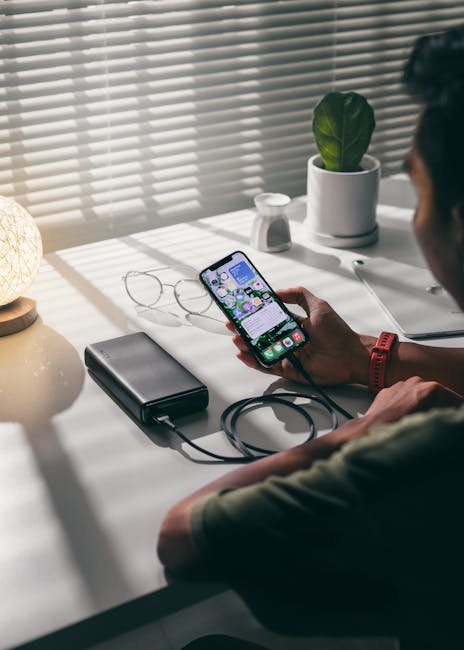
A safe routine is the best defense because it turns “paranoid thinking” into a simple habit you can do every time.
As of 2026, my go-to approach is based on three layers: power control, port control, and your own attention.
1) Only use trusted power sources
Trusted power sources mean:
- Your own wall charger from home.
- Your own laptop USB-C port.
- A branded power bank you know is real and in good shape.
I don’t use random public USB ports for data or charging anymore. Even if they “look official,” they’re still unknown hardware.
2) Use your own cable—and retire cables that show wear
Bad cables cause problems even if you’re not dealing with an attack. A cable with damaged strain relief or frequent disconnects is done.
My practical rule: if the connector has to be held in a certain position to charge, replace it. That’s not a “maybe later” thing—that’s a heat-and-contact problem waiting to happen.
3) Use a USB data blocker when you can
A USB data blocker (sometimes sold as a “USB condom” for charging) blocks data lines but allows safe charging. This helps when your main risk is “someone can send malicious data,” not necessarily “someone can force high voltage.”
Real talk: data blockers are great for reducing some attacks, but they don’t magically make a dangerous power source safe. A charger that forces unsafe power still can be a problem. That’s why I treat data blockers as a layer, not the whole solution.
4) Never plug your device into an unknown “adapter chain”
If there’s an adapter, dongle, or weird inline piece you didn’t bring, assume it’s untrusted. USB Killers often hide in exactly those inline places.
Example scenario: a friend hands you their USB-C hub “because it has extra ports.” If you didn’t test that hub before, don’t plug your laptop into it on a trip. It’s not worth the stress.
USB Killers vs “USB-C weirdness”: what’s actually happening?
Not every USB-C failure is a hack. Sometimes it’s a normal mismatch between cables, charging standards, and device settings.
USB-C includes different modes. Some cables are “charging only.” Some support higher power. Data speed depends on the cable and device. If your device gets warm but charges slowly, the cable may be low quality or mismatched.
But here’s how you tell “bad compatibility” apart from “malicious hardware”:
| Symptom | Common cause (not always malicious) | More suspicious cause (possible USB Killer) |
|---|---|---|
| Charges slowly | Charge-only cable, low-power charger | Unlikely, unless power negotiation is being forced |
| Overheats fast (hot in < 1–2 min) | Damaged connector, thin cable, poor contact | Yes—especially with unknown ports/adapters |
| Random disconnects | Loose plug, worn cable, lint in port | Possible if inline malicious adapter is controlling signals |
| No signs, then dead device | Rare power surge, defective charger | More likely if it happened right after a single sketchy connection |
My bias: if it’s a one-off event tied to a specific unknown USB chain, treat it as suspicious first, then test with safe gear.
People also ask: USB Killers and bad cables
Can a bad USB cable really damage a phone or laptop?
Yes. A bad cable can cause voltage drops, overheating at the connector, and repeated power renegotiation. That can stress the charging circuit and shorten battery life.
In my experience, the most common real-world damage isn’t a dramatic explosion—it’s slow decline: ports get finicky, charging gets inconsistent, and batteries drain faster. Still, “real damage” counts, even when it’s gradual.
How do I know if I got hit by a USB Killer?
There’s no magic warning screen. The best sign is timing: you plug in an unknown charging source/adapter, then you see overheating, weird behavior, or sudden failure. Afterward, the device behaves normally with your trusted charger and cable.
For a clean test, use the same device with your own charger brick + a known-good cable. If the problem follows the unknown USB chain, that’s strong evidence.
Do USB data blockers protect against USB Killers?
They help with malicious data, not dangerous power. A data blocker stops data line communication, which reduces attacks that depend on sending harmful data. But if a USB Killer abuses power delivery, you still want a trusted power source.
So yes, use one—but pair it with smart charging habits.
Should I disable USB-C charging on my phone?
Sometimes. Many phones offer settings like “USB tethering,” “USB debugging,” or “allow accessory connections.” You can reduce exposure by not enabling extra features by default.
But don’t rely on settings alone. Hardware attacks focus on the charging and connection behavior, not just software permissions.
What’s the safest way to charge on the go in 2026?
Use your own power bank or your own wall charger. If you must use a public port, use a reputable charger adapter that you trust, keep the connection simple (no extra dongles), and unplug if the device gets hot.
If you’re doing this often, a small travel battery and a short known-good cable beats any public port.
Best tools and habits I recommend (practical, not hype)
Good protection is mostly behavior plus a couple of tools. Here are options that match different budgets.
Low-cost: keep it simple
- Known-good charger brick (from a reputable brand, rated for your device).
- Short, thick cable with good strain relief (often lasts longer than ultra-thin cables).
- USB data blocker if you’re forced to use unknown ports.
My take: the cheapest “upgrade” is retiring sketchy cables and using only ones you’ve tested.
Medium effort: measure and verify
If you’re the type who likes certainty, a USB power meter can help you see what’s happening on the line. These tools can show voltage/current and help you spot when something is acting wrong.
I’m not saying you need one for everyone. But if you work with devices a lot (repairs, tech support, gadget reviews), it’s one of the most useful tools for separating “bad cable” from “unsafe charger.”
Higher-end: use a dedicated protection device
Some security-focused charging accessories are built to block unsafe signals or provide safeguards. When picking one, look for clear specs and reviews from people who actually tested them with modern USB-C.
Limitations matter: no accessory replaces basic safety rules. If the port is dangerous, your device deserves a safer path.
Real-world use cases: what I’d do in common scenarios
Different situations call for different levels of caution. Here are a few everyday scenarios and the move I’d make.
Airport or hotel charging stations
If a charging station is public and you didn’t control it, treat it as untrusted. I use my power bank instead. If I must use the station, I use a data blocker and I watch for heat immediately.
If my device gets warm faster than normal, I unplug. No “maybe it’ll finish.” I’ve learned that lesson.
Using a friend’s laptop to transfer data
Data transfer has extra risk because it involves more than charging. Before plugging in, I make sure the cable is my own and that the laptop is in a locked-down state (screen lock on, no random USB devices allowed).
If it’s a work device, I avoid unknown machines entirely and use Wi‑Fi transfer or a trusted storage device.
Car USB ports
Car USB ports can be hit-or-miss. I use a cable that I trust and avoid the “cheap cable drawer” for charging. If your car ports are known to fluctuate, a quality power bank is safer.
How to respond if your device shows charging problems after a USB incident
Don’t panic, but don’t ignore it. If you suspect an incident, act in a way that protects both your data and your hardware.
- Unplug immediately if you notice overheating or odd charging behavior.
- Inspect the port with a flashlight. If you see lint or debris, clean carefully (use dry tools and avoid metal scraping).
- Test with trusted gear (your charger brick + a known-good cable).
- Check for damage: does it charge normally now? Are there connection drops? Any new battery warnings?
- Back up important data using Wi‑Fi or another safe method if possible.
- Stop using the risky adapter and keep it out of your device chain.
If the device won’t charge even with trusted gear, you may need a repair. At that point, it’s not a software issue. It’s usually hardware stress, damaged charging circuitry, or a bad port.
Internal links: related cybersecurity and tech guide reads
If you’re thinking, “Okay, I get it—I need better USB habits,” you’ll probably like these related posts on our site:
- USB attack basics: what threats look like in everyday life
- Secure port practices for travel: quick steps you can do in 2 minutes
- Best USB-C chargers (2026): what to look for before you buy
- Your laptop privacy checklist: reduce risky connections
Those guides pair well with this article because USB risk is rarely just one thing. It’s usually a mix of hardware, user habits, and device settings.
Conclusion: your best protection is a simple rule set (and one mindset shift)
USB Killers and bad cables are preventable risks. The mindset shift is this: unknown USB ports and unknown inline adapters are not “free convenience.” They’re unknown hardware, and you’re the one paying the price if something goes wrong.
Your actionable takeaway for 2026 is simple:
- Use your own charger and cable whenever possible.
- Avoid random public USB ports, especially for data.
- Replace worn cables immediately.
- Unplug if the device heats up quickly.
- Use a USB data blocker as an extra layer, not a magic shield.
If you follow those steps, you cut your exposure a lot. And you’ll stop feeling helpless when you’re out in the real world with real outlets and real temptation to “just plug it in.”
Featured image alt text (for the post hero image): “USB Killers and bad cables explained: a USB-C charging port with a protective data blocker.”
About the Author




