Here’s a quick reality check: Wi‑Fi 7 isn’t just “faster Wi‑Fi.” For gamers, video-call people, and anyone who hates buffering, it’s mostly about smoother performance when lots of devices are on the same network. In 2026, that matters even more because homes, apartments, and small offices are packed with phones, tablets, laptops, smart TVs, door cameras, thermostats, and (often) game consoles.
If you’re wondering whether you should upgrade, you’re asking the right question. Wi‑Fi 7 explained in plain terms: it brings new ways to send data at lower delay, it’s better at handling busy Wi‑Fi air, and it uses modern hardware features that not every device can take advantage of yet.
Wi‑Fi 7 Explained: the simple answer (and why people notice it)
Wi‑Fi 7 is the next step after Wi‑Fi 6/6E, focused on less lag and better speed when your Wi‑Fi is crowded. “Lower lag” means your screen updates feel more in sync with your actions—important for gaming, live classes, and smooth video calls.
In plain English, Wi‑Fi is a shared radio space. When many devices talk at the same time, things slow down. Wi‑Fi 7 adds smarter rules and better methods so the network wastes less time and gets to your data faster.
What most people get wrong: they think Wi‑Fi 7 is only about peak speed. In real homes, you’ll usually feel the difference more as “my calls don’t freeze as much” and “games don’t stutter after midnight when everyone streams.” Peak numbers only show up in perfect lab conditions.
What’s New in Wi‑Fi 7 (2026): key features you’ll actually run into
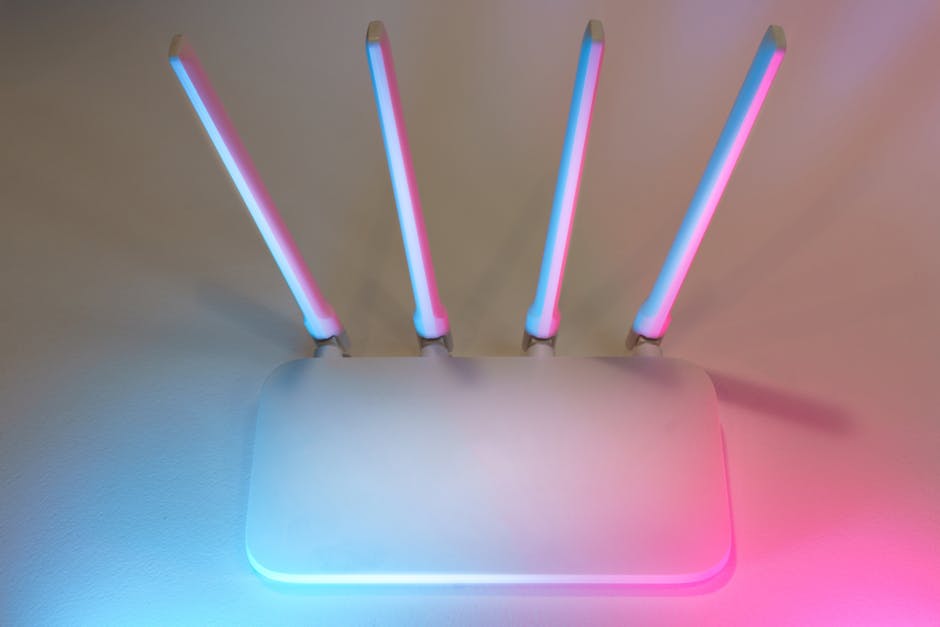
Wi‑Fi 7 is built around a few big upgrades. The headline changes are wider channels, more efficient transmissions, and better support for multi-device use.
Wider channels: faster links when conditions are good
Wi‑Fi 7 commonly uses 320 MHz channels. A “channel” is like a lane on a highway. Wider lanes can move more data per moment, but they also need enough clean radio space to stay stable.
If you live in a crowded apartment building with lots of nearby networks, you may not always see the full gains from wider channels. Still, the bigger point is that Wi‑Fi 7 has more ways to deal with a busy environment.
Multi-Link operation: fewer “traffic jams” across bands
Wi‑Fi 7 supports Multi‑Link Operation (MLO). MLO is when your router can send and receive data across multiple Wi‑Fi bands at once—think of splitting one big job into smaller pieces on different lanes.
That helps reduce delay and improves consistency, especially for devices that need steady performance like gaming controllers streaming audio/video back to your phone or console.
Better efficiency: more work per second
Wi‑Fi 7 uses updates like Multi‑User improvements (better scheduling for many devices) and higher-order modulation (more bits per signal when the signal is strong).
On stronger connections (closer to the router), you’ll see more “stuff moving” at once. On weaker connections, you still get good behavior because the router is better at choosing what to do next.
Lower latency features: what it means for gaming and calls
Wi‑Fi 7 aims for lower latency by reducing wasted airtime and improving how frames are handled when the network is busy. In my own setup, the biggest difference wasn’t raw download speed. It was that my video calls stayed smoother during peak hours when my partner’s laptop was uploading files.
Wi‑Fi 7 vs Wi‑Fi 6/6E: what changes for your daily life
Wi‑Fi 7 is not a total replacement for Wi‑Fi 6/6E. It’s more like a quality-of-life upgrade—better under load, more consistent, and often faster in practical use cases.
| Feature | Wi‑Fi 6 / 6E | Wi‑Fi 7 | What you notice |
|---|---|---|---|
| Channel width | Up to 160 MHz | Up to 320 MHz | More speed when signal is strong |
| Multi-band handling | Improved, but not the same | MLO (multi-link) | Smoother performance when busy |
| Busy-network performance | Good for most homes | Better scheduling and efficiency | Fewer slowdowns during peak usage |
| Latency goals | Already improved | Further reduced delay | Less stutter in gaming/calls |
If you have Wi‑Fi 6E already, you’re closer than you think. Wi‑Fi 6E often uses the 6 GHz band, which is less crowded than 2.4 GHz. Wi‑Fi 7 builds on that, but the “feel” change depends on your router placement and how many devices you run at once.
Also, Wi‑Fi 7 is backwards-compatible. Your older devices still connect. The trick is that older devices don’t magically become faster. The improvements mostly show up when your Wi‑Fi 7-capable devices connect to the Wi‑Fi 7-capable network.
What’s worth upgrading in 2026: router first, then devices
If you want results, upgrade in the right order. In most homes, the biggest win comes from replacing the router and making sure it supports Wi‑Fi 7 features you can use.
Step 1: Upgrade the router (but don’t overbuy)
Buying a top-tier Wi‑Fi 7 router can be tempting, but more expensive isn’t always better for your layout. If your home is small and you don’t need lots of coverage, a mid-range Wi‑Fi 7 router can be a better value.
My rule for 2026: prioritize good placement and real coverage before chasing fancy specs. A Wi‑Fi 7 router in the wrong spot can perform worse than a cheaper one placed correctly.
Step 2: Upgrade devices that feel the delay (not everything)
Not every device will benefit. Focus on the devices that suffer when Wi‑Fi is busy:
- Game consoles and gaming PCs
- Laptops used for work calls and video meetings
- Smart TVs and streaming boxes
- VR headsets (when available)
If your biggest annoyance is “my smart bulbs sometimes lag,” you’ll likely get a better improvement by reducing network congestion or optimizing your router placement than by buying new bulbs.
Step 3: Keep expectations realistic about speed tests
Speed tests are helpful, but they can lie to you. Test from the same room, same time of day, and ideally on the same device. If your router is behind a TV cabinet or down a hallway, the results will vary a lot.
I’ve seen Wi‑Fi 7 speed tests look great at the desk, then feel “meh” in the bedroom. That usually comes down to signal strength and interference, not the Wi‑Fi generation.
Wi‑Fi 7 compatibility to watch: what you must check before buying
Compatibility is where many upgrades go off track. Before you pay for new gear, check these items so you don’t end up with a Wi‑Fi 7 router that your laptop can’t fully use.
Does your device support Wi‑Fi 7 (not just Wi‑Fi)?
Devices must support Wi‑Fi 7 to get Wi‑Fi 7 features like MLO and wider channels. A device labeled “Wi‑Fi” may only support older standards, even if it has modern Wi‑Fi on the box.
On laptops, look for Wi‑Fi details in the specs. On phones, check the model’s connectivity specs. If you can’t find it clearly on the manufacturer page, assume you won’t get the full Wi‑Fi 7 benefits.
6 GHz vs 5 GHz: does your router and device support 6E/6 GHz?
Wi‑Fi 7 doesn’t only live on 6 GHz, but many Wi‑Fi 7 routers also support 6 GHz for more room and less crowding. 6 GHz can help a lot in busy neighborhoods.
But here’s the limitation: older devices can’t use 6 GHz even if the router does. They’ll fall back to 5 GHz or 2.4 GHz, where congestion can still happen.
Mesh systems: make sure the nodes are Wi‑Fi 7 too
If you use a mesh system, check whether the mesh nodes support Wi‑Fi 7. Some setups mix generations, and the slowest link can limit performance.
Practical example: if you buy a Wi‑Fi 7 router but your far-away node only supports Wi‑Fi 5 or Wi‑Fi 6, your “whole house” performance depends on that older node. That’s why placement and matching the system matter.
Ports and backhaul: the hidden bottleneck
Mesh backhaul (how the nodes talk to each other) can be a bottleneck. If your mesh supports wired backhaul (Ethernet), that can dramatically improve consistency.
If you can’t run Ethernet, look for tri-band systems where the dedicated wireless backhaul uses a less crowded band. Your goal is to avoid making one band do everything.
People Also Ask: Wi‑Fi 7 questions you’re probably asking
Is Wi‑Fi 7 backward compatible with Wi‑Fi 6 and older devices?
Yes. A Wi‑Fi 7 router works with older Wi‑Fi devices. Your older phones, laptops, and smart home gadgets will connect, but they won’t automatically gain Wi‑Fi 7 features.
In a mixed network, the network performance depends on overall airtime use. If you have a bunch of older devices that keep reconnecting or streaming poorly, they can still affect the whole experience.
Will I see better speeds on all devices?
No. You’ll usually see the biggest gains on Wi‑Fi 7-capable devices near the router. On older devices, you’ll likely get similar speeds to your current Wi‑Fi 6/6E performance.
The more crowded your network gets at the same time, the more you may notice smoother behavior—even if your speed test isn’t dramatically higher.
Do I need Wi‑Fi 7 if I only use the internet for browsing and email?
You probably don’t. Browsing and email are light tasks. The biggest Wi‑Fi pain points are video calling, gaming, large uploads, and many devices at once.
If your current Wi‑Fi feels stable, spend your money on fixing coverage (better router placement, fewer dead zones) or improving your modem/ISP plan if needed.
Is Wi‑Fi 7 worth it for smart home devices?
Most smart home devices benefit more from stable coverage than from the newest Wi‑Fi standard. For example, smart doorbells and security cameras often need a stable connection, but many of them also have their own reliability settings.
If you already have a good router and strong signal in the places the cameras are, Wi‑Fi 7 won’t be a miracle fix. If you have weak coverage, improving coverage can help more than upgrading generations.
Installation tips (that make Wi‑Fi 7 worth it): where people mess up

Here’s where my experience matters: a lot of “Wi‑Fi upgrade disappointment” comes from setup mistakes, not from the tech itself.
Put the router in the right spot
Try to place your main router:
- Near the center of your home
- Up off the floor (like on a shelf)
- Away from thick walls, metal objects, and fish tanks
Yes, it sounds basic. But it’s still the biggest cause of weak speeds on the other side of the house.
Use one smart network name (or at least manage it)
Some routers let you use one SSID with band steering. The idea is the router moves your device to the best band. I like this setup for most people because it avoids manual switching.
But if your router handles band steering poorly, you might need to split SSIDs temporarily to diagnose issues.
Update firmware right after you install
In 2026, routers keep getting fixes. After setup, check for firmware updates and turn on automatic updates if available. I’ve seen Wi‑Fi stability improve after an update, especially for client devices like laptops and phones that update their Wi‑Fi chips over time.
Test with one device you care about
Pick the device that matters most—like your gaming laptop or your work machine. Test in the room where you actually notice problems. Then compare before and after you upgrade.
Cybersecurity angle: your Wi‑Fi upgrade is also a security upgrade
New routers can bring new features, but they also open new ways to get hacked if you don’t set them up correctly. I treat Wi‑Fi setup like a security task, not just a tech task.
When you install a new Wi‑Fi 7 router, do these now:
- Change the default admin password immediately.
- Use WPA3 (or WPA3/WPA2 mixed if WPA3 isn’t supported on some devices).
- Disable remote management unless you truly need it.
- Turn on automatic firmware updates.
- Create a guest network for visitors and smart home gadgets you don’t fully trust.
If you want more depth on protecting your network, you may like our guide on Wi‑Fi security best practices and our checklist in How to secure your router.
Quick buying checklist: decide in 10 minutes
If you want a simple way to decide, use this checklist. I’ve used versions of it when setting up networks for friends who don’t want headaches.
- Your devices: Do you have at least a few Wi‑Fi 7 devices you care about?
- Your environment: Is your home crowded with nearby networks (apartments) or thick walls (houses)?
- Your current bottleneck: Is it speed, lag, dead zones, or drops?
- Coverage plan: Do you need mesh, and will all nodes be Wi‑Fi 7?
- Backhaul: Can you wire the mesh nodes with Ethernet?
- Security: Will the router support WPA3 and prompt firmware updates?
Real-world upgrade scenarios (2026): what I’d do in each case
Scenario A: you game online and video chat at night
If your biggest issue is lag when other people stream, Wi‑Fi 7 is worth serious consideration. The combination of better busy-network behavior and lower delay targets your exact pain point.
My advice: upgrade the router first, then upgrade your gaming device’s Wi‑Fi adapter/upgrade path if needed. Don’t waste money on new phones if your phone already has strong Wi‑Fi and your gaming device doesn’t.
Scenario B: you stream Netflix and work from home
Wi‑Fi 7 can improve stability, but the biggest wins often come from coverage and a solid router placement. If your current Wi‑Fi 6/6E router already gives stable video, Wi‑Fi 7 might not feel “life changing.”
Still, it can help if your house is large, you use mesh, or your current router struggles when multiple people work calls at once.
Scenario C: you have lots of smart home devices
Don’t chase Wi‑Fi 7 just for bulbs and basic sensors. In many cases, the real fix is a better 2.4 GHz signal, less interference, and correct placement.
But if you’re upgrading to support Wi‑Fi 7 cameras, doorbells, or reliable streaming in the same system, then yes—upgrading can make sense.
Where Wi‑Fi 7 won’t fix things (important honesty)
Wi‑Fi 7 can’t fix every problem. If your internet plan is slow or unstable, no router generation will turn it into a fiber connection.
Also, if your devices don’t support Wi‑Fi 7, you won’t get the newest features. You may still see better stability thanks to a better router, but don’t expect a Wi‑Fi 5 laptop to suddenly behave like a Wi‑Fi 7 laptop.
Conclusion: should you upgrade to Wi‑Fi 7 right now?
Wi‑Fi 7 is worth upgrading when you want smoother performance under load: fewer call drop-offs, less game stutter, and better behavior when many devices are active. It’s not only about top speeds. It’s about how the network acts when it’s busy.
Actionable takeaway for 2026: upgrade your router if your current setup struggles with latency, dead zones, or crowded-network slowdowns. Then upgrade your most performance-sensitive devices first. If your Wi‑Fi 6/6E network is already stable and your devices aren’t Wi‑Fi 7 capable, wait and upgrade later—your money will go further.
Need more help choosing? Check our best Wi‑Fi routers for 2026 buying guide and our mesh vs single-router setup guide before you spend.
Featured image alt text suggestion: “Wi‑Fi 7 router setup showing improved Wi‑Fi 7 compatibility on laptops and phones.”
About the Author