Real-world USB‑C speed usually isn’t limited by USB‑C. It’s limited by a mismatch between power delivery (PD), data mode, and the cable you bought (or grabbed from a drawer). In 2026, even mainstream laptops and phones support multiple USB‑C “personalities,” so two identical-looking cables can perform like they belong to different generations.
I’ve tested this hands-on with a mix of phones, a Windows ultrabook, an iPad that supports USB‑C, and a couple of SSD enclosures. The pattern is consistent: your charging gets capped by PD negotiation, your transfers get capped by the link speed your cable and ports actually support, and your “it should be fast” assumption collapses the moment you use the wrong cable or hub.
USB‑C Explained (the practical version): USB‑C is a connector shape, not a guarantee of wattage or throughput. The speed you feel comes from how power and data are negotiated—plus what’s inside the cable.

USB-C Explained: what the connector actually controls (and what it doesn’t)
The biggest misconception I see is treating USB‑C like a single standard. USB‑C is primarily the physical connector, while speed and charging performance depend on the underlying protocols negotiated over the same pins.
USB‑C refers to the port and plug design defined by the USB Implementers Forum. The real capabilities come from technologies like USB 2.0, USB 3.x (including Gen 1/Gen 2/Gen 2×2), Thunderbolt 3/4, and USB Power Delivery. Not every USB‑C port enables every mode.
Definition-style clarity: USB Power Delivery (PD) is the protocol that negotiates voltage and current so your device can safely charge at a specific wattage. Data rate refers to how fast bytes move across the link after the device and host agree on a mode.
In practical terms, you can plug the same device into two different USB‑C ports on two different computers and get three different outcomes: slow charging, fast charging but mediocre transfers, or fast transfers with low power. That’s not “USB‑C being inconsistent.” It’s negotiation and cable limits.
Power Delivery (PD) in real life: why charging speed depends on wattage negotiation
PD determines how many watts your phone or laptop actually receives. If the charger and cable can’t support the negotiated profile, your device falls back to a lower power level—even if the port physically fits the plug.
Here’s what matters most for PD speed:
- Charger wattage: For example, 20W, 30W, 45W, 65W, 100W chargers advertise profiles.
- PD version and profiles: Newer devices support more profiles and higher max wattage.
- Cable capability: Some “charge-only” cables are thin on copper pairs or lack the correct signaling support.
- Device limits: Phones often cap charging at a fixed rate based on battery and thermal design.
How I spot PD limitations fast (no lab equipment required)
If you want a quick reality check, use a USB‑C power meter in-line. I keep one around because it’s the fastest way to confirm whether my laptop is negotiating 45W versus 25W (or whether a cable is causing fallback).
In 2026 workflows, I’m often moving between desk charging and travel charging. When I swap from a known-good 65W PD cable to a random “spare” cable, I frequently see wattage drop by 20–40%. That translates to noticeably slower top-ups during short breaks.
Step-by-step:
- Plug the power meter into the USB‑C charger output.
- Connect your phone/laptop to the meter.
- Watch the wattage readout while the device negotiates (first 10–30 seconds).
- If the number is lower than expected, try a different cable or a different charger with higher rated wattage.
Common “what most people get wrong” about PD
People often assume that because a charger says “USB‑C” and the cable fits USB‑C, it will deliver full power. The truth is the weakest link wins: a cable may lack the current rating or proper PD support, and the charger/device may negotiate down to maintain safety.
I’ve seen scenarios where a 65W charger + a cheap cable ends up delivering ~25W to a laptop. The laptop still charges, but your “fast charge” window disappears. In travel terms, that’s the difference between arriving with battery and arriving with an emergency power strategy.
Data rates explained: USB 2.0 vs USB 3.x vs Thunderbolt over the same USB-C port
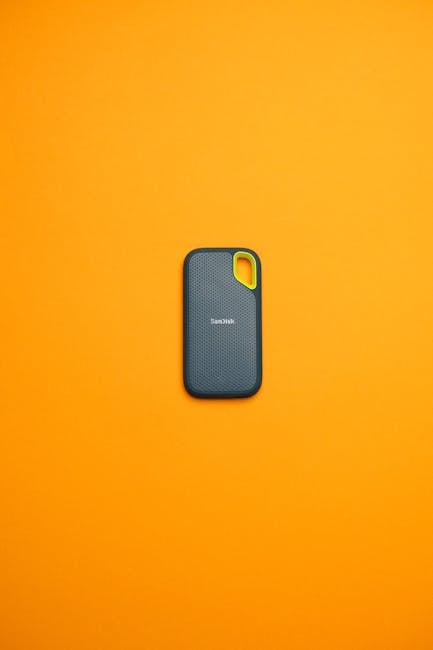
Your transfer speed depends on which data protocol your device and cable support—and whether the port exposes those lanes. USB‑C can carry multiple data standards, but it doesn’t guarantee them.
Most consumer frustration comes from the difference between what the port supports and what the cable supports. A “charging cable” often contains fewer conductors, so the data link either doesn’t come up or it comes up at USB 2.0 speeds.
Here are practical ranges you’ll feel:
- USB 2.0 (480 Mbps theoretical): Real transfers are often in the 20–40 MB/s range depending on the device and storage.
- USB 3.2 Gen 1 (5 Gbps): Typically yields roughly 300–550 MB/s in favorable conditions.
- USB 3.2 Gen 2 (10 Gbps): Often lands around 800–1000 MB/s for SSD-like sources.
- USB 3.2 Gen 2×2 (20 Gbps): Can reach higher ceilings when both the host and enclosure support it.
- Thunderbolt 3/4 (up to 40 Gbps): Usually the most consistent option for high-speed SSD enclosures, with the right hardware.
Real-world example: copying a folder to an external SSD
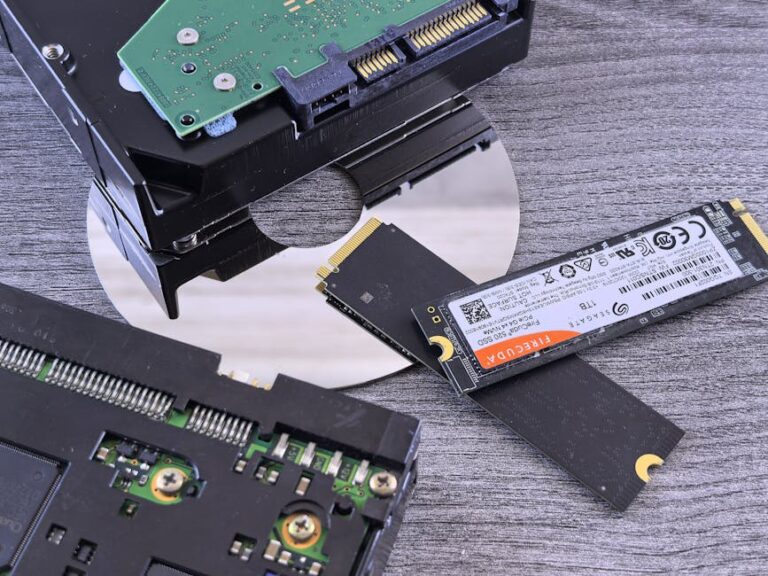
When I test cables, I don’t start with “feel.” I start with a measurable task: copying a mixed folder (photos, large videos, and a few archives) to an external SSD enclosure.
With a proper USB 3.x cable and a supported enclosure, the copy finishes in a fraction of the time you get from a charge-only USB‑C cable. With the wrong cable, Windows may still detect the SSD, but the transfer mode can drop to USB 2.0—turning a 10-minute job into a 45-minute slog.
This also affects your workflow for data recovery and backup. If you’re moving forensic images, video projects, or large installers for offline installs, the cable and link matter as much as the SSD.
Cables matter: how to choose the right USB‑C cable for power and speed
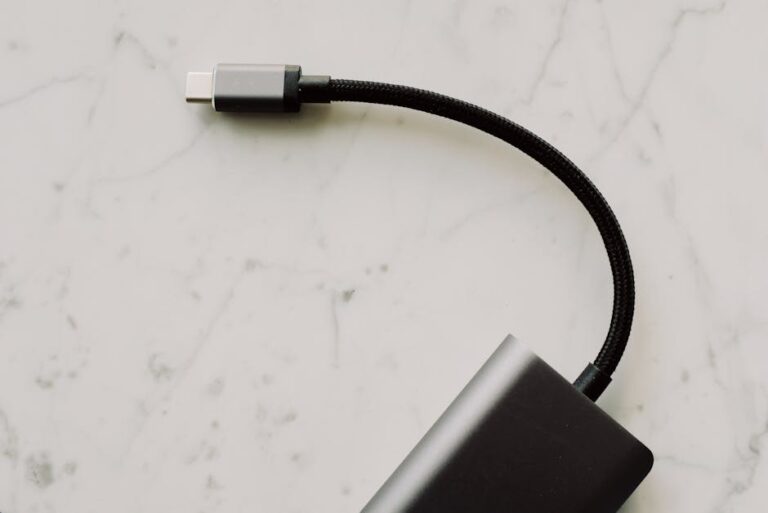
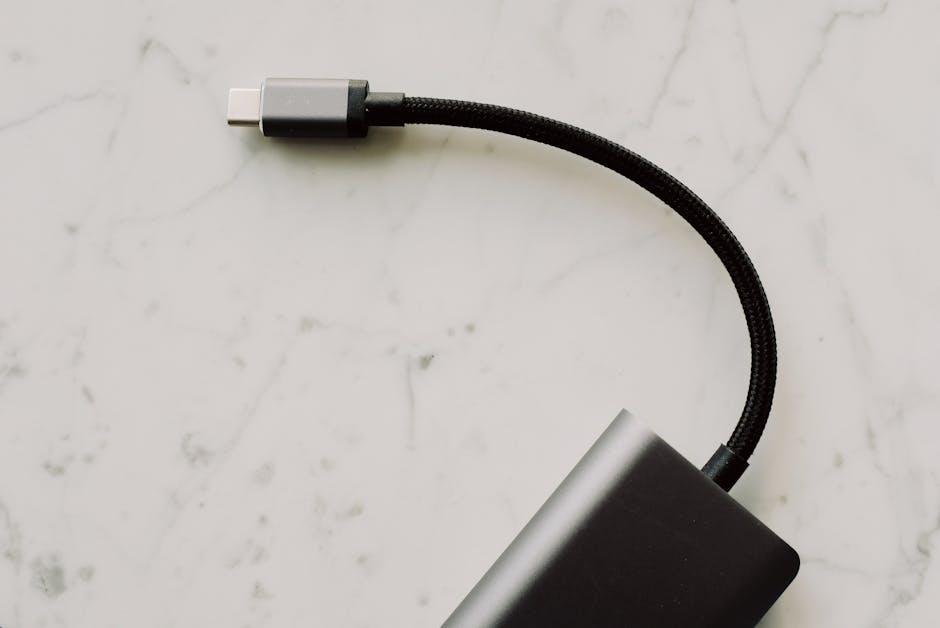
The cable is not a passive accessory—it’s part of the specification. For USB‑C, the same connector can hide wildly different internal wiring and signaling quality.
When choosing a cable, I look for three things:
- USB version/data support (USB 3.x, Gen 2, Gen 2×2, or Thunderbolt).
- Power rating (for example, “up to 100W” cables).
- Wire gauge and construction (thicker cables handle higher current better, especially for longer runs).
What you should look for on packaging (and what you should ignore)
Most listings show marketing terms, so you need to translate them. “Fast charging” is not the same as “USB‑C PD 65W” or “100W.” For data, “USB‑C” alone tells you almost nothing.
Use this checklist when shopping:
- Does it explicitly mention USB 3.2 Gen 2 or USB 3.2 Gen 2×2 (or higher)?
- Does it mention Thunderbolt if that’s what you need?
- Does it state a max wattage that matches your charger/device?
- Does the cable length align with your expectations? Longer cables can reduce reliability at higher speeds.
Comparison table: cable types and what you can realistically expect
| Cable type | Charging (PD) | Data transfer | Best for | Typical pitfall |
|---|---|---|---|---|
| Charge-only USB‑C | Often works at low to moderate wattage | Either no data or USB 2.0 | Phone top-ups | External SSDs crawl |
| USB‑C to USB‑C (USB 3.x capable) | PD depends on wattage rating | USB 3.x speeds (5–20 Gbps depending on spec) | Backups and file transfers | Assuming all “USB 3.x” are equal |
| USB‑C Thunderbolt 3/4 | High wattage capable with the right charger | Up to Thunderbolt link speeds | High-end SSD enclosures, docks | Using a non-TB cable in a TB port |
Port behavior and hubs: why your dock can cut performance even with a good cable
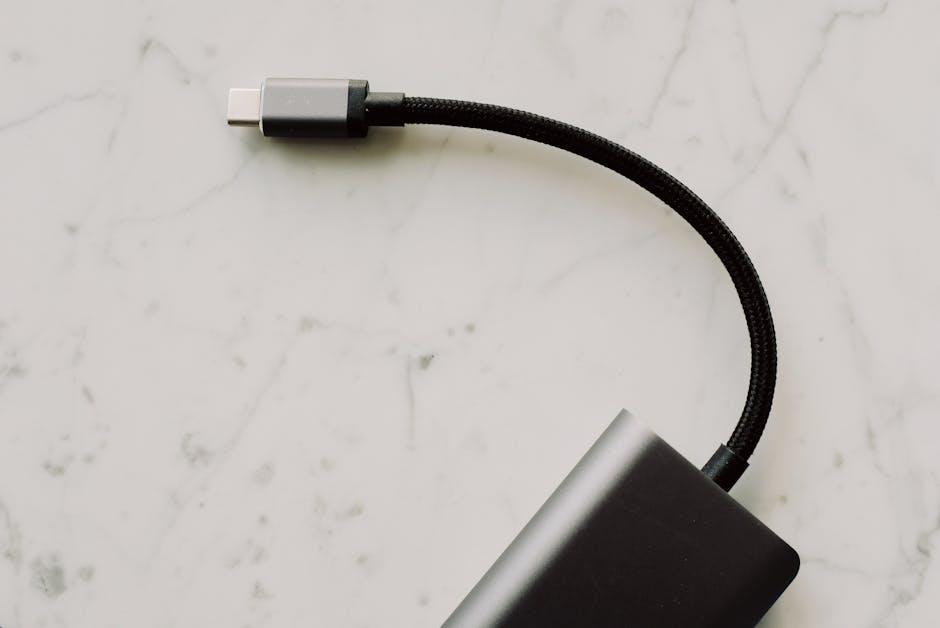
Even if your cable is perfect, your hub or dock can bottleneck you. Many docks share bandwidth across multiple outputs, and some only pass through certain USB modes.
What I’ve seen in 2026 setups: a laptop supports USB 3.2 Gen 2 or even Thunderbolt, but the dock’s internal controller limits you to USB 3.2 Gen 1 for storage devices. Meanwhile, it may still deliver excellent video output via DisplayPort/HDMI.
How to diagnose a dock bottleneck
Start with simple measurements rather than guesswork. On Windows, check device link speed in Device Manager for the USB device, and use a copy test against a known SSD.
Do this sequence to isolate variables:
- Test the SSD enclosure directly to the laptop USB‑C port (good cable).
- Test the same enclosure through the dock (same cable, same power conditions).
- Compare time-to-copy for a fixed folder size (for example, 10–20 GB).
- If performance drops, it’s the dock path—not the SSD or the cable.
Power + data through docks: separate failure modes
Here’s an original gotcha I learned the hard way: some docks provide enough power to charge your laptop, but route data through a lower-speed USB controller. So you get “fast enough charging” and “slow enough transfers” to convince you the cable is wrong—when the dock is actually throttling the data lane.
This is why I recommend treating charging and data performance as separate checklists. If you want consistent results, verify PD wattage and data mode separately.
People also ask: USB-C speed questions answered
Why does my USB‑C charger charge fast but my USB‑C data transfer is slow?
This usually happens because the cable (or port path) supports PD for charging but doesn’t support the higher-speed data mode you expect. Charge performance and data performance are negotiated independently.
In practice: try a known USB 3.x or Thunderbolt cable, and avoid charge-only cables. Also test the same device on a direct laptop port to rule out dock limitations.
How can I tell if my USB‑C cable supports fast data transfer?
Look for explicit specs like “USB 3.2 Gen 2,” “10Gbps,” “20Gbps,” or “Thunderbolt 3/4.” Packaging terms like “USB‑C cable” or “sync” are not enough.
You can also do a quick test: copy a 5–10 GB folder to an SSD enclosure and measure time. If your transfer rate looks like USB 2.0, the cable is likely wired for low-speed data.
Does USB‑C 100W charging mean I’ll get USB 3.2 speed too?
No. 100W refers to power delivery capability, not data throughput. A cable can be optimized for charging (thicker power conductors) and still be limited on the data side, especially in low-cost cable bundles.
For maximum compatibility, choose a cable that explicitly lists both PD wattage and the data standard you need.
What’s the difference between USB‑C and Thunderbolt using the same connector?
Thunderbolt is a higher-bandwidth data standard that typically supports far faster transfers and more advanced features like docking with multiple high-bandwidth peripherals. USB‑C is the connector; Thunderbolt is the capability.
If your device advertises Thunderbolt, you need a Thunderbolt-compatible cable and sometimes compatible docks for full performance.
Step-by-step: build a “real-world speed” USB‑C setup that actually works
If you want predictable charging and fast storage transfers, follow a repeatable setup flow. This is the method I use before I recommend cables to friends or deploy equipment for a project.
- Match power targets first: Confirm your charger’s wattage (e.g., 65W) and check whether your device asks for the same.
- Pick a data-capable cable: Choose one explicitly rated for the USB speed you want (Gen 2/Gen 2×2) or Thunderbolt.
- Verify with a real test: Copy a fixed folder to an SSD enclosure and measure time (don’t rely on marketing).
- Account for docks/hubs: If you use a dock, benchmark through it as well as direct.
- Separate “charging quality” from “transfer quality”: Use a power meter for wattage and a transfer test for throughput.
If you’re planning a secure workflow (for example, transferring sensitive data), consider how faster transfers can also reduce the time devices spend unattended during backups. For more security-focused guidance, you may like our article on USB security risks of data cables and devices.
Case studies from my gear bag: where people lose speed (and how to fix it)
Speed losses are rarely random. They cluster around a few predictable mistakes: using the wrong cable category, trusting a dock’s “it charges and displays video” claim, and misunderstanding what the port’s USB mode supports.
Case study 1: the “it charges fine” cable
I once helped a colleague who insisted their USB‑C cable was “definitely fast” because it charged their phone quickly. When we moved to an SSD enclosure for backups, their transfers were painfully slow.
The fix took two steps: replacing the cable with one rated for USB 3.x (explicit 10Gbps/20Gbps or Thunderbolt), and testing the enclosure directly into the laptop. Their backup time dropped dramatically without any changes to the SSD.
Case study 2: dock provides power but drops USB mode
In another setup, a dock delivered solid laptop power and a clean display, so everyone assumed the rest of the dock path was “full speed.” But storage transfers were capped compared to direct connections.
We confirmed it by copying the same dataset to the same SSD enclosure: direct USB‑C to the laptop was noticeably faster than through the dock. The outcome: we kept the dock for peripherals but swapped to a dedicated USB‑C port for storage-heavy transfers.
Case study 3: long cable surprises
High-speed data over USB‑C is sensitive to signal quality. A cable that works perfectly at 5Gbps may become unreliable or fall back at 10/20Gbps when it’s longer.
If you need maximum throughput for an SSD enclosure, keep the cable shorter and choose one designed for high-speed transmission. This is especially important when you’re using bus-powered setups.
How this ties into tech news, gadget reviews, and cybersecurity workflows
In gadget reviews, USB‑C often gets treated as a checkbox feature. But in 2026, USB‑C affects daily performance: charging speed, backup time, and even how quickly you can move firmware updates or security patches.
When you review devices, you can test charging watts with a power meter and transfer rates with a consistent SSD benchmark. That gives more actionable results than “fast charging: yes” or “USB‑C: yes.”
And because USB data connections can introduce security risks (like malicious devices posing as keyboards or mass storage), your best practice is to treat USB‑C cables and docks as part of your security surface. Our guide to securing your setup against bad USB devices goes deeper into threat modeling and practical defenses.
Conclusion: the actionable takeaway for real-world USB‑C speed
USB‑C Explained in one sentence: you get real speed when your power delivery, data mode, and cable specs all match the device and the port path. Charging speed and data speed are negotiated separately, so “fast charging” doesn’t guarantee fast transfers.
If you want fewer surprises this year, do three things: buy a cable that explicitly supports the data standard you need, verify PD wattage with a power meter when it matters, and benchmark through your actual dock/hub—not just direct connections. That’s the difference between USB‑C that works “on paper” and USB‑C that feels fast every day.
About the Author