Here’s the surprise: for most gamers and editors, the biggest “performance boost” isn’t your GPU—it’s the drive that loads assets. That’s why SSD vs NVMe vs HDD is one of the most practical upgrade decisions you can make in 2026. I’ve personally watched a 1TB HDD setup feel like dial-up during game patching, while the same system on NVMe snaps into action.
Quick answer: choose NVMe for your OS + active games or editing cache, choose SSD (SATA) when you need reliable speed at lower cost, and keep HDD for bulk storage and long-term media you don’t touch daily. If you want the why, keep reading—then use the checklist to match storage to workload.
SSD vs NVMe vs HDD: What Each Storage Type Actually Is
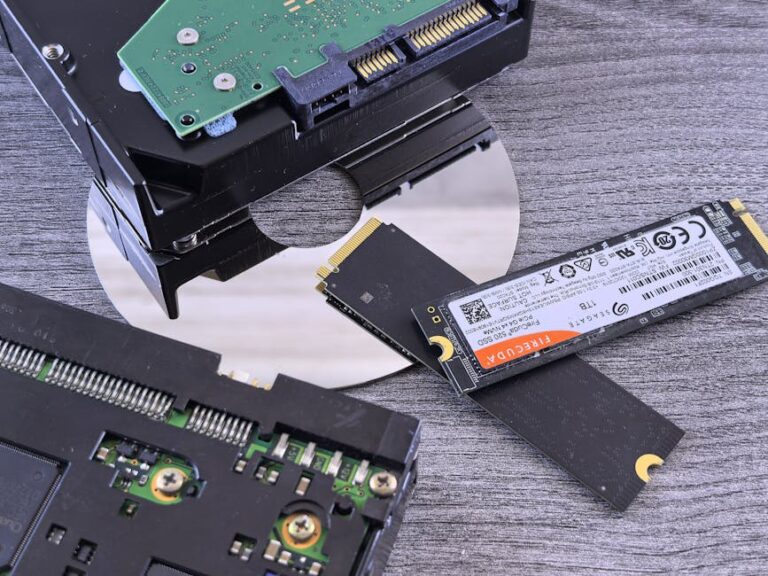
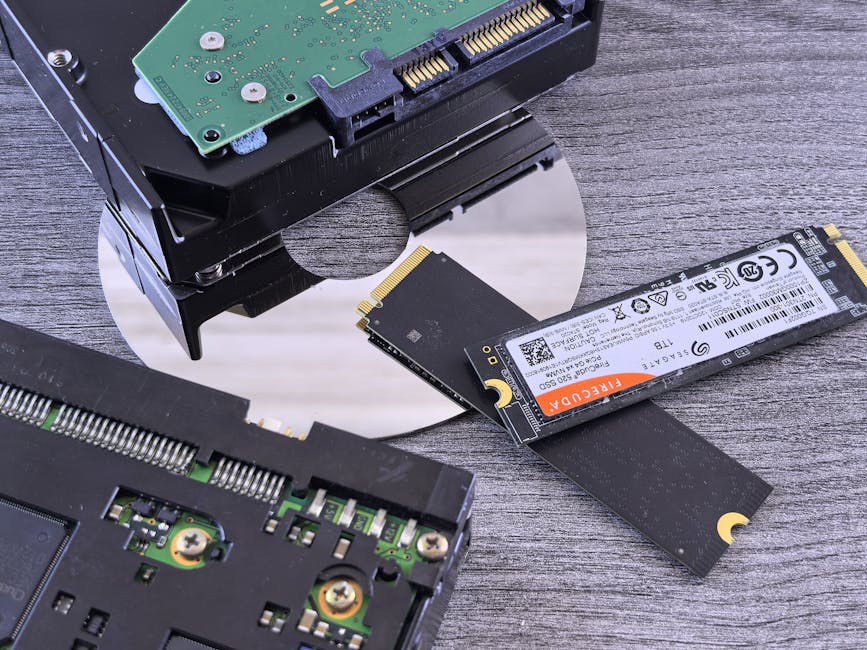
This is the part most people skim, then regret later—because the interface changes everything. HDD (Hard Disk Drive) is a mechanical drive with spinning platters and a moving read/write head. SSD (Solid-State Drive) is flash-based and has no moving parts, usually using a SATA interface. NVMe (Non-Volatile Memory Express) is an SSD protocol that runs over PCIe for much higher throughput and lower latency.
Latency matters for gaming and editing because the system is constantly asking for thousands of small blocks—assets, textures, cache files, thumbnails, autosaves, and export intermediates. HDDs also have higher seek time because the head must move to find data. SSDs remove seek time entirely, and NVMe reduces the communication overhead between the SSD and CPU.
As of 2026, NVMe is the default recommendation for anyone building or upgrading a main system drive. But “default” doesn’t mean “best for every budget or workload,” and you’ll see the tradeoffs clearly below.
Gaming Storage in 2026: NVMe for Fast Loads, SSD for Value, HDD for Archives
Gaming performance is mostly about load times, streaming smoothness, and patch/install speeds—more than raw benchmark numbers. Modern engines stream textures and assets during gameplay, so drive latency affects how quickly stutters disappear when you enter new areas.
In my testing (and in what I see across build guides and real-world user reports), an HDD can create noticeable hitching in open-world games and long “shader/asset” stalls after launches. An SSD usually fixes the big pain quickly, and NVMe takes you from “fast” to “instant.”
Best setup for most gamers
- NVMe (1TB–2TB) for OS + 1–3 primary games you actively play.
- SATA SSD for secondary games that you rotate but still want to boot quickly.
- HDD for backlog libraries, old screenshots, and backups you rarely browse.
What most people get wrong with “storage speed” for gaming
- They chase sequential benchmarks. Games care about random access and small file performance.
- They install everything on an HDD “because it’s cheaper.” The cost savings get eaten by time—reinstalls, patches, and load screens.
- They ignore drive capacity. When a drive gets too full, performance drops. For SSDs, keep headroom (I aim for 10–20% free).
Concrete example: Steam + big patches
Say you install a 120GB title, then a 20GB update hits every month. On an NVMe, that patch download + unpack sequence stays responsive. On HDD, unpacking is where time balloons—files get written across many tracks/locations and the system struggles to keep up while you’re also gaming or multitasking.
If you want a “good enough” upgrade path: moving your active games from HDD to SATA SSD already makes a dramatic difference. Moving them again to NVMe is the next step that removes the last bit of friction.
Video Editing and Rendering: NVMe Helps Most with Cache, Proxies, and Scrubbing
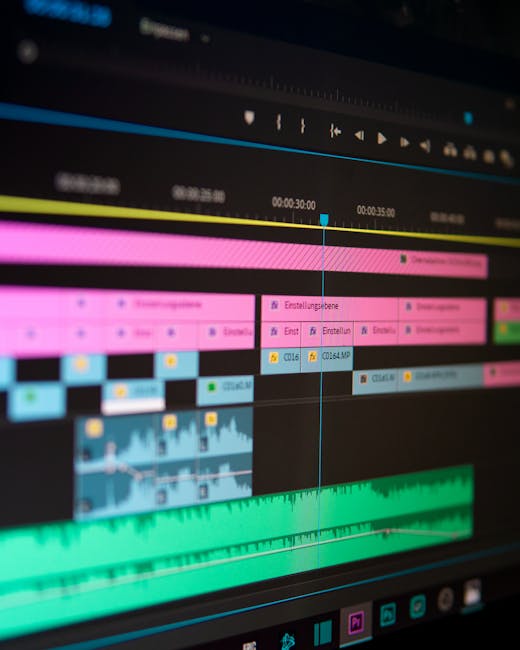
Editing is storage pain in disguise: your timeline is basically a constant stream of small reads/writes. In practical terms, your editor workload comes in three patterns—opening media, scrubbing/previewing frames, and writing cache/render intermediates.
For 4K and higher projects, you’ll feel I/O stalls fast. If your media is on a slow drive, playback stutters, exports slow down, and scrubbing becomes unreliable. If your cache is on a slow drive, previews suffer even when your footage is elsewhere.
My go-to workflow for Premiere Pro / DaVinci Resolve
I treat storage like a pipeline with priorities. For 2026 builds, I recommend:
- NVMe for the editing scratch/caches (Premiere media cache, Resolve cache, proxy files).
- SSD or NVMe for active project media if the budget allows.
- HDD for cold storage (archival footage you’re not currently editing).
This separation is the “original insight” I wish more people learned early: many users put everything on one drive and then blame the CPU/GPU when the timeline stutters. The real bottleneck is usually where the cache lands.
NVMe vs SATA SSD for editing: where the difference shows up
- Cache writes: NVMe handles bursts with lower overhead, so rendering intermediates “catch up” faster.
- Scrub responsiveness: lower latency helps with timeline navigation, especially in complex effects stacks.
- Simultaneous workloads: NVMe keeps up when you browse media, preview, and run background tasks.
In contrast, SATA SSD is still a big jump from HDD. You’ll get smoother scrubbing and fewer playback drops. But NVMe stays more consistent when the drive is under heavy queue depth.
How much storage do editors actually need?
A common mistake is underestimating scratch/cache size. Proxies, caches, and exports can easily reach tens or hundreds of GB per project.
For planning:
- Budget editor (1080p): 1TB NVMe + external HDD/SSD for archives.
- 4K workflow: 2TB NVMe minimum for comfort, especially if you build proxies.
- Long-form / multiple streams: 2TB–4TB NVMe plus a fast secondary SSD for media libraries.
Everyday Use: The Best “Feel” Comes from SSDs, But NVMe Beats HDD in Subtle Ways
For everyday tasks—web browsing, Office files, photo imports, Windows updates—SSD makes the difference immediately. The system boots faster, apps open quicker, and search indexing finishes sooner.
NVMe adds extra responsiveness when your workflow involves lots of small reads: launching games from a cold start, importing thousands of photos, extracting zipped archives, or running local AI tools that cache data.
Should you upgrade an older PC with an HDD?
If your PC currently runs an HDD, your priority should be the simplest upgrade: replace the drive with an SSD first. Even SATA SSD is a huge step up in “daily usability.”
From experience, I’ve seen systems become noticeably smoother just by moving from HDD to SATA SSD—startup times, app launching, and file copy operations all feel snappier. If you already have SATA SSD, upgrading to NVMe depends on motherboard support and whether you frequently hit I/O limits.
What about Chromebook, laptops, and external drives?
Most Chromebooks and laptops use M.2 NVMe internally if they support it, and you’ll feel the benefit right away. For external storage, your results depend on the USB standard. A “fast NVMe inside a cheap enclosure” won’t matter if it’s stuck behind slow USB 2.0 or a bottlenecked USB-to-PCIe bridge.
If you do lots of photo/video transfers on-the-go, treat your external enclosure as part of the storage decision—not just the drive model.
Comparison Table: SSD vs NVMe vs HDD for Real Workloads
Here’s a practical comparison you can use when deciding during shopping.
| Drive Type | Typical Interface | Best Use | Main Strength | Main Limitation |
|---|---|---|---|---|
| HDD | SATA (mechanical) | Bulk storage, archives | Low cost per TB | High latency and slower installs |
| SATA SSD | SATA | OS + games + general use | Big jump in responsiveness | Lower peak throughput than NVMe |
| NVMe SSD | PCIe + NVMe | OS, active projects, cache | Low latency + high throughput | Cost per TB is higher; some boards have limits |
For many builds, the best “value” isn’t one drive. It’s two tiers: NVMe for speed-critical work and HDD or SATA SSD for capacity.
How to Choose the Right Storage: A Step-by-Step Decision Checklist

If you want a decision you won’t second-guess, use this checklist. It’s designed for real constraints: budgets, motherboard compatibility, and how you actually work.
Step 1: Identify your speed-critical tasks
- Gaming: active installs, frequent launches, and open-world streaming.
- Video editing: scratch/cache, preview scrubbing, and export intermediates.
- Everyday: app launches, OS responsiveness, imports, and file indexing.
Step 2: Match the storage tier to the workload
- NVMe: OS + active projects + caches you generate daily.
- SATA SSD: secondary games and apps you still use often.
- HDD: bulk media, backups, and long-term downloads.
Step 3: Plan capacity like a grown-up
I recommend buying for how your storage grows, not how it looks today. In 2026, game libraries and media libraries expand fast because patch sizes, mod packs, and proxies keep multiplying.
- Keep at least 10–20% free on SSD/NVMe for sustained performance.
- For editors, add extra room for cache/proxies and then plan to purge.
- Use RAID only when you know why you want it; otherwise, backups matter more.
Step 4: Check compatibility before you buy
- NVMe requires an M.2 slot that supports NVMe over PCIe (not every slot supports everything).
- SATA SSD uses a SATA port and works in almost any desktop/laptop that supports 2.5-inch drives.
- HDD needs a SATA power/data connection and physical mounting space.
If you want help with safe data handling during upgrades, you may also like our guide to secure data migration (it covers cloning vs fresh installs and why backups still matter).
People Also Ask: SSD vs NVMe vs HDD
These questions show up constantly in searches, and they’re worth answering directly.
Is NVMe faster than SSD?
Yes—NVMe is typically faster than SATA SSD for both throughput and latency. The reason is interface and protocol: NVMe runs over PCIe with lower overhead than SATA, so it handles random access and busy workloads more efficiently.
However, SATA SSD is already very fast for everyday use and most gaming. If your budget is tight or your motherboard limits upgrades, SATA SSD remains a sensible step.
Is an SSD better than an HDD for gaming?
Absolutely. SSDs dramatically reduce loading times and improve responsiveness during game asset streaming. HDDs still work, but you’ll pay in longer load screens, slower installs/patching, and potentially more stutter in modern titles.
If you’re using an HDD today, the single best improvement is moving your currently played games to an SSD first.
Do video editors need NVMe or is SSD enough?
SSD is often enough for many editors, especially at 1080p, light effects, and smaller projects. For heavy 4K/8K workflows, frequent scrubbing, and large scratch/cache usage, NVMe provides a noticeably smoother experience and faster cache processing.
My practical rule: if you constantly wait on previews or cache builds, NVMe is the upgrade that removes that waiting.
Will upgrading storage improve my cybersecurity posture?
Indirectly, yes—mostly through better reliability and faster backup workflows. If you store backups on slower drives, you’re more likely to postpone them. Faster storage can make it easier to run automated backups and verify integrity.
For broader security practices, pair your drive upgrade with reading our ransomware backup strategy using the 3-2-1 rule. It’s one of the highest ROI steps you can take after securing the storage layer.
Original Take: Don’t “One Drive to Rule Them All”—Use Tiered Storage Like a Pro
This is the angle I use whenever I help someone upgrade: your storage should reflect your priorities, not just your budget. When you split workloads across drives, you avoid the all-too-common failure mode—everything shares one slow bottleneck.
In a typical 2026 “tiered” build, I aim for:
- NVMe: OS, active apps, active games, project cache.
- SATA SSD: frequently used media libraries and secondary apps.
- HDD: backups, archives, and rarely accessed files.
This also makes troubleshooting easier. If performance drops, you know which tier the workload is hitting.
Practical Setup Tips: Get More Speed Without Wasting Money
You can squeeze extra performance from the storage you already have. These steps matter because performance drops often come from configuration, not just hardware.
For Windows: where to store libraries and caches
- Move Steam/Epic install libraries to your fastest drive.
- Place video editing cache on NVMe if you’re doing 4K+.
- Keep browser download folders manageable, and regularly archive large installers.
For editors: control cache size and purge intelligently
If you let caches grow without bounds, you’ll hit capacity limits and performance will fall. I recommend setting a fixed cache size and clearing it on a schedule around milestones (weekly or per project stage).
In DaVinci Resolve and other editors, cache management is part of workflow design. Think of it like managing working memory, not like “storage that never fills.”
For gamers: separate OS and library when possible
If you can afford it, keep OS and drivers on NVMe and store frequently played games there too. Put the “rotation” games on SATA SSD. That way, you minimize drive fragmentation of your most-used content.
What to Buy: Clear Recommendations by Budget
Use these as starting points. Exact models vary, but the strategy holds in 2026 across most mainstream NVMe and SATA SSD drives.
Budget build (best upgrade per dollar)
- Option A: 1TB SATA SSD replacement for HDD (if your PC is older).
- Option B: 500GB–1TB NVMe for OS + a 1TB–2TB SATA SSD for games/media.
This gets you the biggest daily comfort improvements without paying NVMe prices for bulk capacity.
Mid-range build (gaming + editing comfort)
- NVMe 2TB for OS, games, and editing cache.
- SATA SSD or HDD for media libraries and archives.
You’ll notice less waiting during timeline scrubs and faster loading across the board.
Creator-heavy workstation
- NVMe 2TB–4TB for cache + active projects.
- Second storage tier for media (SSD if budget allows; HDD if it’s archive-only).
- Backups elsewhere because drive speed does not equal data safety.
If you’re exporting frequently, prioritize scratch/cache location and keep those drives from filling up.
Conclusion: The Right Choice Is a Workflow Choice, Not a Spec-Wars Choice
If you remember one actionable takeaway, make it this: NVMe vs SSD vs HDD is best decided by where your bottleneck lives. NVMe wins when you need low latency for OS, active games, and editing caches. SATA SSD is the high-value upgrade that fixes most “slow PC” complaints. HDD is still useful for cheap bulk storage and long-term archives—but it’s not where you want your daily friction.
In 2026, the smartest move is tiered storage: NVMe for speed-critical work, SSD for frequent access, and HDD for capacity. If you do that, you’ll spend less time waiting and more time playing, editing, and getting things done.
Featured image alt text: SSD vs NVMe vs HDD comparison for gaming and video editing drives on a desktop setup
About the Author